Off-Site Backups with Pull Architecture + rclone/rsync

I ended Part 1 with two backup layers in the same server room, and I still couldn't sleep, because copies sitting too close together aren't disaster recovery. They're convenience copies. This part covers pulling backups out of that room to complete 3-2-1.
At first, I intended to stop at Part 1 — redesigning my DirectAdmin backups from an FTP-dependent setup to NFS with an ACL trick, then keeping two layers: DA daily backups and weekly VM snapshots. But after thinking it through, I still wasn't comfortable, because both layers were in the same server room, with the hardware close together and even plugged into the same power strip.
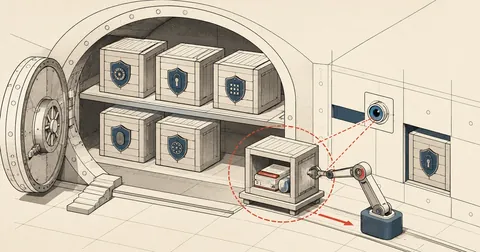
Think about a truly bad day — a server room fire, an outage that lasts until the backup batteries run out, both machines being stolen together, or ransomware deleting data on both machines at once. In those cases, I lose both copies in one go. A backup sitting too close to the live system isn't disaster recovery — it's just a copy that makes recovery convenient when one machine fails.
So I added Layer 3 — pulling backups out of the server room to another location to actually meet the 3-2-1 backup requirements. This article covers pull architecture, the tools I chose, and the pitfalls along the way that took quite a bit of time.
I kept the placeholder names from Part 1 and added one new host: web1 = DA server, bak1 = backup host (Proxmox + NFS), pull1 = the new pull host that fetches backups from bak1. Example IPs: web1 = 203.0.113.10, bak1 = 203.0.113.20, pull1 = 192.168.1.100 (on a different LAN). The user on bak1 that pull1 uses to fetch data is backupuser, which already has restricted permissions.
The 3-2-1 rule — checking what Part 1 was missing
Most people probably know the 3-2-1 rule already, but here's a quick review:
- Have 3 copies of the data
- Store them on 2 different media/locations
- Keep 1 copy off-site, away from the primary location
When I actually counted what I built in Part 1, it came to 2 copies + 2 media + 0 off-site:
- Copy 1 = live data on web1
- Copy 2 = backups on bak1, a second host, but actually in the same server room, with very similar hardware and plugged into the same power strip
By that rule, one requirement was still missing: "1 off-site". So I continued with Layer 3 — pulling data from bak1 to another machine outside the server room, with separate power, separate network egress, and a separate physical location. If things go badly enough to lose both hosts at once, I still have the data on pull1 to recover from.
Pull vs Push — why I chose pull
During the design, I had two options:
bak1 sends the data
- cron runs on bak1
- bak1 syncs data to the outside host
- bak1 must know where pull1 is
- bak1 must store pull1's credentials
pull1 fetches the data
- cron runs on pull1
- pull1 connects over ssh to fetch data
- bak1 doesn't know where pull1 is
- The SSH key stays only on pull1
I chose (B) Pull purely for security reasons:
- bak1 doesn't need to know where pull1 is — if bak1 is compromised, the attacker has no path to pull1
- pull1 initiates the connection itself, so its firewall can block all inbound traffic and allow only outbound traffic
- The SSH key stays only on pull1 — if bak1 is hacked, pull1's key is still safe
- If pull1 is hacked, the attacker can indeed pull data from bak1, but bak1 isn't written to — the primary data's write protection remains intact
Push has a drawback that many people overlook: bak1 must store pull1's SSH key or credentials. If ransomware gets onto bak1, it can carry the attack forward into pull1 and delete all the off-site backups in one go. A pull design addresses this from the start.
Let the safer machine (off-site) reach in to fetch the data, rather than having the machine at greater risk (in the server room) send it out. Connection direction is a security decision, not just a matter of convenience.
The pull host can be any host — it doesn't have to be Windows
Mine runs Windows Server because I already had this machine on the LAN doing other work, with around 10 TB of disk space available. But I wrote the code to be portable from the start, so it runs on Linux, Mac, and Windows:
| Component | Tool used | Portable? |
|---|---|---|
| Scheduler + daemon | Python 3 + apscheduler | All OSes |
| Per-file transfer (DA tarballs) | rclone | Binaries for all OSes |
| Big file resume (large vzdump files) | rsync (cwRsync on Windows) | Linux native, Windows via cwRsync |
| Config | YAML | All OSes |
| Logging | loguru (Python lib) | All OSes |
A dedicated Linux machine works as a pull host too, with no need to install cwRsync; just use the distro's rsync directly. The main difference I handled separately is path conversion from D:\... to /cygdrive/d/..., which Linux doesn't need to worry about: use /mnt/backup/... as usual.
Minimum pull host requirements:
- Enough disk space for roughly 4 weeks of data (about 4 TB in my case)
- Network — allow outbound port
<ssh-port>(SSH) to bak1 - Python 3.10+ with apscheduler, loguru, yaml
- rclone binary (
apt install rcloneorchoco install rclone) - rsync — Linux native or cwRsync on Windows
- Runs 24/7 — a server or a workstation left running will do
3-layer architecture (updated from Part 1)
Here's the overview after adding Layer 3:
┌──────────────────────────────────────────────────────────┐
│ Layer 1: PRODUCTION (live)                               │
│   web1 — DirectAdmin                                     │
│     - DA daily backup → /mnt/dabak (NFS ไปยัง bak1)      │
└──────────────────────────────────────────────────────────┘
                              │  NFSv4 (รายวัน)
                              ▼
┌──────────────────────────────────────────────────────────┐
│ Layer 2: ON-SITE BACKUP                                  │
│   bak1 — Proxmox + NFS server                            │
│     - /mnt/backup/dabak/admin/{Day}/  (DA per-day tars)  │
│     - /mnt/backup/vmdump/             (weekly VM snap)   │
└──────────────────────────────────────────────────────────┘
                              │  SSH/SFTP (pull)
                              │  initiated by pull1
                              ▼
┌──────────────────────────────────────────────────────────┐
│ Layer 3: OFF-SITE                                        │
│   pull1 — pull host (Linux/Win/Mac)                      │
│     /home/<user>/pull1-data/                            │
│       ├── daily/YYYY-MM-DD-Day/   (DA tarballs, 28d)     │
│       └── weekly/YYYY-MM-DD/      (VM snapshots, 28d)    │
└──────────────────────────────────────────────────────────┘
SSH key setup on bak1 — limited backup user
I use a separate user specifically for pulling backups — neither root nor a regular user. On bak1, I create the user and grant read access only to the backup directories through ACLs:
# สร้าง user
useradd -m -s /bin/bash backupuser
mkdir -p /home/<user>/.ssh
chmod 700 /home/<user>/.ssh
touch /home/<user>/.ssh/authorized_keys
chmod 600 /home/<user>/.ssh/authorized_keys

# ให้สิทธิ์อ่าน backup dirs
setfacl -m u:backupuser:rx     /mnt/backup
setfacl -m u:backupuser:rx     /mnt/backup/dabak
setfacl -R -m u:backupuser:rx  /mnt/backup/dabak/admin
setfacl -m u:backupuser:rx     /mnt/backup/vmdump
setfacl -R -m u:backupuser:rx  /mnt/backup/vmdump

# default ACL สำหรับไฟล์ที่จะถูกสร้างใหม่ภายหลัง
setfacl -d -m u:backupuser:rx /mnt/backup/dabak/admin
setfacl -d -m u:backupuser:rx /mnt/backup/vmdump
On pull1, I generate a new key pair:
# Linux/Mac
ssh-keygen -t ed25519 -f /home/<user>/.ssh/pull1_ed25519 -N ""

# Windows (PowerShell)
ssh-keygen -t ed25519 -f D:\Backups\.ssh\pull1_ed25519 -N '""'
Then I append the public key on bak1 with restrictions:
# บน bak1 — แก้ /home/<user>/.ssh/authorized_keys
cat >> /home/<user>/.ssh/authorized_keys <<EOF
from="192.168.1.100",no-port-forwarding,no-X11-forwarding,no-agent-forwarding,no-pty ssh-ed25519 AAAA<public-key-here> pull1
EOF
The important parts of this line:
from="192.168.1.100"— restricts access to pull1's IP. Anyone connecting from another IP cannot use this keyno-port-forwarding,no-X11-forwarding,no-agent-forwarding,no-pty— disables the shell, port forwarding, and all tunnels. This key can only be used for SFTP- During setup testing, I hadn't added a
command=restriction yet because I wanted to get the tests passing first. But for production, addcommand="/usr/lib/openssh/sftp-server"to actually restrict this key to SFTP only
A pitfall when setting up from=
At first, I added from="192.168.1.100" to the key, and every ssh attempt from pull1 failed. I spent two hours digging before I understood why.
The reason was that pull1 was behind NAT egress. When packets left the LAN, the source IP was no longer 192.168.1.100; NAT translated it to the ISP's public IP. So bak1 saw the ISP's public IP as the source, rather than the LAN IP I had locked it to.
The fix was to change from= to the actual public egress IP used by pull1:
# เช็ค public IP ขาออกของ pull1
curl ifconfig.me

# เอา IP ที่ได้ไปใส่ใน from= แทน LAN IP
# from="203.0.113.50"
So from= must be the IP that bak1 actually sees, not pull1's internal LAN IP.
If pull1's outbound public IP is dynamic (the ISP changes it periodically), a fixed IP restriction will break when the IP changes. In that case, consider a static IP, fixed egress, or relying on other key restrictions and leaving from= unrestricted.
Why I chose 2 tools instead of one — rclone + rsync
I use rclone for daily DA backups, which are folders containing multiple files (per-user tar.zst), and rsync for weekly VM snapshots, which are single, very large files. I split them because these two jobs are different in nature:
| Use case | Tool | Reason |
|---|---|---|
| Daily DA tarballs (multiple files) | rclone | parallel transfer, scheduled --bwlimit, clear progress display |
| Weekly VM snapshot (one large file) | rsync | --append-verify resumes large files interrupted mid-transfer |
rclone's strengths here:
- A native SFTP backend, with no mount needed
--bwlimit "03:00,80M 08:00,50M"switches automatically by wall clock--statsshows progress + ETA in a machine-parsable format for further processing- Parallel transfer of multiple files
rsync's strengths here:
--append-verify— if the partial file at the destination is exactly the same size as the source, it verifies the checksum and skips it; if smaller, it resumes from the end of the file- Very mature for TB-scale files
--partial --partial-dir=.partial-tmp— keeps partial transfers separately at the destination for resuming
Pitfall 1: rclone + Go SSH library + RSA-only host key
I hit this pitfall during the initial setup. rclone connected to bak1 and returned an error:
ERROR : Failed to copy: NewFs: couldn't connect SSH:
       ssh: handshake failed: ssh: no key found
Yet ssh worked fine directly from the command line. That had me puzzled for quite a while.
The reason was that rclone is written in Go and uses the golang.org/x/crypto/ssh package, which has an issue with known_hosts files containing only an RSA host key (no ed25519). My bak1 was a Proxmox host installed a long time ago, with only an RSA host key.
I tried two approaches. The first was a quick workaround I used during the initial setup: tell rclone to skip the host key check:
[bak1-sftp]
type = sftp
host = 203.0.113.20
user = backupuser
key_file = /home/<user>/.ssh/pull1_ed25519
known_hosts_file = ""    # skip
But this is unsafe; it leaves an opening for MITM attacks. Use it temporarily for testing only.
The permanent fix was to add an ed25519 host key on bak1:
# บน bak1
ssh-keygen -t ed25519 -f /etc/ssh/ssh_host_ed25519_key -N ""
systemctl restart ssh

# กลับมาที่ pull1 — re-trust host key
ssh-keygen -R 203.0.113.20
ssh -i /home/<user>/.ssh/pull1_ed25519 [email protected]
# ตอบ yes เพื่อบันทึก ed25519 fingerprint
After that, rclone connected normally and securely.
Pitfall 2: cwRsync on Windows (Linux users can skip this)
If the pull host runs Linux, skip this section — the distro's native rsync works fine. But mine runs Windows, so I needed cwRsync, a Cygwin port of rsync, and ran into two traps.
Trap 1 — the -a archive flag:
# Linux ปกติ
rsync -a src/ dst/      # ทำงานปกติ

# Windows cwRsync คำสั่งเดียวกัน
rsync -a src/ dst/
# Error: chown: Operation not permitted
# Error: chmod: ...
-a means -rlptgoD, which includes -p (perms), -o (owner), and -g (group). The Windows filesystem has no direct equivalent of POSIX perms/owner/group, so it fails. The fix is to use -rltD instead, dropping p/g/o:
rsync -rltD src/ dst/
# -r recursive  -l symlinks  -t times  -D devices/specials
Trap 2 — Windows paths vs Cygwin paths:
# Windows raw — พัง
rsync ... user@host:/src/  D:\Backups\dest\
# Error: path not found

# Cygwin format — ถูก
rsync ... user@host:/src/  /cygdrive/d/Backups/dest/
So I wrote a Python helper function to convert paths automatically:
def to_cygdrive(path):
    """D:\\Backups\\foo → /cygdrive/d/Backups/foo for cwRsync."""
    s = str(path).replace("\\", "/")
    if len(s) >= 2 and s[1] == ":":
        return f"/cygdrive/{s[0].lower()}{s[2:]}"
    return s
On Linux, this function isn't needed; pass the path directly.
Daemon orchestrator — Python + apscheduler + loguru
Instead of using cron on the pull host (Windows has no native cron, and Linux has it but it isn't flexible enough), I wrote a Python daemon to handle these tasks:
- Schedule cron-like jobs with apscheduler
- Run rclone/rsync as subprocesses and parse stdout to capture progress
- Write atomically to
current-progress.txtfor the console UI to read - Log through loguru (weekly rotation, 90-day retention)
- Use a lockfile to prevent two jobs from overlapping
- Run catch-up logic if the daemon is down when a job is scheduled
Config (YAML)
source:
  host: bak1
  ip: 203.0.113.20
  port: <ssh-port>
  user: backupuser
  key_file: /home/<user>/.ssh/pull1_ed25519
  known_hosts_file: /home/<user>/.ssh/known_hosts

destination:
  base: /home/<user>/pull1-data   # หรือ D:\Backups\pull1-data บน Windows

# Time-of-day bandwidth caps
bandwidth:
  - { time: "03:00", mbps: 80 }   # 03-08: full night
  - { time: "08:00", mbps: 50 }   # 08-17: throttled (office hours)
  - { time: "17:00", mbps: 80 }   # 17-03: full evening

retention:
  weekly_keep_days: 28
  daily_keep_days: 28
  log_keep_days: 90

jobs:
  - name: weekly_vmdump
    enabled: true
    transport: rsync
    cron_dow: "wed"            # วันที่ host ทำ VM snapshot
    cron_hour: 4
    cron_minute: 0
    source_path: /mnt/backup/vmdump/
    includes:
      - "vzdump-*.vma.zst"
      - "vzdump-*.log"
    dest_subpath: weekly/{date}
    max_duration_hours: 22

  - name: daily_da
    enabled: true
    transport: rclone
    cron_dow: "*"            # ทุกวัน
    cron_hour: 3
    cron_minute: 0
    source_path: /mnt/backup/dabak/admin/{Day}/
    dest_subpath: daily/{date}-{Day}
    max_duration_hours: 5
Bandwidth schedule reasoning
I set bandwidth limits for 3 windows based on how many users are active:
- 03:00-08:00 = full 80 Mbps — more bandwidth is available at night, so pulls finish quickly
- 08:00-17:00 = 50 Mbps — during office hours, I don't want to compete with users for bandwidth
- 17:00-03:00 = 80 Mbps — from evening into the night, speed up whatever is still pending
rclone accepts this bwlimit schedule directly:
rclone --bwlimit "03:00,80M 08:00,50M 17:00,80M" ...
It switches automatically by wall clock, with no extra logic for me to write.
Pitfall 3: Stale lockfile + PID recycling race
I ran into this when my daemon died once (a process kill or system reboot) and left the lockfile behind.
The symptom was that the new daemon started, saw the old lockfile, assumed another daemon was already running, and quietly exited.
My first naive fix was to check whether the PID in the lockfile was still alive:
def is_pid_alive(pid):
    try:
        os.kill(pid, 0)
        return True
    except OSError:
        return False
This worked on Linux, but on Windows I ran into PID recycling. After a Windows reboot, the old daemon's PID (say, 3564) might be recycled for another process (such as svchost.exe). PID 3564 really is "alive" now, but it is no longer my daemon.
I had a 2-day outage because of this pitfall — Windows booted, backup-daemon.bat fired, checked the PID file, saw "PID 3564 alive — already running", and exited. But the daemon never actually started, because PID 3564 was Windows svchost at that point.
Checking only whether a PID is alive is not enough. A PID can be recycled (Windows reboot) or reused (Linux process death) for another process. Verify that the process really is the daemon by checking ProcessName + CommandLine together.
The fix was to check the PID and verify that ProcessName = python.exe and CommandLine also contains daemon.py. On Windows, I use wmic:
for /f %%L in ('wmic process where "ProcessId=%RUNPID% and Name='python.exe'" get CommandLine /value 2^>nul ^| find /i "daemon.py" /c') do set ISDAEMON=%%L

if "%ISDAEMON%"=="1" (
    echo Already running — exit
) else (
    echo PID is recycled or random — break stale lock
    del "%PIDFILE%"
)
On Linux, I do the same through /proc:
def verify_is_our_daemon(pid):
    try:
        cmdline = open(f"/proc/{pid}/cmdline").read()
        return "daemon.py" in cmdline
    except (FileNotFoundError, PermissionError):
        return False
The lesson is that a truly safe lockfile pattern must verify identity, not just liveness. Linux and Windows have different edge cases, but the fix follows the same pattern.
Catch-up logic — the daemon returns after a long outage
A real example: the daemon was down for 2 days (say, a Windows update rebooted the machine and the daemon wasn't configured in Startup), missing 2 daily jobs. When the daemon started again at boot, I didn't want to wait for the next scheduled time, because the past 2 days of data hadn't been pulled yet.
So I added catch-up logic to the daemon: at startup, it scans the previous 2 days for jobs that should have run but didn't, then queues them to run sequentially after setting up the regular schedule:
# Pseudocode
def detect_missed_runs(job, lookback_days=2):
    """หา dates ที่ job นี้ควรทำใน N วันที่ผ่านมา แต่ไม่มี .complete marker"""
    today = datetime.now().date()
    missed = []
    for delta in range(1, lookback_days + 1):
        check_date = today - timedelta(days=delta)
        if not job_should_run_on(job, check_date):
            continue
        dest_folder = compute_dest_folder(job, check_date)
        marker = dest_folder / ".complete"
        if not marker.exists():
            missed.append(check_date)
    return missed
The .complete marker is an empty file the daemon creates after a job succeeds. It acts as a "stamp" indicating that the folder has been fully pulled, rather than left partially transferred.
From a user's perspective — the pull host stays on, but sometimes the daemon dies and I forget to restart it. This catch-up logic keeps the data complete without constant manual attention.
Live console + progress
While a job runs, I render progress into current-progress.txt every 2 seconds. It looks roughly like this:
══════════════════════════════════════════════════════
 Job: daily_da (Thursday)   [RUNNING]
══════════════════════════════════════════════════════
 Started:    2026-04-12 22:30:15
 Source:     bak1:/mnt/backup/dabak/admin/Thursday/
 Total size: 109.3 GB
──────────────────────────────────────────────────────
 [██████░░░░░░░░░░░░░░░░░░░░░░░░]  20.3%
 22.2 GB / 109.3 GB
──────────────────────────────────────────────────────
 Speed now:  9.4 MB/s  (≈ 78 Mbps)
 Average:    9.1 MB/s
 BW window:  80 Mbps
 Elapsed:    40m 12s
 ETA:        00:18  (~2h 12m remaining)
══════════════════════════════════════════════════════
I launch a separate console window to keep reading this file, refreshing every 1 second. I can see the status immediately from the pull host's desktop. On Linux, watch -n 1 cat /home/<user>/pull1-data/state/current-progress.txt is enough. On Windows, I use a batch file loop:
@echo off
:loop
cls
type D:\Backups\pull1-data\state\current-progress.txt
timeout /t 1 /nobreak >nul
goto loop
The benefit of this pattern is that the daemon writes status to a file and the console UI reads it repeatedly, decoupling display logic from the daemon — the daemon focuses on its work, and the UI can run anywhere.
Recovery — restoring from Layer 3
The key question is when to use Layer 3 instead of Layer 2. This table shows the decisions I use:
| Scenario | Restore source |
|---|---|
| 1 file belonging to 1 user is lost | Layer 2 (bak1) — closer, copy directly |
| A user's DB table is corrupt | Layer 2 — extract the per-user tar, then import SQL |
| Multiple users / wide damage | Layer 2 — vzdump on bak1 |
| web1 host crash + disk fail | Layer 2 — qmrestore vzdump on bak1 |
| bak1 host fail / data corruption | Layer 3 (pull1) — copy back to the new bak1 → qmrestore |
| web1 + bak1 fail together (room fire) | Layer 3 (pull1) — build a new host from 0 + restore |
Steps to restore from Layer 3 in the worst case:
# 1. ตั้ง host ใหม่ (Proxmox + DA)
# 2. SCP vzdump file จาก pull1 ขึ้น new bak1
scp /home/<user>/pull1-data/weekly/2026-04-10/vzdump-qemu-101-*.vma.zst root@new-bak1:/var/lib/vz/dump/

# 3. qmrestore บน new bak1
qmrestore /var/lib/vz/dump/vzdump-qemu-101-*.vma.zst <new_VMID>

# 4. VM up → restore latest DA daily ทับ vzdump อีกที
#    (vzdump = ของวัน Wed ที่แล้ว, DA daily ของ Sat/Sun ใหม่กว่า)
Don't forget that vzdump is a VM-level snapshot from last Wed, while the DA daily backup is newer. Restore vzdump first, then restore the DA daily backup over it to get the latest data.
Lessons from Part 2 — for others to use
While working on Part 2, I again had AI help me iterate through several rounds. This time there were even more pitfalls than in Part 1, involving cross-OS issues, network NAT issues, and race conditions. The overall lessons:
- Prefer Pull over Push for off-site backups as a basic secure design choice, reducing the source's attack surface
- The pull host needn't be tied to an OS — choose portable tools (Python + rclone + rsync). A dedicated Linux host works well, or repurpose an old workstation
from=in authorized_keys must be the public egress IP, not the LAN IP, because NAT has already translated the source- The rclone Go SSH library has an issue with RSA-only host keys — fix it by adding an ed25519 host key. Skipping host key checks leaves a long-term opening for MITM
- On Windows, use
-rltDwith cwRsync, not-a, and paths must be/cygdrive/d/..., notD:\... - Lockfiles must verify identity, not just liveness — PID recycling (Windows reboot) and PID reuse (Linux). Check ProcessName + cmdline together
- The
.completemarker pattern certifies that a folder has been fully pulled. During a catch-up scan, missing marker = partial = must run again - Scheduling bandwidth around user activity is simple to implement — use the full allowance at night and back off during the day. Regular users don't even notice a backup job is running
- Catch-up lookback — when the daemon returns after a long outage, scan back N days. A 2-day lookback is the sweet spot for me: not so long that work gets redone, not so short that jobs get missed
- The progress file pattern — the daemon writes status to a file, and the console UI reads it repeatedly. Decoupling the display from the daemon lets the daemon focus on its work
Overview of the complete backup architecture (parts 1 + 2):
Layer 1: web1 (DA live)
   │ NFSv4 hard mount
   ▼
Layer 2: bak1 (Proxmox + NFS + weekly vzdump)
   │ SFTP/SSH pull (cron บน pull host)
   ▼
Layer 3: pull1 (off-site, 28-day retention)
- Daily: DA per-user tar.zst → present in all 3 layers
- Weekly: VM-level vzdump → present in Layer 2 + 3
- 4 recovery levels: file → user → multi-user → full VM → off-site rebuild
- Resilience: hard mount + ACL health check + pull host catch-up + 28-day retention
This system wasn't fully designed on paper — it evolved through problems and fixes, one round at a time, as described in this article. I spent around 2 weeks designing, troubleshooting, and iterating before it settled into place.
Anyone adapting this architecture to their own setup should be able to use it directly, adjusting the tools as needed, such as Borg or Restic instead of rsync, or ZFS replication instead of rclone. The pull + 3 layers + retention + catch-up pattern works with any stack; the principles are the same.
If anyone has better tricks, such as immutable object storage, a write-once-read-many setup, or encrypted backups, share them in the comments. I haven't touched encryption yet; that's a task for the next iteration. I'll come back and correct any mistakes later.
Want us to set this up?
Get help with server setup, configuration, migration, or troubleshooting. Save time for the work that matters.
Hit something like this? Stuck somewhere?
Come trade notes on the LinuxThai board


Comments 0
No comments yet — be the first