Read a Toledo RS-232 Scale over Bluetooth with PowerShell

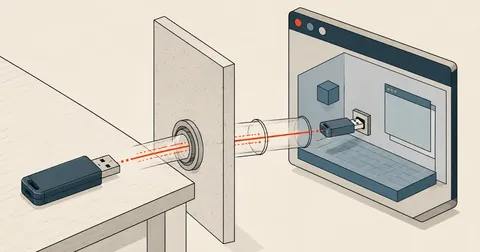
Most commercial scales still speak RS-232, but modern PCs no longer come with a DB9 port. My approach is to put a Bluetooth adapter in between so Windows sees an ordinary COM port. That leaves just one job — correctly decoding the frames it sends.
I had a job that required connecting a digital scale to a PC-based POS system. The problem was that the scale I was using (a TWT-01 with a 30kg capacity) only had an RS-232 DB9 port for data output, while PCs these days no longer come with a serial port. I put a Bluetooth adapter in between to give Windows a COM port it could read like a regular serial connection, then wrote PowerShell to pull the weight readings in real time. In this article, I cover the whole process, from wiring it up to the code I actually use to read the values.
The MAC address, COM numbers, and device names in this article are examples; the code and frame format are what I actually decoded from the scale.
Physical connections: scale to BT578 to PC
The key to the connection is the device in the middle — I use an IRXON BT578 v3. It is a transparent serial-to-Bluetooth bridge: RS-232 comes in on one side and Bluetooth SPP goes out on the other, without touching the data. Whatever byte the scale sends, it forwards that exact byte to the PC.
One common mistake is the M/S switch on the side of the BT578: it must be set to S (Slave), because I want the PC to discover it and open the connection, rather than have the BT578 search for another device. If it is mistakenly set to Master, the PC will not see it during a scan. Plug the BT578's male DB9 connector into the scale's port and power on both devices. If the BT status LED on the BT578 is blinking, it is ready to pair. If the pins do not match and there is no signal at all, try a gender changer and a null modem, but a direct connection usually works.
Pair Bluetooth and get two COM ports
On Windows, pairing works like any other Bluetooth device, but there are two things to know beforehand: the PIN and the pair of COM ports it will create.
- Open Settings -> Bluetooth & devices -> Add device -> Bluetooth
- Select the device that appears with a name beginning with BT578_SPP_XXXX
- Enter PIN 1234, the default for every BT578
- Wait for the status to show Paired, and Windows will create two virtual COM ports
The confusing part is that pairing gives you two COM ports, not one. One is outgoing and the other is incoming. The one I need to open is outgoing, because opening this port triggers the actual BT connection; incoming is the spare. The most reliable way to check is to open them one at a time and see which one receives bytes. The one that receives data is the one to use.
If 1234 does not work, the PIN on that device has been changed. Try 0000 first. If that still fails, perform a factory reset with an AT command (AT+RESET while BT is disconnected), then pair again.
Settings that must match: 9600 8N1
Both the TWT-01 and BT578 ship with the same serial settings. The short version is 9600 8N1 — baud 9600, 8 data bits, no parity, and 1 stop bit. If these are wrong, bytes will still arrive, but they will be unreadable garbage instead of clean ASCII. If you see garbage, check the baud rate first.
Another thing that cost me quite a bit of time initially was DTR and RTS. On some systems, the BT578 will not send data until the PC asserts both lines. When creating the SerialPort object, enable DtrEnable and RtsEnable as well; otherwise, the port will open, but you can wait all day without receiving a single byte.
$sp = New-Object System.IO.Ports.SerialPort 'COM5', 9600, 'None', 8, 'One'
$sp.ReadTimeout = 200
$sp.DtrEnable  = $true    # บาง BT578 ไม่ส่งข้อมูลจนกว่าจะ assert DTR
$sp.RtsEnable  = $true
$sp.NewLine    = "`r`n"
$sp.Open()
The frame format — 18-byte Toledo Continuous
The TWT-01 sends data continuously at roughly 3-4 times per second (every 250-330 ms) using a format called Toledo Continuous Protocol, a standard used by most Chinese scales. Each frame is 18 bytes long, all ASCII, ending with \r\n. Capturing the raw bytes with a dumper shows this:
53 54 2C 47 53 2C 2B 20 20 20 30 2E 30 30 6B 67 0D 0A
 S  T  ,  G  S  ,  +  SP SP SP  0  .  0  0  k  g  CR LF
Breaking it down field by field: the first two characters, ST, are the status, followed by GS, the weight type, then the + sign and the weight value 0.00, ending with the unit kg and CR LF. The two fields the POS code needs for its decisions are status and type:
The weight has settled
The reading is stable and ready to record on the bill — the POS code should only use it for billing when it sees ST.
Still moving
The item has just been placed on the scale, the indicator has not settled, and the reading is still changing — it can be shown on screen to the customer, but must not be used for billing.
The weight types are GS (Gross, total weight before subtracting tare) and NT (Net, weight after subtracting tare), and in NT mode the sign can be - if removing an item brings the weight below the stored tare value. The parser therefore needs to handle negative numbers too, rather than assume the weight is always positive.
Reading actual values with PowerShell
Now for the actual reader. My approach is not to read fixed 18-byte frames, because a single Read() may not return a complete frame (sometimes 12 bytes, sometimes 20, spanning two frames). Instead, I keep appending to a buffer, split frames on \r\n, and pass each line through a single regex. If a line does not match, I discard it (the frame is incomplete).
# ST|US , GS|NT , (+|-) ช่องว่าง + ตัวเลข + หน่วย
$framePattern = '^(ST|US),(GS|NT),([+-])\s*(\d+(?:\.\d+)?)(\w+)$'
$buffer = ''

while ($true) {
  $n = $sp.BytesToRead
  if ($n -gt 0) {
    $bytes = New-Object byte[] $n
    $read  = $sp.Read($bytes, 0, $n)

    # กรอง null byte ที่โผล่มาก่อน handshake เสร็จ (สำคัญมาก อ่านหัวข้อถัดไป)
    $text = -join ($bytes[0..($read-1)] |
      Where-Object { $_ -ne 0 } | ForEach-Object { [char]$_ })
    $buffer += $text

    # ตัด frame ด้วย \r\n ไม่ใช่ตัดตามความยาวคงที่
    while ($buffer -match "(.+?)`r`n") {
      $line   = $Matches[1]
      $buffer = $buffer.Substring($Matches[0].Length)

      if ($line -match $framePattern) {
        $stable = $Matches[1] -eq 'ST'      # ST = นิ่ง, US = ยังกระดิก
        $type   = $Matches[2]               # GS | NT
        $value  = [double]$Matches[4]
        if ($Matches[3] -eq '-') { $value = -$value }
        $unit   = $Matches[5]
        Write-Host ("{0,10:N2} {1}  stable={2}  {3}" -f $value, $unit, $stable, $type)
      }
    }
  }
  Start-Sleep -Milliseconds 30
}
This single regex does two jobs at once — extracting values and filtering out bad frames. If an unexpected byte appears in the middle of a line (such as 1.3O instead of 1.30), it fails to match and is dropped automatically, so a bad reading cannot accidentally be used for billing. Personally, I prefer this fail-and-drop approach to trying to repair incomplete frames, because the scale already sends 3-4 frames per second; nobody will notice one bad frame being discarded.
Do not hardcode COM5 — find the port by MAC address
What will cause trouble later is that COM port numbers are not fixed. If the device is unpaired and paired again, Windows may assign a new number (COM5 becomes COM9). If COM5 is hardcoded in the app, it will break as soon as the number changes. What does not change is the BT578's MAC address, so I store the MAC in the config and have the app find the current COM port from that MAC at startup.
The MAC is in the PnpDevice InstanceId (embedded after DEV_), while the current COM port is in the registry under BTHENUM:
function Get-BT578Mac {
  $dev = Get-PnpDevice -Class Bluetooth -ErrorAction SilentlyContinue |
    Where-Object { $_.FriendlyName -match 'BT578' } | Select-Object -First 1
  if (-not $dev) { return $null }
  if ($dev.InstanceId -match 'DEV_([0-9A-F]{12})') {
    $raw = $Matches[1]                                   # เช่น AABBCC112233
    return ($raw -split '(..)' | Where-Object { $_ }) -join ':'   # AA:BB:CC:11:22:33
  }
}

function Get-BT578ComPort {
  param([string]$MacRaw)                                 # AABBCC112233 (ไม่มี :)
  $mac = $MacRaw.ToUpper()
  $enumBase = 'HKLM:\SYSTEM\CurrentControlSet\Enum\BTHENUM'
  if (-not (Test-Path $enumBase)) { return $null }

  $ports = @()
  Get-ChildItem $enumBase -Recurse -ErrorAction SilentlyContinue |
    Where-Object { $_.Name -match $mac } | ForEach-Object {
      $paramPath = Join-Path $_.PSPath 'Device Parameters'
      if (Test-Path $paramPath) {
        $p = (Get-ItemProperty $paramPath -ErrorAction SilentlyContinue).PortName
        if ($p) { $ports += $p }
      }
    }
  return ($ports | Select-Object -Unique)
}

# ใช้งาน: เก็บ MAC ไว้ใน config แล้วเรียกหา port ตอนเปิดแอป
Get-BT578ComPort -MacRaw 'AABBCC112233'   # -> COM5 (หรือเลขปัจจุบัน)
This way, if the user changes devices or unpairs and pairs again, they only need to run the setup wizard once to save the new MAC. All the existing code keeps working, without having to edit the COM number in the configuration file every time.
Pitfalls I encountered in practice
I ran into these three issues myself and am writing them down so others do not waste the same time.
1. Null bytes at the start of the stream When the COM port first opens, roughly 200-400 bytes of 0x00 arrive before the actual data, because the BT578's BT handshake sends framing nulls before the bridge becomes fully active. Unless these are filtered out, the first buffer will be a mess. That is why I put Where-Object { $_ -ne 0 } first on every pass through the loop above.
2. Scale auto-sleep If nothing is on the scale or there is no movement for around 1-2 minutes, it goes to sleep and stops sending bytes even though BT remains connected. The symptom is an open but silent port. Do not set a short timeout and throw an error that alarms the user. I have the UI show "Waiting for an item..." instead. Once someone places an item on the scale, it wakes up and resumes sending data on its own.
3. BT disconnecting midway If the devices are too far apart or there is interference, BT may disconnect. If reading BytesToRead throws an exception, close the port and reopen it. The dashboard I built uses automatic reconnection with a backoff of 1 second, 2 seconds, and 4 seconds, capped at 10 seconds so it does not keep retrying rapidly and consume CPU.
When an item is first placed on the scale, it sends several US (Unstable) frames with changing readings before settling to ST — if the code uses the first reading for billing, the weight will be wrong, which can either overcharge the customer or cost the shop money. The one rule is to always wait for ST before locking in the reading.
For an over-range case (a load exceeding capacity), the scale probably sends OL instead of a number. I have not tested this thoroughly yet, but with the fail-and-drop approach above, it will fail the regex match and be dropped automatically. Alert logic can be added later; it will not let a bad value into the system anyway.
Feel free to use this approach with other brands of scales, since Toledo Continuous is a standard used by many Chinese scales. In most cases, adjusting the regex and unit should be enough. If I have missed anything in the explanation or made a typo, I will come back and correct it later.
Hit something like this? Stuck somewhere?
Come trade notes on the LinuxThai board

Comments 0
No comments yet — be the first