Driving SketchUp with Claude Code, Part 1 — uv and PyNite Setup
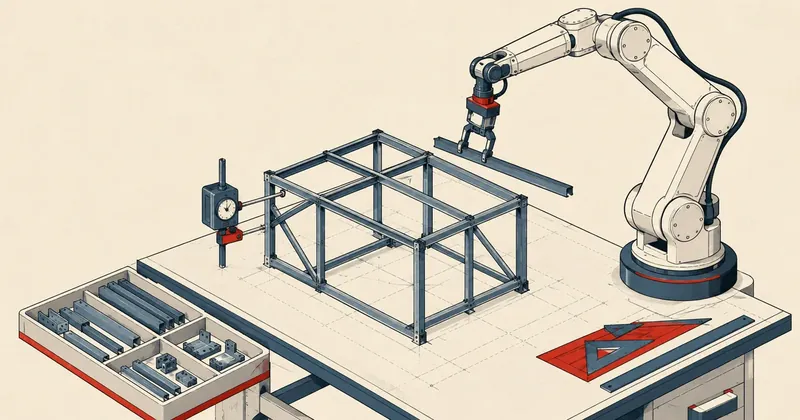
I tried using Claude Code to drive SketchUp, draw a steel structure, and calculate its strength in one go. I worked through it until I had a complete steel building. This part starts with the most tedious job, getting the machine ready.
Recently, I tried using Claude Code running in VS Code to drive SketchUp, draw a 3D steel structure, and finish the structural calculations in one go. I worked through it until I had a complete steel building with a mono-pitch roof, along with FEA strength analysis results. I could see that it was useful in practice, more than just a toy, so I wanted to share the process as a series. I split it into 3 parts following the steps I actually took, without editing the process to make it look smoother than it was.
This is Part 1, covering machine setup only, with no drawing yet. My starting point was VS Code with the Claude Code extension installed and logged in (I use a monthly subscription), plus SketchUp already installed. From there, I had Claude prepare all the remaining tools itself, from installing the runner and Python to the calculation library.
How the system fits together
Before getting started, I want to show where each component I am about to install fits into the system. Otherwise, it is easy to install things without understanding why they are needed.
At the core of the drawing side, Claude Code in VS Code talks to an intermediary called an MCP server over stdio. This MCP server runs through uvx and sends TCP signals to a port on the machine (in this series, I will represent it as <port>). On the other end, a Ruby plugin inside SketchUp receives commands and does the actual drawing. Put simply, Claude issues instructions, MCP translates them, MCP sends them through the port, and the SketchUp plugin carries them out.
Structural calculations run on a separate branch, with no direct connection to SketchUp. I use PyNite, an FEA tool written entirely in Python, in a separate conda env so it does not conflict with the machine's main Python installation. So all I do in Part 1 is get everything ready for both branches. That is all; I have not connected them yet.
1. Set Claude to Full Access first
Preparing the machine and building models over long sessions require Claude to run many sets of commands in succession, installing programs, creating files, and running test scripts. Sitting there approving every command one at a time would be impractical and a waste of time. So I set the permission mode to Bypass permissions from the start. This option is in the lower-right corner of the Claude panel, near the input box; select the bottom option.
In this mode, Claude can run any command on its own without asking first, including commands that could delete files. So it needs to be clear from the start that this is a double-edged sword.
Bypass permissions mode lets Claude run any command without asking, including commands that can delete files. Use it only with projects or folders you trust. If unsure, switch back to Ask before edits and approve each action yourself; that is much safer.
Giving it instructions is straightforward: type into the input box at the bottom of the Claude panel, in Thai if you like, then press Enter. It will work in that panel, running terminal commands, editing files, creating files, and reporting the results for you to read. The instruction boxes I show throughout this series contain the text I typed into this input box, not commands I entered myself in the terminal.
2. Have Claude inspect the machine before installing anything
I do not like installing duplicates of things I already have. It just clutters the machine and sometimes leaves overlapping installations that become confusing later. So before installing anything, I have it inspect the machine to see what is already available, then list what is missing. This is what I typed into the Claude input box.
สำรวจเครื่องนี้ให้หน่อย: มี SketchUp เวอร์ชันอะไร, Python/conda env อะไรบ้าง,
มี uv/uvx, git ไหม แล้วสรุปว่าต้องเตรียมอะไรเพิ่มสำหรับงาน
"ขับ SketchUp + วิเคราะห์โครงสร้างด้วย FEA" — ยังไม่ต้องลงอะไร
It then works through the checks itself, calling where or Get-Command to find programs in PATH, checking conda env list to see which environments are already available, and reading the SketchUp path to determine which version is installed. It then produces a list of missing items. Usually, those are uv/uvx and the FEA calculation library; anything else already installed can be skipped. The important part here is that I explicitly say "do not install anything yet" so it stops at a report, rather than immediately installing everything it finds missing.
3. Install uv, the MCP server runner
The MCP server will run through uvx, which is part of uv. I chose a standalone uv installation because it stays separate and does not interfere with the machine's main Python installation. One installation takes care of it. Here is what I typed.
ติดตั้ง uv (standalone installer ของ astral) ให้หน่อย แล้วยืนยันเวอร์ชัน
It then runs something like this in PowerShell.
irm https://astral.sh/uv/install.ps1 | iex
uv --version          # ได้ uv 0.11.x ที่ %USERPROFILE%\.local\bin
The installer places uv under the user folder without touching the system Python. Once uv --version prints a version, this branch is ready. uvx will be available too, since it comes bundled with uv.
4. Install conda and create an env with PyNite
Now for the calculation branch. For structural analysis, I use PyNite, an FEA frame calculation tool written entirely in Python, with no compiler dependencies to deal with. I manage Python with conda to keep the environment separate and avoid conflicts with the machine's main Python installation. If conda is not installed yet, I can simply ask Claude to install Miniconda silently. Anyone who already has Anaconda can skip that installation step and go straight to creating the env. Here is what I typed.
เช็กว่ามี conda ไหม ถ้าไม่มีช่วยลง Miniconda แบบ silent (ลงเฉพาะผู้ใช้ ไม่ยุ่ง PATH ระบบ)
แล้ว conda init powershell ให้ด้วย จากนั้นสร้าง env ชื่อ ml313 (Python 3.13)
ลง PyNiteFEA + numpy แล้วทดสอบ import ว่าผ่าน
The commands it actually runs to create the env, install the library, and test it look something like this.
conda create -n ml313 python=3.13 -y
conda run -n ml313 pip install PyNiteFEA numpy
conda run -n ml313 python -c "from Pynite import FEModel3D; print('PyNite ok')"
The last line tests the import. If it prints PyNite ok, the library is ready to use and nothing is missing.
On Windows, typing python on its own may hit the Microsoft Store stub, which can silently return with no output and leave you confused. When running FEA scripts, always use conda run -n ml313 python ... or a full path such as ...\envs\ml313\python.exe to get the intended Python every time.
Checklist at the end of Part 1
Before moving on to Part 2, every item here needs to be in place. I recommend checking them line by line, because moving on with something missing can leave you stuck when connecting the components in the next part, making the cause harder to find.
VS Code + Claude Code + login, with the Claude panel visible / SketchUp installed / uv and uvx available, with uvx --version printing a version / conda, whether Miniconda or Anaconda, with conda --version printing a version / env ml313 has PyNiteFEA installed and passes conda run -n ml313 python -c "import Pynite" / git installed, ready to clone the plugin repo in Part 2
That is it for Part 1. To be clear, nothing is connected to SketchUp yet. I have only prepared the tools for both branches; not a single line has been drawn. Part 2 will cover setting up the plugin so Claude can see and actually drive SketchUp through MCP. There are 2 bugs people often run into there, and I will explain how to prevent them from the start so you do not have to waste time figuring them out yourself.
Continue to Part 2 — Connect the MCP plugin to SketchUp at /article/sketchup-claude-2-mcp-plugin
If I have written anything incorrectly, I will come back and fix it later. Feel free to adapt this to however your own machine is set up. The preparation principles are the same throughout.
Hit something like this? Stuck somewhere?
Come trade notes on the LinuxThai board


Comments 0
No comments yet — be the first