Put an Idle VPS to Work with WireGuard — A Complete Client Guide
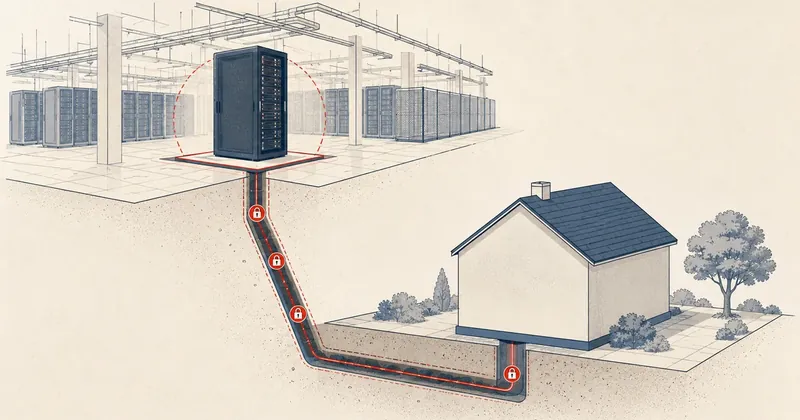
The VPS I signed up for at the start of the year was sitting idle, and I had no idea what to do with it. So I turned it into a permanent back door into my home network with WireGuard, and I have used it every day since. This guide covers every client-side step I actually use.
Many people probably rented a VPS at the start of the year because of the openclaw trend. But by now, anyone who can afford it has probably seen that the cloud AI ecosystem, both Claude and GPT, is good enough that there is no longer a need to set up multiagent systems and burn tokens on your own VPS to get more capability. The result is an annual VPS subscription sitting idle: already paid for, but unused. Leaving the machine running with nothing to do feels like a waste of the rental fee.
So I wrote this post for three groups of people.
- People who signed up for an annual VPS plan and still do not know what to use it for next
- People still using claw who want to get a little more use out of the same VPS
- People with the same problem I had: I had already requested the full quota of 10 firewall ports for my home IP, but still wanted to VPN into my home machines anytime without dealing with more port forwarding
WireGuard fits this need exactly. You can turn that idle VPS into a permanent way into your home network, with no extra investment, and get more use out of what you have already paid for.
A Quick Overview Before Getting Started
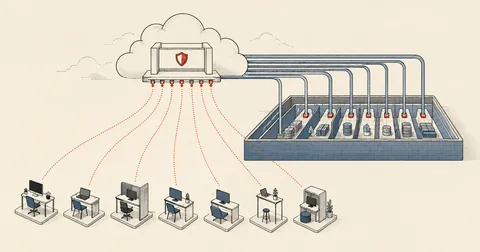
The idea is simple. Use a VPS with a static public IP as a "meeting point," or hub. The home gateway (a Raspberry Pi, an old mini PC, or a router that can run WireGuard) and your laptop or phone each "dial out" to connect to the VPS themselves. Once both sides are connected to the hub, they can communicate as if you were sitting on your home LAN.
What I like most is that, because both sides dial out to the VPS, there is no need to open or forward even a single port at home. The home machine connects outward to the VPS itself. Nothing outside needs to initiate a connection to it. That directly solves the problem of having used up the port quota.
It also uses a split tunnel: regular internet traffic goes out directly as usual, without taking a slower detour through the VPS. Only traffic destined for the home LAN goes through the tunnel. Leaving the VPN on all day does not affect normal internet speed.
1. What You Need
The main thing to prepare is a config file for each device, one file per device. Prepare as many as you need in advance. I made 10 sets, from client01.conf to client10.conf, along with a summary file listing which config uses which IP so I do not get confused when picking one.
wireguard-clients/
   client01.conf   client02.conf   ...   client10.conf
   INDEX.txt   (สรุปว่าแต่ละชุดเป็น IP อะไร)
Never use the same config file on two devices at the same time. They will share the same key and compete for the connection, causing both to connect and disconnect intermittently. Always use the next clientNN.conf file for a new device. Do not reuse an existing one.
2. Install the WireGuard App
For the app, I want to stress that you should download the genuine version from its publisher only. Do not download it from unofficial sources, because this directly affects the security of the tunnel.
- Windows — Download from wireguard.com/install (or Microsoft Store), install it, and open the program
- macOS — Search for WireGuard in the App Store, install it, and open it from the menu bar
- Android — Search for WireGuard in the Play Store and choose the one published by WireGuard Development Team
- iOS / iPad — Search for WireGuard in the App Store, then open the app
3. Import the Config
Once the app is installed, the next step is to import the config file. The process differs slightly between computers and phones.
On a computer (Windows / macOS), use the file directly.
- Open WireGuard and click Import tunnel(s) from file (or Add Tunnel → Import from file)
- Select the
clientNN.conffile you want to use (for example,client01.conf) - A tunnel named
client01will appear in the list
On a phone (Android / iOS), scan a QR code or use a file.
- Tap +, select Create from QR code, and scan the QR code for that config
- Or, to use a file, first send the
.conffile to your phone (LINE/email/drive), then tap + and select Import from file or archive
Open the config's QR image (for example, client01.png) on your computer screen. Then, in the mobile app, tap + → Create from QR code and scan it directly from the screen. There is no need to send files back and forth and risk exposing them.
The QR code has a private key embedded in it. Never post or share the QR image publicly. Anyone who gets the QR image also gets the key to your home network.
4. Activate and Check
Once imported, the tunnel is ready to activate.
- Click Activate (on a computer) or turn on the switch (on a phone) for that tunnel
- Within a few seconds,
latest handshake: a few seconds agowill appear, meaning it is connected - Check Transfer: if the received counter increases, data is actually flowing in both directions
This matters: you must test from outside your home LAN. For example, turn on mobile data and disconnect from your home wifi before trying it. If you are still on the same network as the gateway, you will not see a difference because you can already reach your home machines without the VPN.
5. Everyday Use — Accessing Home Machines
With the VPN on, you can access your home machines directly using their internal IPs, just as if you were at home. There is no need to remember a public IP or deal with DDNS.
# SSH เข้าเกตเวย์ที่บ้าน
ssh [email protected]

# SSH เข้าเครื่องอื่นในวง
ssh [email protected]

# Remote Desktop (Windows) ใส่ใน client RDP
192.168.1.20

# เปิดเว็บ / NAS / บริการในบ้าน
http://192.168.1.x
Machines I access frequently on the network (example IPs): Home gateway 192.168.1.10 (handles NAT to the LAN, SSH) · PC/IoT machine 192.168.1.20 (SSH/RDP) · NAS/internal server 192.168.1.30 (web/file sharing) · All other machines on the network are also accessible through the gateway, just as if you were connected to a LAN cable at home.
6. Common Troubleshooting
Most of these are minor issues. Checking the following items one by one will usually reveal the cause.
- No handshake at all — Check that the device has internet access, the VPS is online, and
Endpointin the config matches the VPS's actual IP:port. Try turning the tunnel off and on again - The handshake appears, then disappears intermittently — This is normal. The 25s keepalive will bring it back. When mobile data switches cell towers, WireGuard follows automatically. No action is needed
- Connected, but cannot access internal IPs — Check that
AllowedIPsin the config also covers the home LAN range, and that the home gateway is on - Can access the gateway, but not another destination machine — Usually, the destination machine's own firewall is blocking access; it is not a VPN problem. Try connecting to the actual port (SSH/RDP) instead of pinging, because many machines are configured not to answer ping
- Turning on the VPN slows down all internet access on the device — This should not happen because I configured a split tunnel. If it does, check that
AllowedIPshas not accidentally been set to0.0.0.0/0 - Two devices connect at once and take turns disconnecting — This means they are using the same config. Use a separate
clientNN.conffile for each device
7. Addressing Plan (Reference)
These are the values I set up, for anyone who wants to see how I assigned IPs to avoid conflicts (all numbers are examples — adjust them for your own setup).
- Inside the WireGuard tunnel, I use
10.10.0.0/24— VPS =10.10.0.1, home gateway =10.10.0.2, clients start at10.10.0.3and continue upward - Server endpoint —
203.0.113.10:51820 - Client AllowedIPs —
10.10.0.0/24,192.168.1.0/24
You can change these ranges to whatever addresses you prefer, as long as the VPS and home configurations match. The principles are the same.
8. For Those Managing the Server Themselves
To check from the server side which peers are connected, use wg show on either side.
# ดูสถานะ tunnel บน VPS (hub)
ssh [email protected] "wg show"

# ดูบนเกตเวย์ที่บ้าน
ssh [email protected] "sudo wg show"
To add more clients than you prepared, generate a new config, add the new [Peer] block to the VPS's wg0.conf, then reload with wg syncconf without disconnecting the tunnels already in use. This can be done without affecting anyone currently connected.
# reload config ใหม่ไม่ต้องตัด tunnel เดิม
wg syncconf wg0 <(wg-quick strip wg0)
Configure the home gateway to perform NAT (masquerade) onto the LAN, and open just the WireGuard UDP port in the VPS firewall. One more thing not to forget: configure wg-quick to start automatically at boot on both sides, so you do not have to start it manually after every restart.
# ตั้งให้ wg-quick ขึ้นเองตอนบูต (ทั้ง VPS และเกตเวย์บ้าน)
systemctl enable --now wg-quick@wg0
I use this setup to access my home network every day. Since setting it up, I have not had to touch port forwarding on the router again. The VPS I had left idle now gets much more use, going from a machine I was paying for and wasting to a back door into my home network that I can rely on every day. Feel free to adjust the IP range or use a different port. The principles are the same.
Want us to set this up?
Get help with server setup, configuration, migration, or troubleshooting. Save time for the work that matters.
Hit something like this? Stuck somewhere?
Come trade notes on the LinuxThai board

Comments 0
No comments yet — be the first