Cloudflare Token Error 9109 Despite an IP Allowlist: IPv6

An allowlist containing only IPv4 works fine until one machine chooses IPv6, and everything breaks even though every IP in the list is correct. Guessing from ISP names does not help. What helps is examining evidence of who actually called the API and where the requests came from.
1-minute summary
- Symptom / problem
- A Cloudflare token locked by IP allowlist returns error 9109 on one machine even though the ISP range is listed.
- Who should read
- People using IP-restricted Cloudflare API tokens from several machines or ISPs.
- Fix in short
- Read the audit log to see the real caller, find that the machine goes out over IPv6, and add the ISP IPv6 /32 to the allowlist without changing the token.
I had been using a Cloudflare token restricted by an IP allowlist for a while when another machine (which I call host-b in this article) suddenly could not fetch statistics and got error 9109. My main machine could still use the same kind of token normally, and all the IPs I knew belonged to the same ISP were already in the list. I had to work through what exactly did not match. This article follows the order in which I made the wrong guesses, then gathered evidence until I found the cause. I have replaced all IPs, ranges, ASNs, and token names in this article with example values.
Symptoms: the same token works on one machine, but another gets 9109
I restricted the token with Client IP Address Filtering because my home connection uses CGNAT, and its outbound IP can change frequently. Leaving it unrestricted would mean a leaked token could be used from anywhere. I wanted it to work only from the network of the ISP I use. I briefly explained why I needed entire ranges instead of a single IP in a callout in my article on DNS and grey mail records. This article is a follow-up that goes deeper into "how to find the ranges" and "the traps that remain."
Initially, the list had just 3 entries: two /16 ranges and one /32. It worked as long as the outbound IP fell within those two /16 ranges. The project owner noticed that on some days, the IP they saw was outside the familiar group, and when host-b started using the token too, it immediately got 9109.
Two wrong guesses before I had evidence
My first guess was that ISPs in the same corporate group might use different ASNs (the mobile operator and another ISP that had merged). I looked up the group's blocks and added them to the list. Once that was done, it turned out to have nothing to do with host-b's problem. The 9109 remained.
My second guess was that the IPs the project owner saw "outside the group" probably belonged to someone else's mobile connection, VPN, or WARP. This was easier to check than I expected because I already had a monitor tracking our machine's outbound IP. Looking back over 9 days, our machine had used 5 outbound IPs, and all 5 were in the same pool. None fell outside the allowed /16 ranges.
Both of my guesses followed the same pattern: I started with the provider's name and reasoned from there, with nothing to prove whether I was right or wrong. I avoided wasting more time by turning to two verifiable datasets. The first was the prefixes the ASN actually announced. The second was the audit log showing who accessed this account and from which IPs.
Finding the ISP's IP ranges through RIPEstat instead of guessing
RIPEstat has an announced-prefixes endpoint that lists the prefixes an ASN is announcing. Supply the ISP's ASN, and it returns the actual list currently announced on the internet. I use AS64496 as an example in this article. For actual use, enter your own provider's ASN.
import ipaddress, json, urllib.request

ASN = "AS64496"   # ค่าตัวอย่าง ใส่ ASN ของ ISP ตัวเอง
url = f"https://stat.ripe.net/data/announced-prefixes/data.json?resource={ASN}"
with urllib.request.urlopen(url, timeout=30) as r:
    prefixes = [p["prefix"] for p in json.load(r)["data"]["prefixes"]]

# collapse_addresses ต้องส่งทีละ version จะปนกันไม่ได้
v4 = [ipaddress.ip_network(p) for p in prefixes if ":" not in p]
v6 = [ipaddress.ip_network(p) for p in prefixes if ":" in p]
blocks4 = list(ipaddress.collapse_addresses(v4))
blocks6 = list(ipaddress.collapse_addresses(v6))

print(len(prefixes), "prefix ->", len(blocks4), "v4 block,", len(blocks6), "v6 block")
for b in sorted(blocks4, key=lambda n: n.prefixlen)[:10]:
    print(b)
In this case, it returned 586 prefixes. Using collapse_addresses to merge overlapping or adjacent ranges reduced them to 53 blocks. These included 4 large /16 ranges missing from my list, plus another 23 smaller blocks. This was another trap: if I had immediately added every returned block to the list, I would also have unnecessarily added ranges belonging to the provider's other customers. Large ISP ranges often cover thousands of other people's networks. Allowing the token across all of them makes the allowlist much broader. Every addition to the list needs a reason.
So I used the second dataset to make that decision.
Using the audit log to separate our IPs from everyone else's
Cloudflare retains account audit logs for 17 months, including the actor's IP for every action. I fetched them and counted 417 IPs that had accessed this account, then compared them with the ISP's ranges.
import collections, ipaddress, json

# audit log ที่ export มาเป็นไฟล์ JSON (แต่ละรายการมี actor.ip)
logs = json.load(open("audit_export.json", encoding="utf-8"))
ips = collections.Counter(e["actor"]["ip"] for e in logs if e.get("actor", {}).get("ip"))

# ตัวอย่าง: ในเคสจริงเป็น /16 สองช่วง ที่นี่ใช้ /24 แทนเพื่อไม่ให้เป็นค่าจริง
ours = [ipaddress.ip_network("203.0.113.0/24"), ipaddress.ip_network("198.51.100.0/24")]

mine, others = collections.Counter(), collections.Counter()
for ip, n in ips.items():
    a = ipaddress.ip_address(ip)
    (mine if any(a in net for net in ours) else others)[ip] += n

print("ในกลุ่มที่อนุญาตแล้ว:", len(mine), " นอกกลุ่ม:", len(others))
for ip, n in others.most_common(15):
    print(f"{n:5d}  {ip}")
The result was clear. The IPs of the machines using our token appeared only in the two /16 pools already allowed. As for the IPs from two or three other ISPs that I had thought needed adding, checking what they had called showed that they belonged to DDNS updaters for other websites in the same account, rather than our machines. The conclusion was that I did not need to add them.

Add every range that looks related
The list keeps growing without any way to know which entries are necessary, and the token becomes usable by more people on the same ISP for no reason.
Add only ranges proven to be ours
I can distinguish our machines' IPs from other people's IPs in the same account. The list is shorter, and every entry has an explanation.
But the audit log could only tell me which IPs belonged to our machines. It did not explain why host-b was rejected. I went back and asked what kind of address host-b's requests were actually leaving from, because everything I had compared so far was IPv4.
The real cause: host-b connected to Cloudflare over IPv6
host-b connected to Cloudflare over IPv6, using a /44 prefix from the same ISP, while the token's allowlist contained only IPv4. A machine with both options chooses which one to use to connect to the destination host. As a result, requests sent over IPv6 matched no entries and were rejected with 9109.
To check which path a machine uses, I can use Cloudflare's own trace endpoint. Force -4 and -6, compare the results, and look at the ip= line.
curl -4 -s https://www.cloudflare.com/cdn-cgi/trace | grep '^ip='
# ip=203.0.113.25

curl -6 -s https://www.cloudflare.com/cdn-cgi/trace | grep '^ip='
# ip=2001:db8:b930::25

# ปล่อยให้เครื่องเลือกเอง เหมือนที่โปรแกรมทั่วไปทำ
curl -s https://www.cloudflare.com/cdn-cgi/trace | grep '^ip='
If the third command returns a value starting with 2001: or another IPv6 format, that means your program also uses IPv6, and an IPv4-only allowlist is already waiting to break. In my case, another option I considered was forcing the client to use IPv4 only. But that was just a suggestion; I did not actually do it in this case because adding the IPv6 ranges to the list was more straightforward and required no changes to host-b.
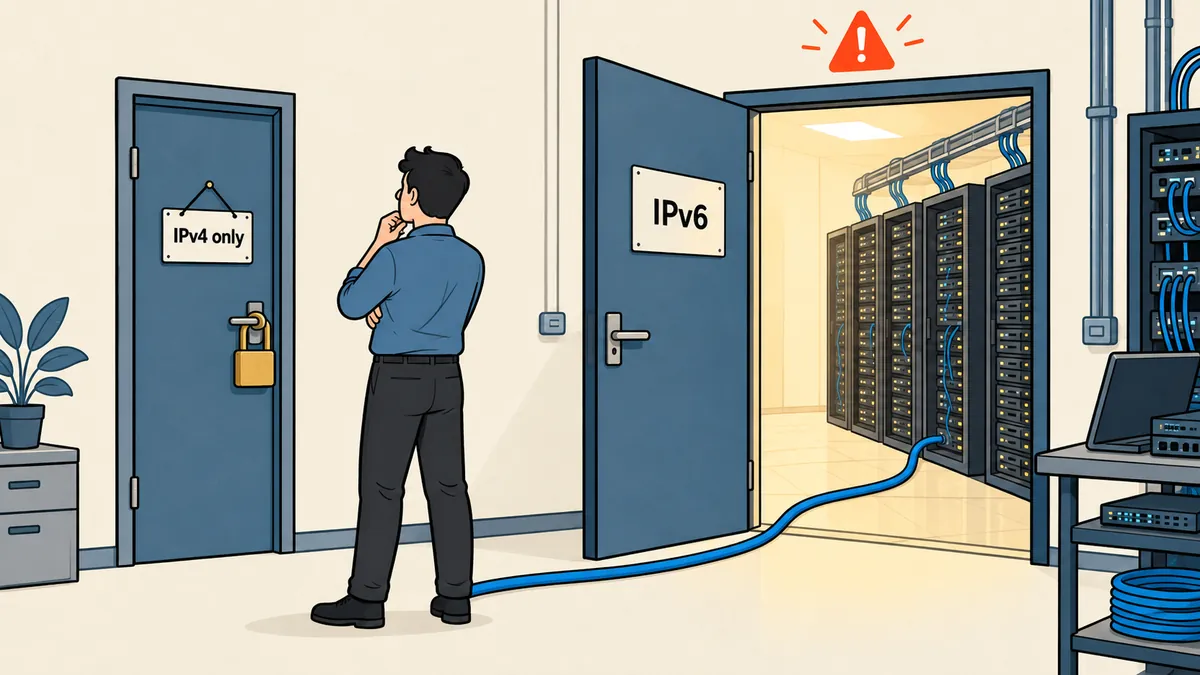
Adding IPv6 /32 ranges without changing the token value
I added 4 more IPv6 /32 ranges from the ISP group to the existing allowlist, bringing it to 53 entries. The token value stayed the same. I did not need to redeploy or change a single line on host-b. The only change was in the token's condition field.
{
  "condition": {
    "request_ip": {
      "in": [
        "203.0.113.0/24",
        "198.51.100.0/24",
        "2001:db8::/32"
      ],
      "not_in": []
    }
  }
}
The example above is shortened to three lines. The actual list contains all 49 IPv4 entries followed by 4 IPv6 /32 ranges.
I should be clear that another token of ours, used on another machine, has 49 entries, all IPv4, and I have not fixed it yet because that machine still uses IPv4. If it switches to IPv6 one day, it will break in the same way. This is a lesson I have recorded, rather than something that has already happened.
Dashboard traps I encountered while editing policies
While editing the token, I ran into three things that were not covered in the first few pages of the documentation.
- Editing a token through the API requires a token with Account API Tokens Write permission. If the token in hand has only Read access, it cannot edit its own list, so I have to use the dashboard.
- When expanding the permissions to include everything needed, a single policy can contain no more than 300 permissions. Exceeding that returns HTTP 400. I needed almost 400 groups, so I had to split them across multiple policies.
- An "All zones" policy with 5 account-level permissions mixed in (settings read, billing read, and similar permissions) could not be edited or split until I moved the account-level permissions into a separate policy.
I reorganized the permissions from 5 policies into 2, keeping the total at 288 permissions, then compared each entry against the original list. This matters because if even one permission goes missing during the reorganization, it will show up as a 403 the next day in a job that used to run successfully.
Do not put a complete token in a chat, a note, or an article. Every value in this article is an example, and an allowlist is only an additional layer, not a substitute for storing tokens securely. If I suspect a leak, I roll the token first and investigate afterward.
What I will check first every time
If an IP-restricted token gets 9109, I will work through these checks. First, check whether the affected machine uses IPv4 or IPv6 with curl -4 and -6, because this was the possibility I overlooked for the longest time. Second, check whether the allowlist covers both address families. Third, before adding any ISP's ranges, use the audit log to establish whether those ranges actually belong to our machines or to someone else in the same account. Fourth, if I need to edit policies, check the 300-permission limit and any account-level permissions mixed in before starting.
Whether to force the client to use IPv4 only or add IPv6 to the list depends on what suits each environment. I chose to add IPv6 because I did not need to touch the machines already in use. If I have misunderstood how 9109 works anywhere, or you encounter another condition that produces the same error, I will come back and update this article later.
Want us to set this up?
Get help with server setup, configuration, migration, or troubleshooting. Save time for the work that matters.
Hit something like this? Stuck somewhere?
Come trade notes on the LinuxThai board



Comments 0
No comments yet — be the first