One Tunnel Is the Only Way In—and a Single Point of Failure

When the internet is working, a single tunnel looks neat. No router ports to open, no public IP to request, no VPN to set up for anyone. But when it drops, everything goes down together in a second, and what I need to practice beforehand is how to "read" what caused the outage.
I needed to put a work machine in a small office with only a home internet connection and no public IP. The router belonged to the ISP, which could not open ports for me, and I did not want to open any anyway. I needed three kinds of access from outside at the same time — the web app the team uses every day, SSH when I need to fix something, and remote desktop when I need the actual screen to click through a program that cannot be controlled from the command line.
So I put everything on a single Cloudflare Tunnel, with ingress rules separating traffic by hostname. This article covers the complete setup I actually use, including what I learned when the office internet went down for a long stretch and everything stopped working at once.
The domain names, tunnel name, and port numbers in this article are all examples. The structure and commands are real.
The machine is behind NAT with no open ports
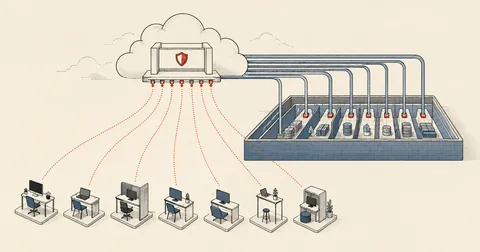
The principle behind cloudflared is that the machine opens its own outbound connections to the edge and keeps them open. All incoming traffic travels back through those open connections. From the router's perspective, that means nothing is coming in on its own at all. No port forwarding, no DMZ, and no need to request a public IP from the ISP.
Check that the machine really has nothing exposed to the internet with one command.
ss -tlnp | awk '{print $1, $4, $6}'
# LISTEN 0.0.0.0:80         apache2
# LISTEN 0.0.0.0:443        apache2
# LISTEN 0.0.0.0:2202       sshd
# LISTEN 127.0.0.1:3306     mariadbd
# LISTEN 127.0.0.1:6379     redis-server
# LISTEN 0.0.0.0:21118      rustdesk
The services listening on 0.0.0.0 are reachable only from "inside the network," because there is no route in from outside to begin with. The only thing making them reachable from outside is ingress through the tunnel.
Four ingress routes in one tunnel
One tunnel can serve multiple hosts, separated by ingress rules evaluated from top to bottom, stopping at the first match. I configured four routes plus one final rule.
# ingress ของอุโมงค์ (remote-managed แก้ผ่าน dashboard/API ได้ ไม่ต้องแตะเครื่อง)
ingress:
  - hostname: hook.example.com      # รับ webhook จากภายนอก
    service: http://localhost:8787
  - hostname: app.example.com       # เว็บแอปตัวจริงที่ทีมใช้
    service: https://localhost:443
    originRequest:
      noTLSVerify: true             # ปลาย TLS จริงอยู่ที่ Cloudflare ในเครื่องเป็น self-signed
  - hostname: ssh.example.com
    service: ssh://localhost:2202
  - hostname: desk.example.com
    service: tcp://localhost:21118
  - service: http_status:404        # catch-all ปิดท้าย ห้ามขาด
That final http_status:404 line is not decorative. Without it, cloudflared will refuse to start. And if someone accidentally points the catch-all at a real service instead of returning 404, every hostname that comes in will reach that service.
A remote-managed tunnel stores its ingress rules at Cloudflare, and cloudflared fetches them itself. I can change them through the dashboard or API without a shell on the machine or a restart. The advantage is that when SSH is inaccessible but the web still works, I can still remove or add ingress routes. The downside is that the local file is no longer the source of truth — this is why people edit the local `config.yml` and wonder why nothing changes.
SSH through ProxyCommand without opening router ports
The ingress rule already points to ssh://localhost:2202. On the client machine, I use cloudflared access ssh as the intermediary, carrying ssh's stdio through the edge.
# ต่อครั้งเดียวแบบไม่ตั้งค่าอะไร
ssh -i ~/.ssh/ops_ed25519 \
    -o ProxyCommand='cloudflared access ssh --hostname %h' \
    [email protected]
For frequent use, put it in ~/.ssh/config to avoid typing the long command.
Host ssh.example.com
    User ops
    IdentityFile ~/.ssh/ops_ed25519
    ProxyCommand cloudflared access ssh --hostname %h
    ServerAliveInterval 30
    ServerAliveCountMax 3
On the sshd side, I moved it off 22 and disabled password authentication entirely, because even behind a tunnel, I will not rely on a single barrier.
# /etc/ssh/sshd_config.d/hardening.conf
Port 2202
PasswordAuthentication no
KbdInteractiveAuthentication no
PermitRootLogin no
PubkeyAuthentication yes
I insist on testing actual connections after every change. Do not trust the config file alone. Try logging in with a password to check that it really is rejected, and try root too. If either still gets through, another file is overriding the settings.
Remote desktop through access tcp
The most interesting route is remote desktop, because it is neither HTTP nor SSH — it is raw TCP. cloudflared access tcp opens a listening port on the client machine, then forwards everything arriving at that port to the destination.
# รันค้างไว้ที่เครื่องเรา (ฝั่งที่จะรีโมตเข้าไป)
cloudflared access tcp --hostname desk.example.com --url localhost:21118
# แล้วเปิดโปรแกรมรีโมต ใส่ปลายทางเป็น 127.0.0.1:21118
The destination machine needs direct connection mode enabled. Otherwise, it will try to reach the vendor's public relay instead, which I do not want to use.
# ค่าที่ต้องเปิดฝั่งเครื่องปลายทาง
direct-server = 'Y'
direct-access-port = 21118
The result is remote desktop that does not depend on the vendor's central server or require an external account login, with no need to remember a machine ID that can change. I wrapped it in a script that keeps restarting it when the connection drops, then set it to run at login.
#!/bin/bash
# วนเปิดท่อใหม่เองถ้าหลุด — ตั้งให้รันตอนล็อกอินเครื่องฝั่งเรา
while true; do
  cloudflared access tcp --hostname desk.example.com --url localhost:21118
  echo "[WARN] ท่อหลุด รอ 5 วิแล้วต่อใหม่"
  sleep 5
done
The decisive sign: 530 and bad handshake appear together
This is the heart of the article. When the destination's internet connection drops, the symptoms look like three things have broken at once, even though only one thing has failed. Anyone who has not seen this before will immediately start looking in the wrong place — the website is inaccessible, so they check whether the web server is down; SSH is inaccessible, so they check whether sshd has died, wasting hours.
The web returns 530 and SSH reports websocket bad handshake
Both appear together within the same minute. Try other hosts in the same tunnel, and every route has the same symptoms.
No cloudflared instance is checking in with the edge
It means the machine has lost its internet connection, not that "the web is broken" or "SSH is broken" — investigate the remote end, not the services.
The status check I use out of habit is a single line.
curl -s -o /dev/null -w '%{http_code}\n' https://app.example.com/
# 302 = ปกติ (เว็บเด้งไปหน้า login)
# 530 = ไม่มี origin มารายงานตัว (Cloudflare error 1033) = เครื่องหลุด
# 502 = อุโมงค์ยังอยู่ แต่บริการปลายทางตาย -> อันนี้ค่อยไปดูที่ตัวบริการ
The difference between 530 and 502 is what I most want readers to remember — 530 means "nobody is in the tunnel," while 502 means "someone is in the tunnel, but the service inside is dead." These lead to entirely different investigations.
When access fails, most people keep retrying SSH and conclude that "SSH is broken," even though SSH is just one passenger in the tunnel. Always run curl to check the HTTP code first, because it reveals the tunnel's status in one second without waiting for a timeout. If it returns 530, that settles it. There is no reason to waste time digging through keys or known_hosts.
Find the actual disconnection time in conns_inactive_at
Once I know the machine is offline, the next question is when it disconnected. I cannot ask the machine because it is unreachable, but Cloudflare keeps a record. The tunnel's data includes a conns_inactive_at field showing when the last connection disappeared.
curl -s -H "Authorization: Bearer $CF_API_TOKEN" \
  "https://api.cloudflare.com/client/v4/accounts/$CF_ACCOUNT/cfd_tunnel/$CF_TUNNEL" \
  | python3 -c 'import sys,json; r=json.load(sys.stdin)["result"]; print(r["name"], r["status"], r["conns_active_at"], r["conns_inactive_at"])'
# office-gateway  down  2026-10-09T09:12:44Z  2026-10-09T16:54:03Z
This timestamp is valuable when I need to tell the team "what time the system went down" and when comparing logs from elsewhere to establish what happened first. My longest outage was 11 and a half hours. The cause was a hung Wi-Fi driver, not an ISP outage, but the result the team saw was the same: the website was down all day.
Forget enable-linger and the tunnel will not start at boot
This is the trap I most want to warn about. If cloudflared runs as a user service (systemctl --user), it starts only when that user "has an active session." That means if the machine boots and nobody logs in, the service will not start at all. The machine has finished booting, the internet works, everything is ready, but there is no tunnel. Nobody can get in, including me when I need to fix it.
loginctl enable-linger ops          # <- บรรทัดที่ขาดไม่ได้
loginctl show-user ops | grep Linger
# Linger=yes

systemctl --user enable --now cloudflared-gw
systemctl --user status cloudflared-gw --no-pager
This is the unit I use, set to always restart because dropped connections are normal.
# ~/.config/systemd/user/cloudflared-gw.service
[Unit]
Description=Cloudflare tunnel (ทางเข้าเดียวของเครื่องนี้)
After=network-online.target
Wants=network-online.target

[Service]
Type=simple
EnvironmentFile=%h/.private/cf-tunnel.env
ExecStart=%h/.local/bin/cloudflared --no-autoupdate tunnel run
Restart=always
RestartSec=5

[Install]
WantedBy=default.target
The env file contains only the tunnel token, read from a file with chmod 600 permissions, kept out of both the unit and the repo.
# ~/.private/cf-tunnel.env  (chmod 600)
TUNNEL_TOKEN=<TOKEN>
When I set up a backup machine and copy the token over, the tunnel gets connections from both machines at once, and the edge randomly distributes traffic between them. Some requests land on the old machine and others on the new one. The symptom is "sometimes I get old data, sometimes new," which is very hard to trace. When moving machines, always stop the old instance before starting the new one.
bypass does not mean allow
When setting up Cloudflare Access for the ssh and desk hosts, I once set the policy to bypass and selected Thailand, thinking that restricted access to people in the country. It did, but bypass means skipping authentication, not granting access after authentication. The result was that anyone accessing the internet from within the country could reach sshd and the remote desktop port.
Filtering only, no authentication
Anyone who meets the condition can get through without logging in at all. The only real barriers left are the SSH key and the remote desktop program's password.
Authentication required before reaching the service
Anyone outside the list cannot reach the service at all. The front gate is closed before they reach sshd. It is clearly safer, at the cost of extra steps when the team connects.
I admit I kept using bypass for a while because it was convenient. But anyone following this setup needs to understand that the only barriers left are the key and the machine's password. Do not assume there are two layers when there is only one. Anyone uncomfortable with that risk can switch to allow. It is not difficult; the team just has to log in one more time.
A single point of failure, and what actually fixes it
After more than a year with this setup, the advantages are clear — no open ports, no public IP to request, no DNS changes when moving machines, and no VPN for the team to install. The disadvantage is just as clear: everything depends on one connection. When the internet drops, everything goes down, both the website and the access I need to fix it.
- Run curl and check the code — 530 means the machine is offline; 502 means the service inside is down. Do not guess.
- If it is 530, fetch conns_inactive_at to see when it disconnected, then give the team the actual time.
- Contact someone at the machine and have them check the router lights first, because there is nothing more I can do from here.
- Once it is back, check Linger and RestartSec to find out whether the tunnel really came up on its own or someone started it manually.
- Record every outage period. After three months, the records will show whether the problem is the driver, the ISP, or power outages.
Someone suggested adding an overlay VPN as a backup route. I thought it through, and it would not help, because it runs over the same uplink. When the uplink dies, it goes down too. The only way to actually fix that connection problem is a second uplink, such as a 4G backup with automatic failover, or moving the services the team needs all the time to a host that is not behind a home internet connection and leaving only work that can wait on this machine — which I will cover in a separate article.
Anyone who wants to use this setup is welcome to do so. Just make sure the tradeoff is clear from day one, rather than discovering it when the team calls to say the website will not open. If I have left anything out or made a typo, I will come back and correct it later.
Want us to set this up?
Get help with server setup, configuration, migration, or troubleshooting. Save time for the work that matters.
Hit something like this? Stuck somewhere?
Come trade notes on the LinuxThai board

Comments 0
No comments yet — be the first