Building a Single-Screen Ping Monitor with C++, ImGui and DirectX 11

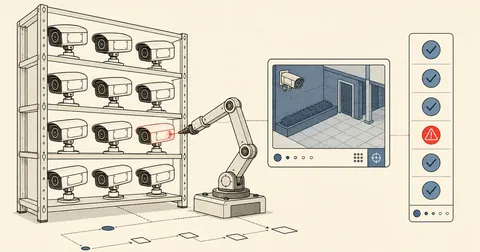
Keeping twenty ping windows open and checking them one by one is not monitoring. It is self-inflicted punishment. So I wrote an app that sends ICMP to every device at once and puts the status of the whole network on one screen, which I keep open at the side of my display while working on site.
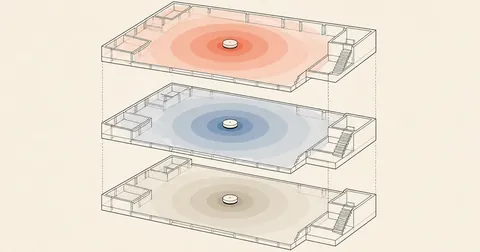
While finishing a network installation in a building, I needed to watch several dozen devices at once: APs on different floors, switches, cameras, and recorders. At first, I did what I usually do and left several ping -t windows running. Once I passed ten devices, it became unmanageable. The windows overlapped, and finding out which device had dropped meant clicking through them one at a time. When I came back to check later, I had no idea when it had gone down. So I sat down and wrote a small app. The requirements were to see the entire network on one screen as soon as I opened it, install nothing extra, and leave it running all day without tying up the machine.
The IP addresses and device names in this article are examples. The code and structure are what I actually use.
The goal: see the whole network's status on one screen without opening windows one by one
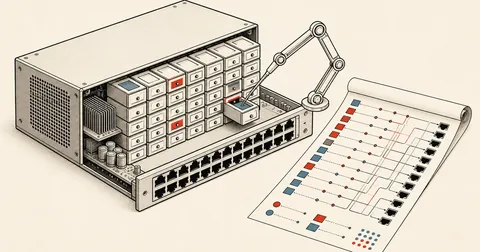
I wanted four things. First, to see every IP at once, ordered by switch port to match the cabling. Second, to see the current RTT as a number, rather than just green or red. Third, to look back and see how many times a device had just dropped out. Fourth, to click an IP and open the device's web interface when I needed to make changes.
I chose these values for a network with a lot of APs. The endpoints are on WiFi, which already responds more slowly than wired connections. If I set a 200 ms timeout as I would on a purely wired LAN, the whole screen would flash red even though nothing was wrong with the devices.
Sending ICMP directly through iphlpapi without calling ping.exe
The easiest approach is to use CreateProcess to call ping.exe and read its output. I ruled that out because thirty hosts would mean creating thirty new processes every two seconds, and I would still have to parse text that changes with the Windows language.
Windows already has an API for sending ICMP directly in iphlpapi.dll. It takes just three functions: open a handle with IcmpCreateFile(), send with IcmpSendEcho(), and close it with IcmpCloseHandle(). It returns the RTT in an ICMP_ECHO_REPLY structure, with no text parsing, no need to request raw socket privileges, and no need to run as administrator.
Easy to write, expensive to run
A new process for every host on every round, output parsing that depends on the language, console windows popping up if I forget to hide them, and awkward cancellation
Talk directly to the stack
No new processes, RTT returned as a number, a timeout for each call, and no admin requirement because Windows handles the raw socket internally
Here is the outline of one worker. I prepare the handle and buffer once outside the loop, leaving only the send and result handling inside.
#include <iphlpapi.h>
#include <icmpapi.h>
#pragma comment(lib, "iphlpapi.lib")

static void PingLoop(HostState* hs)
{
    HANDLE hIcmp = IcmpCreateFile();
    if (hIcmp == INVALID_HANDLE_VALUE) return;

    IN_ADDR addr{};
    if (InetPtonA(AF_INET, hs->ip.c_str(), &addr) != 1) {
        IcmpCloseHandle(hIcmp);
        return;
    }

    char sendData[8] = { 'u','i','p','i','n','g','\0','\0' };
    const DWORD replySize = sizeof(ICMP_ECHO_REPLY) + sizeof(sendData) + 16;
    std::vector<char> replyBuf(replySize);

    while (g_run.load()) {
        DWORD timeout = g_timeout_ms.load();
        DWORD res = IcmpSendEcho(hIcmp, *(IPAddr*)&addr,
                                 sendData, sizeof(sendData), nullptr,
                                 replyBuf.data(), replySize, timeout);
        bool ok = (res > 0);
        uint32_t rtt = 0;
        if (ok) {
            auto* rep = reinterpret_cast<ICMP_ECHO_REPLY*>(replyBuf.data());
            rtt = rep->RoundTripTime;
        }
        hs->alive.store(ok);
        hs->rtt_ms.store(rtt);
        hs->last_epoch_ms.store(NowMs());
        std::this_thread::sleep_for(std::chrono::milliseconds(g_interval_ms.load()));
    }
    IcmpCloseHandle(hIcmp);
}
A common mistake is the buffer size. According to the documentation, replySize must be sizeof(ICMP_ECHO_REPLY) + ขนาดข้อมูลที่ส่ง + 16. If it is any smaller, IcmpSendEcho returns 0, leaving me trying to work out why every device is down even though ping from cmd still works.
Another requirement is to use #define WIN32_LEAN_AND_MEAN and always include winsock2.h before windows.h. Otherwise, it conflicts with the old winsock.h that windows.h pulls in.
One host, one thread, with std::atomic for UI communication
I chose the most direct approach: start a thread for each host, without a thread pool or async handling. Thirty-odd threads that spend nearly all their time asleep consume practically nothing. The UI just reads the latest values and displays them once per frame, without waiting for anyone.
Every value that a worker writes and the UI reads goes through std::atomic.
struct HostState {
    std::string ip;
    std::atomic<bool>     alive{false};
    std::atomic<uint32_t> rtt_ms{0};
    std::atomic<uint64_t> last_epoch_ms{0};
    // ตัวนับความนิ่ง กันสถานะกระพริบ
    std::atomic<int>  consec_ok{0};
    std::atomic<int>  consec_fail{0};
    std::atomic<bool> stable_alive{false};
    // ประวัติสำหรับกราฟ ตรงนี้เป็น vector เลยต้องมี mutex
    struct Sample { uint64_t t_ms; float rtt; bool ok; };
    std::mutex hist_mtx;
    std::vector<Sample> history;
    bool show_window = false;
};

static std::vector<std::unique_ptr<HostState>> g_hosts;
static std::vector<std::thread> g_threads;
static std::atomic<bool>     g_run{false};
static std::atomic<uint32_t> g_interval_ms{2000};
static std::atomic<uint32_t> g_timeout_ms{800};
Notice that g_hosts is a vector<unique_ptr<HostState>>, rather than a vector<HostState>. That is deliberate, because std::atomic and std::mutex cannot be moved. If I stored the objects directly and the vector later grew, it would try to move the whole set and fail to compile. Or worse, a pointer held by a worker would point to the old memory. Adding unique_ptr keeps each HostState at the same address for the lifetime of the program.
Passing values back uses ordinary store() and load() calls, with no locking. The only place that still needs a mutex is history, because it is a vector that really is read and written concurrently.
Dear ImGui uses immediate mode with a single context and is not thread-safe. Everything starting with ImGui:: must run only in the main thread's rendering loop. A worker's job is just to store values in atomics and stop there. Accidentally calling ImGui::Text from a worker causes random crashes that are hard to trace.
Preventing false green lights with consecutive counts, and staggering pings with jitter
I ran into two problems in actual use. The first was flickering status: one ping lost to a WiFi hiccup turned the entire row red, then back to green the next second. It was hard to follow. So I added a second state called stable_alive, which changes only after two consecutive results agree. The indicator on screen uses this value instead of the raw alive state.
The second problem was the thundering herd. If every thread starts together and sleeps for the same duration each round, they keep sending a burst together every two seconds. That shows up as spikes on the NIC and makes APs with long queues respond slowly enough to look faulty. The fix is a different delay for each host, but it needs to stay fixed for that host rather than be randomized every round. I hash the IP with FNV-1a and use the remainder as jitter.
// เกณฑ์เปลี่ยนสถานะ ต้องได้ผลทางเดียวกันติดกันครบก่อน
const int UP_TH = 2, DOWN_TH = 2;
if (ok) { hs->consec_ok.store(hs->consec_ok.load() + 1); hs->consec_fail.store(0); }
else    { hs->consec_fail.store(hs->consec_fail.load() + 1); hs->consec_ok.store(0); }

bool st = hs->stable_alive.load();
if (!st && hs->consec_ok.load()   >= UP_TH)   st = true;
if ( st && hs->consec_fail.load() >= DOWN_TH) st = false;
hs->stable_alive.store(st);

// jitter คงที่ต่อ host จาก hash ของ IP กันยิงพร้อมกันทั้งวง
auto hash_ip = [](const std::string& s) {
    uint32_t h = 2166136261u;
    for (unsigned char c : s) { h ^= c; h *= 16777619u; }
    return h;
};
uint32_t jitter = hash_ip(hs->ip) % 150;   // 0..149 ms
std::this_thread::sleep_for(
    std::chrono::milliseconds(g_interval_ms.load() + jitter));
Keeping history in a ring buffer with a host-count-based limit
I wanted to look back roughly one hour, without letting memory usage grow without a limit when the app ran overnight. So I calculate two limits and take the smaller one. The first is the number of samples needed for one hour at the current interval. The second is the total memory budget divided by the number of hosts.
HostState::Sample smp{ NowMs(), ok ? (float)rtt : -1.0f, ok };
{
    std::scoped_lock lk(hs->hist_mtx);
    hs->history.push_back(smp);

    uint32_t interval = g_interval_ms.load(); if (interval == 0) interval = 1;
    size_t per_hour  = (size_t)(3600ull * 1000ull / interval);          // ครบ 1 ชม.
    size_t total_cap = (size_t)((1ull << 30) / sizeof(HostState::Sample)); // เพดานรวม 1GB
    size_t share     = total_cap / std::max<size_t>(1, g_hosts.size());
    size_t cap       = std::min(per_hour, share);

    while (hs->history.size() > cap) hs->history.erase(hs->history.begin());
}
Each Sample is 16 bytes. At a 2-second interval, one hour means 1800 samples, or about 28 KB per host. Thirty hosts use less than one megabyte. The 1GB limit will never be reached in normal use. It is there in case someone sets the interval to 200 ms and loads hundreds of IPs.
I admit that this uses erase(begin()), which is O(n) each time the limit is exceeded. A proper implementation should use std::deque or a ring buffer with a wrapping index. But with n in the thousands and updates every few seconds, the difference is not measurable, so I have not changed it yet.
Drawing a single screen with an ImGui table
The core of the screen is a single BeginTable with three groups of columns arranged horizontally. Each group has four columns: a status indicator, room number, IP, and RTT. This keeps the rows aligned across the screen, so a single scan down shows the first switch, the second switch, and the cameras.
ImGuiTableFlags tf = ImGuiTableFlags_Borders | ImGuiTableFlags_RowBg
                   | ImGuiTableFlags_SizingFixedFit | ImGuiTableFlags_Resizable
                   | ImGuiTableFlags_NoHostExtendX;

if (ImGui::BeginTable("SW_Combined", 12, tf)) {
    ImGui::TableSetupColumn("",     ImGuiTableColumnFlags_WidthFixed, 16.0f);
    ImGui::TableSetupColumn("ROOM", ImGuiTableColumnFlags_WidthFixed, 48.0f);
    ImGui::TableSetupColumn("IP",   ImGuiTableColumnFlags_WidthStretch);
    ImGui::TableSetupColumn("RTT",  ImGuiTableColumnFlags_WidthFixed, 64.0f);
    // ...อีกสองกลุ่มเหมือนกันเป๊ะ
    ImGui::TableHeadersRow();
    // ...วาดทีละแถว
    ImGui::EndTable();
}
For the status indicator, I use a 10x10 ImGui::ColorButton instead of drawing a circle myself. Since it is already a widget, I get hover, click, and context menu support for free. Clicking the indicator opens that host's graph window, while right-clicking immediately shows a summary of loss and avg.
ImGui::ColorButton(bulletId.c_str(), stable ? okCol : badCol,
                   ImGuiColorEditFlags_NoBorder | ImGuiColorEditFlags_NoTooltip,
                   ImVec2(10.0f, 10.0f));
if (ImGui::IsItemClicked() && hs) hs->show_window = !hs->show_window;

if (hs && ImGui::BeginPopupContextItem((std::string("ctx_") + ip).c_str())) {
    size_t n = 0, okc = 0; float sum = 0, mn = 1e9f, mx = 0;
    {
        std::scoped_lock lk(hs->hist_mtx);
        n = hs->history.size();
        for (auto& s : hs->history)
            if (s.ok) { okc++; sum += s.rtt; mn = std::min(mn, s.rtt); mx = std::max(mx, s.rtt); }
    }
    float loss = n ? 100.0f * (float)(n - okc) / (float)n : 0.0f;
    ImGui::Text("loss=%.1f%% avg=%.1fms min=%.1f max=%.1f (n=%zu)",
                loss, okc ? sum / okc : 0.0f, okc ? mn : 0.0f, okc ? mx : 0.0f, n);
    if (ImGui::MenuItem("Show graph")) hs->show_window = true;
    ImGui::EndPopup();
}
For the IP field, I use an InvisibleButton the same size as the text to catch clicks, rather than ordinary ImGui::Text. I draw the text and, on hover, the underline myself through the draw list. A click passes the address to ShellExecuteA, which opens the device's web interface in the browser. This lets me go straight from this screen to fixing a red AP without typing its IP again.
std::string url = std::string("http://") + ip;
ImVec2 pos = ImGui::GetCursorScreenPos();
ImVec2 sz  = ImGui::CalcTextSize(url.c_str());
ImGui::InvisibleButton((std::string("##ln_") + ip).c_str(), sz);
bool hov = ImGui::IsItemHovered();

ImDrawList* dl = ImGui::GetWindowDrawList();
ImU32 col = ImGui::ColorConvertFloat4ToU32(hov ? linkHoverCol : linkCol);
dl->AddText(pos, col, url.c_str());
if (hov) {
    float y = pos.y + sz.y + 1.0f;
    dl->AddLine(ImVec2(pos.x, y), ImVec2(pos.x + sz.x, y), col, 1.0f);
}
if (ImGui::IsItemClicked())
    ShellExecuteA(NULL, "open", url.c_str(), NULL, NULL, SW_SHOWNORMAL);
The graph uses ImGui::PlotLines, which comes with ImGui, so there is no need to add ImPlot. It is enough to see how many milliseconds the RTT just spiked to.
The DirectX 11 backend and a black title bar
I chose DX11 for the backend because it already comes with Windows, so I do not have to carry GLFW or SDL DLLs along. A basic swap chain configuration is enough.
bool CreateDeviceD3D(HWND hWnd)
{
    DXGI_SWAP_CHAIN_DESC sd{};
    sd.BufferCount = 2;
    sd.BufferDesc.Format = DXGI_FORMAT_R8G8B8A8_UNORM;
    sd.BufferUsage = DXGI_USAGE_RENDER_TARGET_OUTPUT;
    sd.OutputWindow = hWnd;
    sd.SampleDesc.Count = 1;
    sd.Windowed = TRUE;
    sd.SwapEffect = DXGI_SWAP_EFFECT_DISCARD;

    const D3D_FEATURE_LEVEL levels[2] = { D3D_FEATURE_LEVEL_11_0, D3D_FEATURE_LEVEL_10_0 };
    D3D_FEATURE_LEVEL got;
    if (D3D11CreateDeviceAndSwapChain(NULL, D3D_DRIVER_TYPE_HARDWARE, NULL, 0,
            levels, 2, D3D11_SDK_VERSION, &sd,
            &g_pSwapChain, &g_pd3dDevice, &got, &g_pd3dDeviceContext) != S_OK)
        return false;

    CreateRenderTarget();
    return true;
}
One thing I must not forget is that WM_SIZE needs to release the old render target view before calling ResizeBuffers, then create a new one afterward. Otherwise, resizing the window produces a stretched image or crashes the app.
case WM_SIZE:
    if (g_pd3dDevice != nullptr && wParam != SIZE_MINIMIZED) {
        CleanupRenderTarget();
        g_pSwapChain->ResizeBuffers(0, (UINT)LOWORD(lParam), (UINT)HIWORD(lParam),
                                    DXGI_FORMAT_UNKNOWN, 0);
        CreateRenderTarget();
    }
    return 0;
Another small detail that makes a big difference is the title bar. ImGui uses a dark theme, but the title bar is still white, which looks out of place. Two lines of DwmSetWindowAttribute fix it. I need to set both attribute 20 and 19 because Windows 10 versions before 20H1 use 19, while later versions use 20. I call both; an unrecognized attribute simply returns an error without breaking anything.
#ifndef DWMWA_USE_IMMERSIVE_DARK_MODE
#define DWMWA_USE_IMMERSIVE_DARK_MODE 20
#endif
#ifndef DWMWA_USE_IMMERSIVE_DARK_MODE_BEFORE_20H1
#define DWMWA_USE_IMMERSIVE_DARK_MODE_BEFORE_20H1 19
#endif

static void EnableDarkTitleBar(HWND hwnd, bool enable)
{
    BOOL val = enable ? TRUE : FALSE;
    DwmSetWindowAttribute(hwnd, DWMWA_USE_IMMERSIVE_DARK_MODE, &val, sizeof(val));
    DwmSetWindowAttribute(hwnd, DWMWA_USE_IMMERSIVE_DARK_MODE_BEFORE_20H1, &val, sizeof(val));
}
This needs to run after ShowWindow. Calling it before that has no effect on some machines.
For the layout, I have ImGui keep its ini file in the app's folder instead of leaving it in whichever working directory it was launched from. That preserves window sizes and graph positions for the next run.
CreateDirectoryA("C:/net/uiping/config", NULL);
static char ini_path[MAX_PATH] = "C:/net/uiping/config/imgui.ini";
io.IniFilename = ini_path;
I read the IP list from a plain text file, with one IP per line and lines starting with # treated as comments. If the file is missing, I use an embedded fallback list so the app shows something when it opens instead of an empty screen. Adding a device just means editing the text file and reopening the app, with no rebuild needed.
# C:/net/uiping/ips.txt
192.168.10.11
192.168.10.12
192.168.10.21
# ชั้น 4 ยังไม่เดินสาย
192.168.10.41
192.168.10.51
Building with CMake and a single PowerShell script
There is nothing unusual in CMakeLists. I point it at the Dear ImGui source outside the project and compile it directly into the app, without making a separate library, because there are only six files.
cmake_minimum_required(VERSION 3.24)
project(uiping LANGUAGES CXX)

set(CMAKE_CXX_STANDARD 20)
set(CMAKE_CXX_STANDARD_REQUIRED ON)

set(IMGUI_DIR ${CMAKE_CURRENT_SOURCE_DIR}/../third_party/imgui)

set(IMGUI_SRC
  ${IMGUI_DIR}/imgui.cpp
  ${IMGUI_DIR}/imgui_draw.cpp
  ${IMGUI_DIR}/imgui_tables.cpp
  ${IMGUI_DIR}/imgui_widgets.cpp
  ${IMGUI_DIR}/backends/imgui_impl_win32.cpp
  ${IMGUI_DIR}/backends/imgui_impl_dx11.cpp)

add_executable(uiping WIN32 src/uiping_main.cpp ${IMGUI_SRC})

target_include_directories(uiping PRIVATE ${IMGUI_DIR} ${IMGUI_DIR}/backends)
target_link_libraries(uiping PRIVATE
  d3d11 dxgi d3dcompiler dwmapi iphlpapi shell32 ws2_32)

add_definitions(-DUNICODE -D_UNICODE)
The WIN32 in add_executable is what prevents a console window from opening alongside the app (it sets the subsystem to WINDOWS and uses wWinMain as the entry point). The required libraries are iphlpapi for ICMP, dwmapi for the dark title bar, shell32 for opening the browser, and ws2_32 for InetPtonA.
When writing tools like this on Windows, I like having a PowerShell script find VS Build Tools itself and then relaunch itself in the correct environment. That saves me from opening a Developer Command Prompt every time.
function Ensure-DevCmd() {
  $cl    = Get-Command cl    -ErrorAction SilentlyContinue
  $nmake = Get-Command nmake -ErrorAction SilentlyContinue
  if ($cl -and $nmake) { return $true }
  if ($Bootstrap)      { return $true }

  $roots = @('C:\Program Files (x86)\Microsoft Visual Studio\2022',
             'C:\Program Files\Microsoft Visual Studio\2022')
  $candidates = @()
  foreach ($root in $roots) {
    if (Test-Path $root) {
      $candidates += Get-ChildItem -LiteralPath $root -Filter VsDevCmd.bat -Recurse `
                      -ErrorAction SilentlyContinue | Select-Object -ExpandProperty FullName
    }
  }
  $vs = $candidates | Where-Object { Test-Path $_ } | Select-Object -First 1
  if (-not $vs) { Die 'ไม่พบ VsDevCmd.bat ต้องติดตั้ง VS 2022 Build Tools ก่อน' }

  # เรียกตัวเองซ้ำใน environment ที่ VsDevCmd ตั้งให้ (x64)
  $ps   = (Get-Command powershell).Source
  $args = @('-ExecutionPolicy','Bypass','-File',"$PSCommandPath",'-Config',"$Config",'-Bootstrap')
  cmd /c "call `"$vs`" -arch=x64 && `"$ps`" $($args -join ' ')"
  exit $LASTEXITCODE
}
Another useful trick is to kill the old process before building. If the app is still running, its exe is locked and the linker cannot overwrite it, and the resulting error is hard to make sense of.
$p = Get-Process uiping -ErrorAction SilentlyContinue
if ($p) { Stop-Process -Id $p.Id -Force; Start-Sleep -Milliseconds 200 }

if (Test-Path $Exe) {
  $ok = $false
  for ($i = 0; $i -lt 20; $i++) {
    try { Remove-Item -Force $Exe; $ok = $true; break } catch { Start-Sleep -Milliseconds 200 }
  }
  if (-not $ok) { Die "ลบ $Exe ไม่ได้ (ไฟล์ถูกล็อก)" }
}

cmake -S $Proj -B $Build -G "NMake Makefiles" -DCMAKE_BUILD_TYPE=$Config
cmake --build $Build --config $Config
- Place the Dear ImGui source in third_party/imgui (imgui.cpp, imgui_draw.cpp, imgui_tables.cpp, imgui_widgets.cpp, and the win32 and dx11 backends)
- Run scripts/build.ps1 -Regen the first time so CMake generates with NMake Makefiles
- On subsequent runs, just run scripts/build.ps1; it only builds and takes a few seconds
- Edit the device list in ips.txt, then leave build/uiping.exe open at the side of the screen
What I have not done yet
I have three things still in mind. The first is to log status changes to a file with timestamps, so I can look back across days instead of just one hour in memory. The second is to move the IP-to-switch-port mapping, currently hardcoded as a switch in the code, into an external text file like ips.txt. The third is to send Telegram alerts when the same device stays down beyond a threshold, so I do not have to sit watching the screen.
Personally, I do not think this kind of tool needs to look pretty. I just need to understand what is happening within three seconds of opening it and install nothing on site. I can copy the single exe onto a drive, take it along, and plug it into a client's machine. Anyone building on this structure can change the backend to OpenGL or replace ICMP with TCP connect on the ports they care about. The worker and atomic approach still applies. If I have missed anything in the explanation or made a typo, I will come back and fix it later.
Hit something like this? Stuck somewhere?
Come trade notes on the LinuxThai board
Comments 0
No comments yet — be the first