An Old Laptop as a 24/7 Server: Screen Off, SSD Care, No Sleep

An old machine nobody uses can still make a good server if you fix three laptop habits: sleeping when the lid closes, writing to the SSD more often than necessary, and leaving the screen lit all night
1-minute summary
- Symptom / problem
- An old laptop running as a 24/7 server has three bad habits.
- Who should read
- People turning an old laptop into a Debian server.
- Fix in short
- Make closing the lid not suspend it, cut SSD writes with noatime, journald settings and zram, and turn the screen off through the backlight instead of DPMS.
I had an old laptop sitting in a drawer: an i5 with four threads, 8 GB of RAM, and an ordinary SSD that I had not touched in a long time. I installed Debian to run several small jobs around the clock, including test websites, bots, and relays for various tasks around the house. My plan was to plug in power and Ethernet, put it on a bookshelf with the lid closed, and be done.
On the first day, I closed the lid and could no longer ssh in: the machine had gone to sleep. On the second day, I fixed the sleep issue, but the screen was still a problem. Leaving it on wasted power and heated up the panel, while using DPMS to turn it off meant moving the mouse through remote desktop would light it up in the middle of the night. By the third day, I was starting to worry about how much SSD life the services writing logs all the time would use up. This article collects everything I adjusted, limited to settings I opened the files and verified were actually configured.
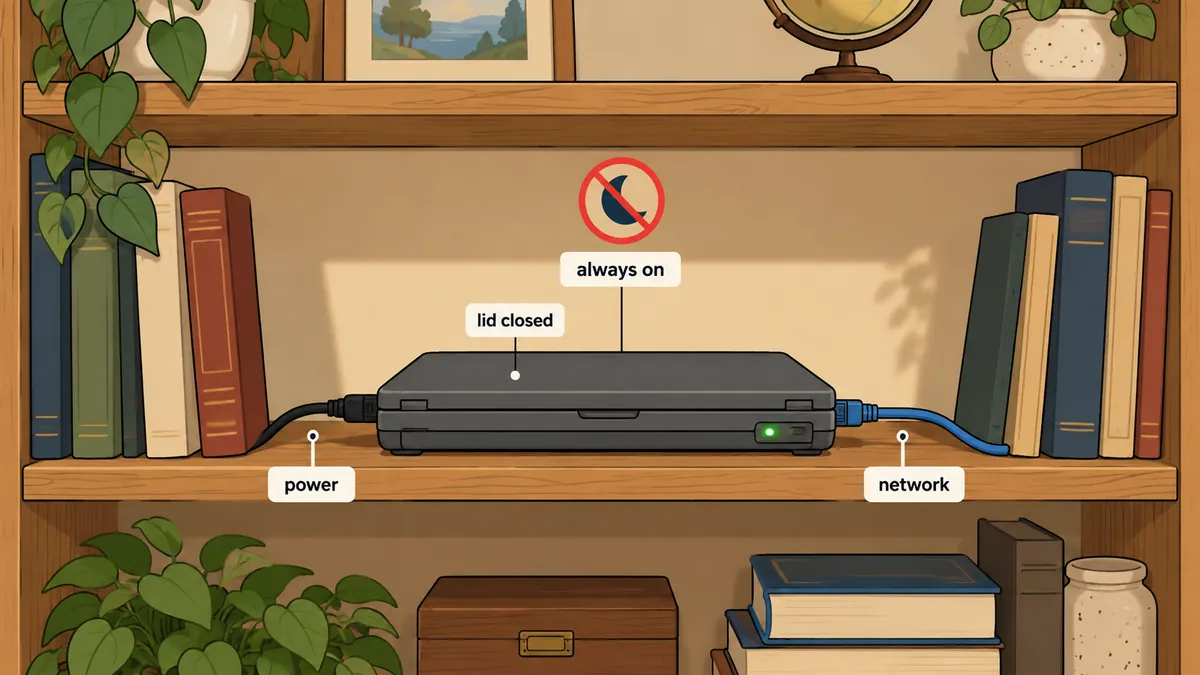
The roughly 2.3 GB of RAM usage is under normal conditions. One time I checked with free -m, about 5 GB was in use because bots, browsers, and various sessions happened to be running together. I never treat a single number as the whole truth.
First: closing the lid must not put it to sleep
This is not fixed in GNOME, even if GNOME is configured not to suspend. What actually decides how to handle the lid is systemd's logind, which sits below the desktop. I spent a while fiddling with GNOME before learning this.
# /etc/systemd/logind.conf.d/90-alwayson.conf
[Login]
HandleLidSwitch=ignore
HandleLidSwitchExternalPower=ignore
HandleLidSwitchDocked=ignore
IdleAction=ignore
All three HandleLidSwitch* settings need to be set because the machine chooses one based on its state: whether it is plugged in and whether it is docked. Set only one, and a change in state can put it back to sleep one day. On the GNOME side, I set idle-delay to 0 and disabled automatic screen locking so the desktop session would not blank the screen itself.
The only way to prove it works is to test it. I leave the lid closed for 10 minutes, then ssh in from another machine. If I can still connect, it passes.
Second: reduce SSD writes
I was not trying to eliminate SSD wear, just cut out writes that served no purpose. I adjusted five things.
I started with the mount options for the root partition.
# /etc/fstab (เฉพาะบรรทัดราก)
UUID=<ROOT-UUID>  /  ext4  noatime,commit=60,errors=remount-ro  0  1
noatime stops recording access times every time a file is read, which serves no useful purpose on a machine that reads files constantly. Meanwhile, commit=60 extends ext4's journal flush interval from the default 5 seconds to 60 seconds. The tradeoff is that a power failure can lose up to about a minute of work. I can accept that because important work can already be written again from elsewhere. If you cannot accept it, choose what suits you; reducing it to 15 or 30 is still better than the default.
# /etc/sysctl.d/90-ssd.conf
vm.swappiness = 10
vm.vfs_cache_pressure = 50
vm.dirty_writeback_centisecs = 1500
dirty_writeback_centisecs = 1500 means 15 seconds (the unit is one hundredth of a second). Normally, the kernel wakes up to write dirty pages every 5 seconds. Meanwhile, swappiness = 10 tells the kernel to try to avoid moving pages to swap until it is really necessary.
# /etc/systemd/journald.conf.d/ssd.conf
[Journal]
SystemMaxUse=200M
Compress=yes
SyncIntervalSec=5m
On a machine whose services write logs frequently, journald will keep growing unless it is limited. I set a 200 MB cap and configured it to flush to disk every 5 minutes.
The last one is zram, which I think has helped the most on a machine with 8 GB of RAM that needs to run browsers and bots together.
# /etc/default/zramswap
ALGO=zstd
PERCENT=50
PRIORITY=100
This configuration creates a swap device in RAM with a size equal to half the physical RAM, uses zstd compression, and gives it priority 100, higher than the disk swap I have kept as a fallback. The system therefore always uses zram first. Each compressed page takes up less RAM, so more work fits before the SSD is touched.
# ตรวจว่าตั้งจริง ไม่ใช่แค่ไฟล์มี
zramctl
swapon --show
sysctl vm.swappiness vm.dirty_writeback_centisecs
systemctl status fstrim.timer
findmnt -no OPTIONS /
I also enabled fstrim.timer so systemd runs trim weekly, instead of using the discard option, which runs trim every time a file is deleted.
I did not move /tmp into RAM or tune MariaDB to reduce SSD writes on this machine, because I found neither in the files I checked. I did not check the battery settings either. Any of these changes needs to be measured on your own machine; this list should not be treated as a ready-made recipe.
If your machine has two network cards, there is also net.ipv4.conf.{all,default}.ignore_routes_with_linkdown = 1, which I added to keep routes through a card with a disconnected cable from lingering in the table. I have already covered distinguishing a broken link from an ISP outage in linux-net-watchdog-link-vs-isp.
Third: turn the screen off with backlight, not DPMS
The old documentation for this machine described turning off the screen with DPMS and idle-delay, but I have stopped using that method. The reason is that DPMS wakes on any kind of "input" arriving through X, and this machine is often accessed through remote desktop. Every time I moved the mouse remotely, the screen on the bookshelf would light up in the dark room. If nobody is in front of the machine, there is no reason for its screen to be lit.
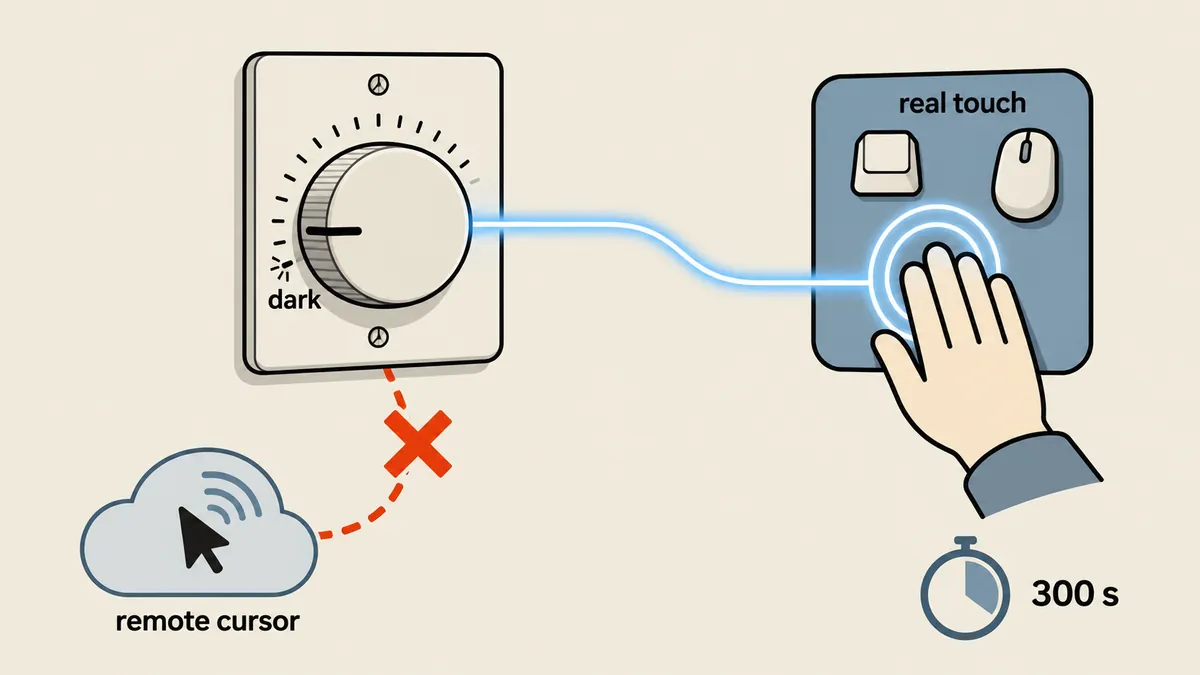
I wrote a small service to control the panel's backlight directly, using the stand-in name backlight-idle.service in this article. It follows three rules.
- Set the panel's backlight to 0 by default.
- Read events from physical input devices in
/dev/input; when input arrives, turn on the screen at no more than 10 percent brightness. - After 300 seconds without physical input, return to 0.
Why does this work? Input from remote desktop is injected through the X server's XTest layer, rather than through the kernel devices in /dev/input. By reading only /dev/input, the program therefore sees only someone physically using the machine. A remote program can move the mouse as often as it likes without waking the screen.
The code below is a short outline I wrote to illustrate the idea, rather than the full version actually running (the real version also has conditions involving a remotely controlled browser, which I will not cover here).
#!/usr/bin/env python3
"""ตัวอย่างโครง: จอมืดตลอด สว่างเฉพาะเมื่อมีอินพุตจากอุปกรณ์จริง"""
import glob, os, select, time

IDLE = int(os.environ.get("IDLE", "300"))        # วินาทีที่ไม่มีอินพุตก่อนดับ
MAX_PCT = int(os.environ.get("MAX_PCT", "10"))   # สว่างสูงสุดกี่เปอร์เซ็นต์
BL = glob.glob("/sys/class/backlight/*")[0]
MAXB = int(open(f"{BL}/max_brightness").read())

def set_pct(p: int) -> None:
    with open(f"{BL}/brightness", "w") as f:
        f.write(str(MAXB * p // 100))

def open_inputs() -> dict:
    fds = {}
    for ev in glob.glob("/dev/input/event*"):
        base = os.path.basename(ev)
        name = open(f"/sys/class/input/{base}/device/name").read().strip().lower()
        if any(k in name for k in ("lid", "power button", "sleep button")):
            continue                              # ปุ่มพวกนี้ไม่ใช่มือคนแตะเครื่อง
        fds[os.open(ev, os.O_RDONLY | os.O_NONBLOCK)] = ev
    return fds

fds = open_inputs()
lit, last = False, 0.0
set_pct(0)
while True:
    ready, _, _ = select.select(list(fds), [], [], 5)
    for fd in ready:
        try:
            os.read(fd, 4096)                     # ทิ้งข้อมูล สนใจแค่ว่ามีสัญญาณ
        except BlockingIOError:
            pass
    now = time.monotonic()
    if ready:
        last = now
        if not lit:
            set_pct(MAX_PCT)
            lit = True
    elif lit and now - last >= IDLE:
        set_pct(0)
        lit = False
# /etc/systemd/system/backlight-idle.service
[Unit]
Description=Panel stays dark until real keyboard or mouse input

[Service]
ExecStart=/usr/local/bin/backlight-idle.py
Environment=IDLE=300
Environment=MAX_PCT=10
Restart=always
RestartSec=5

[Install]
WantedBy=multi-user.target
# /etc/udev/rules.d/99-backlight.rules
# ให้กลุ่ม video เขียนค่า brightness ได้ ไม่ต้อง sudo เวลาทดสอบด้วยมือ
SUBSYSTEM=="backlight", ACTION=="add", RUN+="/bin/chgrp video /sys/class/backlight/%k/brightness", RUN+="/bin/chmod g+w /sys/class/backlight/%k/brightness"
Turn off the screen when idle
- Wakes on any input, including remote input
- Relies on several layers of desktop settings
- Depends on the desktop session
Control the panel directly
- Wakes only on physical input devices
- Dark by default, independent of the desktop
- Needs manual maintenance when changing machines or kernels
Personally, I use only the service approach because almost nobody sits at this machine's screen all day, but its drawbacks need to be understood too. If the machine or panel type changes, the name under /sys/class/backlight/* may differ and will need to be checked again. Feel free to keep using DPMS; if your machine is not used through remote desktop, the problem of waking the screen in the middle of the night does not arise anyway.
Things that let me maintain it without standing in front of it
A machine sitting on a shelf should not need anyone to get up and touch it. I have a few small systemd units to help maintain it: one updates itself, another sends a Telegram notification every time the machine boots (so I know there has been a power outage), and another commits configuration files in /etc to a local bare git repo so I can look back at what I changed yesterday. I will not cover remote access through policy-controlled channels or remote desktop in this article.
Five observations from actual use
- If closing the lid puts the machine to sleep, fix logind, not just GNOME.
- Turning off the screen with DPMS lets remote input wake it, so I switched to backlight control.
- Do not let everything write logs frequently to the SSD around the clock.
- zram makes 8 GB of RAM enough to run browsers alongside bots.
- After configuring something, verify it with actual commands instead of assuming that having a file means it takes effect.
The checks I run after every change
- Leave the lid closed for 10 minutes, then ssh in from another machine; the connection must work.
- Run
systemd-analyzeto check that boot time has not increased abnormally. - Run
zramctlandswapon --showto check that zram is active and has a higher priority than disk swap. - Read
cat /sys/class/backlight/*/brightnesswhile nobody is touching the machine; it must return 0. - Move the physical mouse at the machine and read the value again; it must be greater than 0, then wait 300 seconds to check that it returns to 0.
- Move the mouse through remote desktop; the value must not change.
An old machine nobody wants can still handle light work well, as long as those three habits are fixed and it is not left writing to disk for no reason. If you have settings that work better, use whatever suits you. If I have left anything out or made a typo, I will come back and fix it later.
Want us to set this up?
Get help with server setup, configuration, migration, or troubleshooting. Save time for the work that matters.
Hit something like this? Stuck somewhere?
Come trade notes on the LinuxThai board


Comments 0
No comments yet — be the first