No TIA Portal MCP Supports V15.1: Connecting AI Through Openness
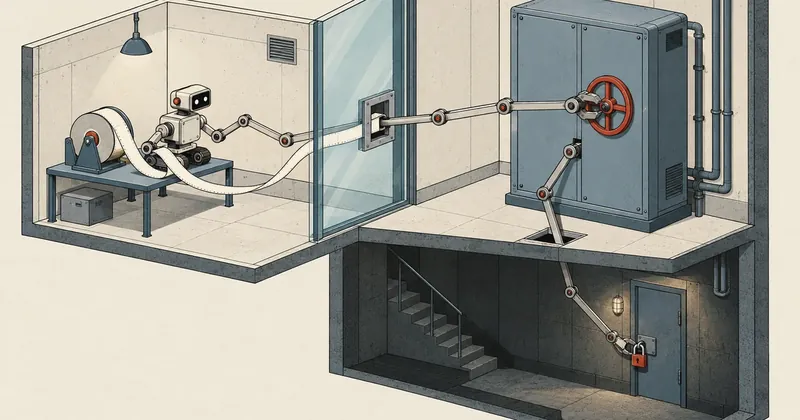
New AI tools are designed for new software, but factory machinery stays with the software version used when it was built. Nobody offers a ready-made solution for this gap. I had to build the connection myself using the API already available in the older version.
1-minute summary
- Symptom / problem
- No official AI assistant or community MCP supports TIA Portal V15.1, which the plant still runs
- Who should read
- Engineers who need to connect AI to TIA Portal V15.1 as used on existing machines
- Fix in short
- Build the bridge yourself through Openness, using Siemens.Engineering.dll from Windows PowerShell 5.1, and watch for the session 0 trap that makes GetProcesses() return an empty list.
I took on a job that involved reading and modifying a factory's PLC program. All the projects were in TIA Portal V15.1. I wanted AI to help read the program and draft the changes, so I looked into tools for connecting AI to TIA. There turned out to be plenty, but not a single one could run with V15.1. I had to build the connection myself through TIA Openness, an API already included with V15.1. This article covers how I connected it, where I got stuck, and what V15.1 actually cannot do.
Every step in this article uses a project copy and is tested only with a simulator. Code drafted by AI must be compiled, tested on a simulator, and reviewed by a person, in that order, before it reaches a real PLC, which must be a decision made by the engineer responsible for the machine. Safety functions must use hardwired circuits or an F-CPU, not ordinary logic that anyone can edit.
Checking what supports V15.1
The easiest way to identify a project's version is to check the file extension. V15.1 projects use .ap15_1, and archives use .zap15_1. Once I knew the version, I surveyed the tools in September 2026 and found three facts that determined the whole approach.
First, the manufacturer's official AI assistant requires TIA V19, V20, or V21 and uses a subscription. Second, I found at least 9 community MCP servers, all supporting versions in the V17 to V21 range; none runs with V15.1. Third, V15.1 itself can run Generate source from blocks only for SCL, STL, DB, and UDT. LAD, FBD, and GRAPH cannot be output as text; they must be exported as XML called SimaticML or printed to PDF.
That third point matters a lot for AI because most machine programs are written in LAD. If it cannot read LAD, it effectively cannot read the program. The good news is that V15.1 can accept a .scl file as an external source and generate blocks from it. That gives AI a way to write code: have it write SCL as a text file, then import it. I cover reading LAD separately in the article on round-tripping through SimaticML.
Upgrading the project to V19 to use the newer tools was not an option either, because an upgraded project cannot be reopened in V15.1, and the factory still uses V15.1 to maintain the machine. I had to deliver my work as a V15.1 project.
What is needed before attaching
Openness is a .NET DLL that lets external programs control TIA Portal. I installed a trial of TIA V15.1 in a VM on VMware Workstation. The following requirements must be met before the first line of the script will work.
- Select the Openness option when installing TIA. If it was not selected, return to the installer to add it.
- The DLL is at
C:\Program Files\Siemens\Automation\Portal V15_1\PublicAPI\V15.1\Siemens.Engineering.dll. Note the underscore in the folder name V15_1. - .NET Framework 4.7.2 or later is required.
- Run with
powershell.exeversion 5.1, notpwsh7, because the DLL targets .NET Framework and cannot be loaded into newer .NET versions. - The user running the script must belong to the local group named Siemens TIA Openness, then log off and log on again once.
- On the first attach, TIA displays a dialog named Openness access. Click Yes to all once.
# รันครั้งเดียวด้วยสิทธิ์ admin แล้ว log off / log on
Add-LocalGroupMember -Group 'Siemens TIA Openness' -Member $env:USERNAME

# เช็กว่ากำลังอยู่ใน PowerShell ตัวที่ถูก
if ($PSVersionTable.PSEdition -eq 'Core') {
  throw 'ต้องใช้ powershell.exe 5.1 เท่านั้น pwsh 7 โหลด Siemens.Engineering.dll ไม่ได้'
}
$dll = 'C:\Program Files\Siemens\Automation\Portal V15_1\PublicAPI\V15.1\Siemens.Engineering.dll'
if (-not (Test-Path $dll)) { throw "ไม่พบ $dll - ยังไม่ได้ติดตั้ง Openness" }
Item 4 is the one that regular users of newer PowerShell versions will trip over first. Opening a terminal already puts them in pwsh, so powershell.exe must be called explicitly every time. It is the same idea as when I controlled AutoCAD through COM: older engineering software is tied to older runtimes, and I have to meet it where it is.
The core code: attach, find the PLC, and traverse the blocks
The core of the whole thing is three lines: load the DLL, find the running TIA process, and attach to it. After that, everything is about traversing objects one level at a time, from Project to Device to DeviceItem and finally PlcSoftware.
$dll = 'C:\Program Files\Siemens\Automation\Portal V15_1\PublicAPI\V15.1\Siemens.Engineering.dll'
[Reflection.Assembly]::LoadFrom($dll) | Out-Null
$tia = [Siemens.Engineering.TiaPortal]::GetProcesses()[0].Attach()
$prj = $tia.Projects[0]

# PowerShell เรียก generic method ตรง ๆ ไม่ได้ ต้องผ่าน reflection
function Svc($obj, [type]$t) {
  $obj.GetType().GetMethod('GetService').MakeGenericMethod($t).Invoke($obj, $null)
}

# หา PlcSoftware: วน Devices -> DeviceItems แล้วขอ service SoftwareContainer
$sw = $null
foreach ($d in $prj.Devices) { foreach ($di in $d.DeviceItems) {
  $sc = Svc $di ([Siemens.Engineering.HW.Features.SoftwareContainer])
  if ($sc -and $sc.Software -is [Siemens.Engineering.SW.PlcSoftware]) { $sw = $sc.Software }
} }

# เดินบล็อกแบบ recursive ทุก group
function Blocks($g, $path) {
  foreach ($b in $g.Blocks) {
    [pscustomobject]@{ Group = $path; Name = $b.Name; Number = $b.Number
                       Lang = "$($b.ProgrammingLanguage)"; Consistent = $b.IsConsistent }
  }
  foreach ($s in $g.Groups) { Blocks $s ($path + '/' + $s.Name) }
}
$all = @(Blocks $sw.BlockGroup '')
$all | Group-Object Lang | Select-Object Name, Count

# compile แล้วอ่านผล
$res = (Svc $sw ([Siemens.Engineering.Compiler.ICompilable])).Compile()
"COMPILE state=$($res.State) errors=$($res.ErrorCount) warnings=$($res.WarningCount)"
What makes the PowerShell code look different from the C# examples in the documentation is GetService. The documentation uses di.GetService<SoftwareContainer>(), which PowerShell 5.1 cannot call that way. I have to retrieve the method with GetMethod and call MakeGenericMethod myself. I wrapped this in a single function, Svc, and used it throughout the job. Besides BlockGroup, PlcSoftware also has TagTableGroup for tag tables and TypeGroup for UDTs, which can be traversed the same way. The result of Compile() includes State, ErrorCount, WarningCount, and a tree of Messages that I have to traverse to see which block contains an error.
The first scripts were written before I had TIA to test them
The first mistake in this job was not technical. I had AI write the initial scripts entirely from the API documentation before I even had TIA installed to test them. They looked correct when I read them and contained all the commands, but nobody had run them even once. If I had turned them into a guide at that point, every line would have been an unsupported claim.
Once I had TIA to test against, things described in the documentation that did not work as expected started showing up, such as PlcTag.Name being read-only in V15.1, or download configuration properties that were not on the base class. I set myself a rule: every script must clearly state either “tested with actual TIA” or “written from documentation, not yet run.” Every code block in this article is in the first category.
AI can fluently write convincing code for an API it has never actually worked with. Every file must clearly distinguish what has been run from what is still based only on reading the documentation. Otherwise, the next person using it will not be able to tell, including me a month later.
session 0: TIA is on screen, but GetProcesses() is empty
This was the main trap in the job. TIA was in a VM, so I sent scripts through the hypervisor's command execution channel, which was the most direct route. GetProcesses() returned an empty list even though TIA was open across the VM's screen.
The reason was that commands sent through that channel ended up in Windows session 0, the service session, rather than the session of the user logged in at the desktop. A script running in session 0 therefore could not see the instance with a UI running in the user's session.
I made another wrong guess: if I could not attach, I could create a new TIA instance without a UI in session 0 using New-Object Siemens.Engineering.TiaPortal in WithoutUserInterface mode. The script hung indefinitely because TIA displayed a dialog waiting for an answer in a session with no screen for anyone to see. Nobody could click it, and no error was reported.
The fix was to start the script in the logged-in user's desktop session. I created a .cmd launcher in the VM and launched it interactively. The .cmd file calls powershell.exe to run the script and writes all output to a log file, which the host then reads back.
# สั่งจาก host: ให้โปรแกรมไปเกิดใน desktop session ของ user ที่ login อยู่ ไม่ใช่ session 0
vmrun -T ws -gu <GUEST_USER> -gp <GUEST_PASS> runProgramInGuest "D:\VMs\tia\tia.vmx" \
  -activeWindow -interactive "C:\Windows\System32\cmd.exe" "/c C:\Work\run_list.cmd"

# run_list.cmd ใน guest มีบรรทัดเดียว: รัน PowerShell 5.1 แล้วเก็บทุกอย่างลง log
# powershell.exe -NoProfile -ExecutionPolicy Bypass -File C:\Work\list.ps1 > C:\Work\list.log 2>&1
Hypervisor command execution channel
GetProcesses() returns an empty list even though TIA is open on screen. Creating TIA without a UI here leaves it stuck at an invisible dialog, with no error and no timeout.
Interactive .cmd launcher
Runs in the same session as the open TIA instance and can attach immediately. Results do not return through stdout; they must be written to a log file and read back.
The downside is that commands and results no longer travel through the same pipe. I needed a system for submitting jobs and receiving results through files. After working with it for a while, I wrapped the whole thing in an MCP server, covered in the article on a file queue across the VM boundary.
A modal that UI Automation cannot see
Once I could attach, I hit the next obstacle. I copied the project folder and called Projects.Open. The script hung on that line. Only when I checked the VM screen did I see a modal named Updating device configuration waiting for me to click OK.
I tried using UI Automation to find the dialog and press the button, but it could not see this dialog at all. What worked was using Win32 directly: a background watcher that calls EnumWindows to search for windows by title every 2 seconds, then sends Enter with PostMessage when it finds one.
# dialog_ok.ps1 - เปิดทิ้งไว้ใน desktop session ของ VM ก่อนสั่ง Projects.Open
Add-Type @'
using System; using System.Text; using System.Runtime.InteropServices;
public static class W32 {
  public delegate bool EnumProc(IntPtr h, IntPtr l);
  [DllImport("user32.dll")] public static extern bool EnumWindows(EnumProc f, IntPtr l);
  [DllImport("user32.dll")] public static extern int GetWindowText(IntPtr h, StringBuilder s, int n);
  [DllImport("user32.dll")] public static extern bool IsWindowVisible(IntPtr h);
  [DllImport("user32.dll")] public static extern bool SetForegroundWindow(IntPtr h);
  [DllImport("user32.dll")] public static extern IntPtr PostMessage(IntPtr h, uint m, IntPtr w, IntPtr l);
}
'@
$titles = @('Updating device configuration')   # เฉพาะ dialog แจ้งข้อมูลที่รู้จักแล้วเท่านั้น
$log = 'C:\Work\dialog_ok.log'
while ($true) {
  $hits = New-Object System.Collections.ArrayList
  [W32]::EnumWindows({ param($h, $l)
    if ([W32]::IsWindowVisible($h)) {
      $sb = New-Object Text.StringBuilder 256
      [void][W32]::GetWindowText($h, $sb, 256)
      $t = $sb.ToString()
      foreach ($x in $titles) { if ($t -like "$x*") { [void]$hits.Add(@($h, $t)) } }
    }
    return $true }, [IntPtr]::Zero) | Out-Null
  foreach ($w in $hits) {
    [void][W32]::SetForegroundWindow($w[0]); Start-Sleep -Milliseconds 300
    [void][W32]::PostMessage($w[0], 0x0100, [IntPtr]0x0D, [IntPtr]0)   # WM_KEYDOWN Enter
    [void][W32]::PostMessage($w[0], 0x0101, [IntPtr]0x0D, [IntPtr]0)   # WM_KEYUP Enter
    "$(Get-Date -f HH:mm:ss) Enter -> '$($w[1])'" | Add-Content $log
  }
  Start-Sleep -Seconds 2
}
The watcher's list of titles must be short and specific. I included only dialogs I already knew were informational. A watcher that presses Enter on every window will eventually confirm something it should not.
Actual measurements and V15.1 limitations
After getting past those three obstacles, here is what actually worked and what I measured. The first task was opening a project archive, which normally requires a GUI dialog, but Projects.Retrieve(FileInfo archive, DirectoryInfo target) works in V15.1. A 26 MB archive took 58 seconds. In the other direction, Project.Archive(dir, name, ProjectArchivationMode.Compressed) works too.
# เปิด archive เป็นโครงการในโฟลเดอร์ปลายทาง (แทน dialog Retrieve ใน GUI)
$prj = $tia.Projects.Retrieve([IO.FileInfo]'C:\Work\in\Project_A.zap15_1', [IO.DirectoryInfo]'C:\Work\prj')

# ขากลับ: บีบโครงการที่เปิดอยู่เป็น archive
$prj.Save()
$prj.Archive([IO.DirectoryInfo]'C:\Work\out', 'Project_A_new.zap15_1',
             [Siemens.Engineering.ProjectArchivationMode]::Compressed)
| Item | Measured value |
|---|---|
| Retrieve archive 26 MB | 58 seconds |
| Number of blocks in the sample project | 140 blocks |
| Breakdown by language | LAD 84 / SCL 15 / GRAPH 1 |
| Compile result for the entire PLC | 0 errors 0 warnings |
The 84 LAD blocks out of 140 are why reading LAD matters so much. With only Generate source, I could read just the 15 SCL blocks, plus DBs and UDTs. The parts that contain the machine's actual logic would be invisible.
These are the Openness V15.1 limitations worth knowing before putting in the effort, to avoid looking for ways to do things it does not provide.
| Requirement | Can V15.1 do it? |
|---|---|
| Read live tag values from a PLC | No |
| Scan for accessible devices | Not available |
| Export know-how protected blocks | No, skipped |
| Export ProDiag blocks | No, skipped |
| LAD / FBD / GRAPH as text | No, must use XML |
| Import a .scl file as an external source | Yes |
| Compile and read results as text | Yes |
Rules for letting AI work on PLC programs
This bridge lets AI read the entire project, draft code, import it, and compile it by itself without me clicking anything. This level of convenience needs rules, or it will move faster than a person can keep up. I used four rules for this job.
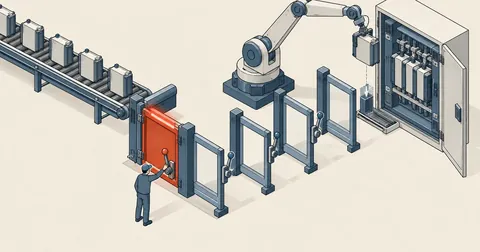
First, always work on a project copy; nobody opens the original I received for writing. Second, AI-generated code must pass through every step in the diagram above, in order, with no shortcuts. Third, do not upload a customer's project to the cloud without permission; the machine program belongs to the machine's owner. Fourth, safety functions must be hardwired or use an F-CPU; this kind of work is outside the scope of having AI draft ordinary logic as a replacement.
In summary, V15.1 has no ready-made solution, but its API provides enough to build the connection myself. There are three things to remember: use only powershell.exe 5.1, start the script in the same desktop session as TIA rather than session 0, and have a modal watcher running before opening a freshly copied project. The rest is traversing objects according to the documentation. Personally, I think factories already using V17 or later would get there much faster with a community MCP server than by building their own connection. This approach suits people stuck on an older version, like me.
What I have not tested is any form of connection to a real PLC. All the work was done on a simulator and project copies, and I have not tried any TIA version other than V15.1. If I have left anything out or find more traps, I will come back and update this article.
Hit something like this? Stuck somewhere?
Come trade notes on the LinuxThai board
Comments 0
No comments yet — be the first