Build a Desktop AI Server with WSL2 + Ollama + OpenClaw
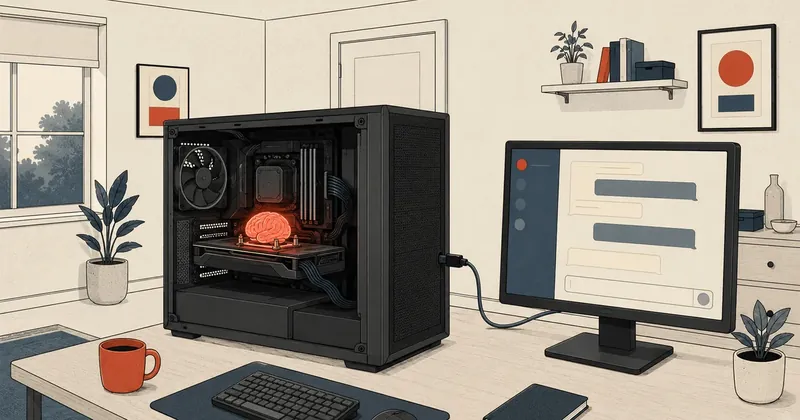
A single desktop with two GPUs can comfortably serve as a home AI server with the right setup. I took my everyday work machine and installed a whole range of LLMs that I run daily. This record covers every step I took, from installing Windows to benchmarking.
Running LLMs locally has been getting a lot of attention lately: no need to depend on the cloud for every task, no data leaving the house, and zero cost per token because it all runs on household electricity. I decided to reconfigure my everyday desktop into a full AI server, running several models at once, with separate instances, and leaving it working 24 hours a day without supervision.
I wrote this record in the exact order I carried out every step, without cutting anything, because several things are very easy to get wrong if skipped, especially systemd on WSL2 and tool calling in certain models. If you want to follow along, take only the parts you need; your setup does not have to match mine exactly. Different hardware, different OS, same principles.
Architecture overview
Before getting into the details, I want to show the whole stack, because it has several layers. At the bottom is Windows, which holds the NVIDIA driver. Above that is WSL2 running Ubuntu with systemd enabled, then Ollama as a system service and multiple OpenClaw instances, each running under a separate Linux user.
The key point is that Ollama runs as a single shared service listening on localhost:11434. Each OpenClaw instance has a separate user with its own config and credentials, but all instances request models from the same Ollama service through localhost. This separation lets me add instances without downloading models again, and a failure in one instance does not spread to the others.
1. Hardware specifications
My machine is an ordinary desktop I built myself. The important part is the two GPUs, because Ollama automatically selects the card with the most VRAM for each model.
Why two cards? I use the larger card with 16 GB of VRAM mainly for LLM inference, holding both model weights and the KV cache, while keeping the smaller 8 GB card as a fallback or for separate image generation work. When a model is really large, Ollama can also distribute the load across both cards. A single card works too; you just need to choose models that fit the available VRAM.
I recommend allowing at least 500 GB of NVMe SSD storage, because each model takes several gigabytes, and installing several of them fills the drive faster than you might expect.
2. Install Windows 11 IoT Enterprise LTSC
I chose Windows 11 IoT Enterprise LTSC as the base for a straightforward reason: it is clean, without the bloatware that comes with regular home editions of Windows, no Store pushing ads, and nothing needlessly consuming resources in the background. More importantly, it gets far fewer updates because it is on the Long-Term Servicing Channel. For a machine left running as a server, fewer update interruptions are better. It also fully supports everything needed here, including WSL2, CUDA, and Hyper-V, just like Pro/Enterprise.
Installation is the usual process: create a bootable USB with Rufus, set the partition scheme to GPT and the target to UEFI. If the machine fails the TPM 2.0 hardware check, Rufus has an option to bypass it. During installation, I selected the IoT Enterprise LTSC edition and used a local account without linking a Microsoft account, so I could keep full control of the machine.
After installation, only a few settings need adjusting for server use.
Set Power to Never sleep so the machine does not sleep when idle, enable Remote Desktop if you plan to connect through RDP, set Windows Update Active Hours to avoid working hours, and disable Delivery Optimization so background update downloads/uploads do not consume bandwidth
3. Install the GPU driver (CUDA)
Drivers are a common stumbling block when using two cards from different generations, because the old and new cards use different architectures. The older one is Pascal and the newer one is Blackwell. I need a single driver that supports both architectures, new enough to recognize Blackwell and support the CUDA version I plan to use.
Download the driver from the NVIDIA website, selecting the newer card model, because drivers released for newer cards also cover older cards from previous generations. Either the Game Ready or Studio Driver is fine.
Install the NVIDIA driver only on Windows. WSL2 automatically uses it through GPU passthrough. Never install another NVIDIA driver inside WSL2/Ubuntu, because it will conflict with the Windows driver and break both
Check that the driver works properly by opening PowerShell and running nvidia-smi.
nvidia-smi
Both GPUs should appear in the table, along with the Driver Version and the CUDA Version supported by the driver. If only one appears, check the BIOS to see whether both PCIe slots are enabled. Some motherboards require configuring bifurcation or enabling the secondary slot to use both simultaneously.
4. Install WSL2
WSL2 is the layer that lets me run real Linux on Windows with its own kernel and access the GPUs through passthrough. Open PowerShell as Admin and run:
wsl --install --no-distribution
This command enables Virtual Machine Platform and Windows Subsystem for Linux, and sets WSL 2 as the default. I included --no-distribution because I did not want it to install a distro automatically; I would choose one later. Restart Windows once the command finishes.
After restarting, check the version to make sure it really is WSL2.
wsl --version
wsl --set-default-version 2
5. Install Ubuntu on WSL2
I chose Ubuntu 24.04 because it is an LTS release and has a sufficiently recent version of systemd.
wsl --install -d Ubuntu-24.04
The first installation prompts for a username and password. This becomes the admin user with sudo access. I kept its UID at the default of 1000 and used it as the main account for managing the whole system. Then enter WSL, update everything, and install the basic packages needed regularly.
wsl -d Ubuntu-24.04
sudo apt-get update && sudo apt-get upgrade -y
sudo apt-get install -y \
  curl wget unzip git build-essential \
  python3 python3-pip python3-venv \
  htop neofetch jq
6. Configure WSL2 for server workloads
This step matters more than many people think, because WSL2 defaults are not designed for leaving services running all day. I changed two files: /etc/wsl.conf inside Ubuntu and .wslconfig on Windows.
Start with /etc/wsl.conf inside Ubuntu.
[automount]
enabled = false
mountFsTab = true

[boot]
systemd = true

[interop]
appendWindowsPath = false
The most important setting in this file is systemd = true. Without it, systemctl will not work at all, and I cannot set up Ollama and OpenClaw as services. I set automount = false to stop WSL from automatically mounting Windows drives, mounting only what I need through fstab instead. And appendWindowsPath = false keeps the Linux PATH clean by excluding the Windows PATH, which makes things faster and debugging less confusing.
The Windows .wslconfig is at /home/<user>/.wslconfig (on Windows, C:\Users\<user>\.wslconfig). This is optional, but I recommend setting it because WSL2 uses only half the machine's RAM by default, which is too little for running LLMs.
[wsl2]
memory=38GB
swap=4GB
processors=24
I allocate plenty of RAM because Ollama uses it as a fallback when VRAM runs out. With too little RAM, a large model that exceeds VRAM will not get far. After editing both files, restart WSL for the settings to take effect.
wsl --shutdown
wsl -d Ubuntu-24.04
Then check that systemd is actually running as PID 1.
systemctl --version
ps -p 1 -o comm=
The second line must show systemd, not init. If it still shows init, systemd is not running yet. Go back and check wsl.conf, then shut down again.
7. Install CUDA Toolkit in WSL2
This is a common source of confusion, so I want to make the distinction clear. The NVIDIA driver does not need to be installed in WSL2 because it already uses the Windows driver through passthrough. CUDA Toolkit, which contains the compiler and libraries, does need to be installed in WSL if you want to compile CUDA code yourself. Ollama does not actually need the Toolkit because it uses precompiled binaries, but I installed it in case I wanted to use PyTorch or TensorFlow later.
Before installing, make sure WSL can see both GPUs.
nvidia-smi
If both appear, install CUDA Toolkit specifically through NVIDIA's wsl-ubuntu repository. Do not use the regular repository, because it will pull in the driver too.
wget https://developer.download.nvidia.com/compute/cuda/repos/wsl-ubuntu/x86_64/cuda-keyring_1.1-1_all.deb
sudo dpkg -i cuda-keyring_1.1-1_all.deb
sudo apt-get update
sudo apt-get install -y cuda-toolkit-13-1
Then set PATH so the system can find nvcc and the libraries.
echo 'export PATH="/usr/local/cuda/bin:$PATH"' >> ~/.bashrc
echo 'export LD_LIBRARY_PATH="/usr/local/cuda/lib64:$LD_LIBRARY_PATH"' >> ~/.bashrc
source ~/.bashrc
nvcc --version
The CUDA Version shown by nvidia-smi is the highest version the driver supports, not the version actually installed. Check nvcc --version for the installed version. These two do not have to match; do not confuse them
8. Install Ollama
Ollama handles running the models. One script installs it.
curl -fsSL https://ollama.com/install.sh | sh
This script places the binary at /usr/local/bin/ollama, creates a separate ollama user to run the service, creates the systemd service, and, importantly, adds the ollama user to the video and render groups for GPU access. It then starts the service immediately. Check that everything is running.
ollama --version
sudo systemctl status ollama
curl -s http://localhost:11434/api/tags | python3 -m json.tool
The last command must return JSON (the models list may still be empty because nothing has been pulled yet). A JSON response means the API is working.
9. Configure the Ollama service for two GPUs
The initially installed service still uses default settings. I edited the service file to use both cards and enable options that help performance.
[Unit]
Description=Ollama Service
After=network-online.target

[Service]
ExecStart=/usr/local/bin/ollama serve
User=ollama
Group=ollama
Restart=always
RestartSec=3
Environment="PATH=/usr/local/sbin:/usr/local/bin:/usr/sbin:/usr/bin:/sbin:/bin"
Environment="CUDA_VISIBLE_DEVICES=0,1"
Environment="OLLAMA_FLASH_ATTENTION=1"
Environment="OLLAMA_NUM_PARALLEL=2"
Environment="OLLAMA_MAX_LOADED_MODELS=2"
Environment="OLLAMA_KEEP_ALIVE=5m"

[Install]
WantedBy=default.target
Each variable has a purpose. CUDA_VISIBLE_DEVICES=0,1 lets Ollama see both cards, then it selects the card with the most VRAM for each model itself. OLLAMA_FLASH_ATTENTION=1 enables flash attention for faster inference and lower VRAM usage. OLLAMA_NUM_PARALLEL=2 allows two simultaneous requests, which is necessary because I have two instances that may send requests at the same time. OLLAMA_MAX_LOADED_MODELS=2 allows two models to remain loaded in VRAM simultaneously if there is enough space. And OLLAMA_KEEP_ALIVE=5m keeps a model in VRAM for 5 minutes after its last use, then unloads it to free VRAM.
After editing, reload and enable the service to start automatically.
sudo systemctl daemon-reload
sudo systemctl enable ollama
sudo systemctl restart ollama
sudo systemctl status ollama
10. Pull models and create custom tool templates
This step has two parts: first, pull the models I want to use; second, fix models that do not support tool calling, which prevents OpenClaw from using them.
Start by pulling the main models. I chose several to cover different tasks: one strong in Thai and reasoning, one for deeper thinking, one for coding, and a large general-purpose model.
ollama pull qwen3:14b              # ~9 GB ภาษาไทย/อังกฤษ, reasoning, tools
ollama pull deepseek-r1:14b        # ~9 GB คิดลึก reasoning
ollama pull deepseek-coder-v2:16b  # ~9 GB เขียนโค้ด
ollama pull gpt-oss:20b            # ~13 GB งานทั่วไป
ollama list
Now for the problem. The deepseek models, both deepseek-r1:14b and deepseek-coder-v2:16b, do not have {{.Tools}} in their templates. When OpenClaw sends a tool definition, Ollama immediately rejects it with 400 does not support tools. The fix is to create a custom model from a Modelfile that adds a tool template, reusing the original weights without downloading them again. It simply adds a template layer on top of the original model.
First, create a folder for the Modelfiles (I put mine at /home/<user>/modelfiles).
mkdir -p /home/<user>/modelfiles
The heart of the deepseek-r1-tools Modelfile is the {{- if .Tools }} block, which tells the model that functions are available to call and that it should respond with JSON wrapped in <tool_call> tags.
FROM deepseek-r1:14b

TEMPLATE """{{- if .System }}{{ .System }}{{ end }}
{{- if .Tools }}

# Tools

You may call one or more functions to assist with the user query.

You are provided with function signatures within <tools></tools> XML tags:
<tools>
{{- range .Tools }}
{"type": "function", "function": {{ .Function }}}
{{- end }}
</tools>

For each function call, return a JSON object with function name and arguments within <tool_call></tool_call> XML tags:
<tool_call>
{"name": <function-name>, "arguments": <args-json-object>}
</tool_call>
{{- end }}
{{- range $i, $_ := .Messages }}
{{- $last := eq (len (slice $.Messages $i)) 1}}
{{- if eq .Role "user" }}<|User|>{{ .Content }}
{{- else if eq .Role "assistant" }}<|Assistant|>
{{- if .ToolCalls }}
<tool_call>
{{- range .ToolCalls }}
{"name": "{{ .Function.Name }}", "arguments": {{ .Function.Arguments }}}
{{- end }}
</tool_call>
{{- else }}{{ .Content }}{{- end }}
{{- if not $last }}<|end▁of▁sentence|>{{- end }}
{{- else if eq .Role "tool" }}<|User|><tool_response>
{{ .Content }}
</tool_response>
{{- end }}
{{- if and $last (ne .Role "assistant") }}<|Assistant|>
{{- end -}}
{{- end }}"""
The deepseek-coder-v2-tools model uses a different template format because its chat format differs from r1, but the principle is the same: insert a Tools block before the user message.
FROM deepseek-coder-v2:16b

TEMPLATE """{{- if .Messages }}<|begin▁of▁sentence|>
{{- $system := "" }}
{{- range $i, $_ := .Messages }}
{{- if eq .Role "system" }}
{{- $system = printf "%s %s" $system .Content }}
{{- else if eq .Role "user" }}
{{- if $system }}{{ $system }}
{{- if $.Tools }}

# Tools

You have access to the following functions. To call a function, respond with a JSON object within <tool_call></tool_call> tags:
<tools>
{{- range $.Tools }}
{"type": "function", "function": {{ .Function }}}
{{- end }}
</tools>
{{- end }}
{{ $system = "" }}
{{ end }}User: {{ .Content }}

{{ if eq (len (slice $.Messages $i)) 1 }}Assistant:
{{- end }}
{{- else if eq .Role "assistant" }}Assistant:
{{- if .ToolCalls }}
<tool_call>
{{- range .ToolCalls }}
{"name": "{{ .Function.Name }}", "arguments": {{ .Function.Arguments }}}
{{- end }}
</tool_call>
{{- else }} {{ .Content }}{{- end }}<|end▁of▁sentence|>
{{- end }}
{{- end }}
{{- end }}"""
Create custom models from both Modelfiles. There are two options: option A creates new names ending in -tools to use alongside the originals; option B overwrites the originals so they include the tool templates directly. I chose option A because I wanted to keep the originals for comparison.
ollama create deepseek-r1-tools:14b -f /home/<user>/modelfiles/Modelfile-deepseek-r1-tools
ollama create deepseek-coder-v2-tools:16b -f /home/<user>/modelfiles/Modelfile-deepseek-coder-v2-tools
The models that need no Modelfile are qwen3:14b, gpt-oss:20b, and hermes3:8b; these already support tools. Once done, test that the custom models actually accept tools.
curl -s http://127.0.0.1:11434/api/chat -d '{
  "model": "deepseek-r1-tools:14b",
  "messages": [{"role": "user", "content": "Say OK"}],
  "tools": [{"type": "function", "function": {"name": "test", "description": "test", "parameters": {"type": "object", "properties": {}}}}],
  "stream": false
}' | python3 -c "import sys,json; r=json.load(sys.stdin); print('OK' if 'message' in r else r.get('error','FAIL'))"
The output must say OK. If it says does not support tools, the template has not taken effect. Go back, check the Modelfile, and create the model again.
11. Create a separate Linux user for each instance
My approach is to run each OpenClaw instance as a different Linux user so configs, credentials, and sessions are completely separate, while sharing one Ollama service through localhost.
Create two users for the instances from the admin account.
sudo adduser --disabled-password --gecos "" claw-a
sudo adduser --disabled-password --gecos "" claw-b
sudo chsh -s /bin/bash claw-a
sudo chsh -s /bin/bash claw-b
New users sometimes get /bin/sh (dash), where source does not work and .bashrc does not load automatically. Both fnm and Claude CLI write their configuration to .bashrc, so with dash as the shell, commands will not be found at the next login. Use chsh to set every user to /bin/bash
Suppress the MOTD shown at login and check that the shell is correct.
sudo -u claw-a touch /home/claw-a/.hushlogin
sudo -u claw-b touch /home/claw-b/.hushlogin
getent passwd claw-a | cut -d: -f7   # ต้องเห็น /bin/bash
getent passwd claw-b | cut -d: -f7   # ต้องเห็น /bin/bash
12. Install Claude CLI for each user
Recent versions of Claude Code have a native installer and do not need Node.js for their own installation. Repeat this step for every user, starting with claw-a.
sudo -iu claw-a
curl -fsSL https://claude.ai/install.sh | bash
source ~/.bashrc
claude --version
claude doctor
Authentication on WSL2 has one catch: login through the OAuth callback does not work because WSL's localhost is not directly connected to the browser on Windows. What worked for me was running setup-token on Windows, where the browser is, then setting that token in WSL.
export CLAUDE_CODE_OAUTH_TOKEN="<token>"
echo 'export CLAUDE_CODE_OAUTH_TOKEN="<token>"' >> ~/.bashrc
Then skip onboarding by creating a config file that marks onboarding as completed.
mkdir -p ~/.claude
cat > ~/.claude.json << 'ENDOFFILE'
{
  "hasCompletedOnboarding": true
}
ENDOFFILE
claude -p "hello, are you working?"
If a response comes back, the connection to Claude is working. To use an API key instead of a subscription, set ANTHROPIC_API_KEY in .bashrc instead. Then exit and repeat for claw-b.
13. Install Node.js with fnm
OpenClaw needs a recent version of Node.js. I use fnm (Fast Node Manager) for per-user installations because each instance may want to control its Node version independently. Do the same for each user.
sudo -iu claw-a
curl -fsSL https://fnm.vercel.app/install | bash
During installation, you may see Could not infer shell type. This is normal because sudo -iu does not pass the shell type to the installer; there is no need to worry. Next, configure .bashrc in the correct order. This is a common mistake: export PATH must come before eval.
echo 'export PATH="$HOME/.local/share/fnm:$PATH"' >> ~/.bashrc
echo 'eval "$(fnm env)"' >> ~/.bashrc
source ~/.bashrc
fnm install 22
fnm use 22
fnm default 22
node -v
npm -v
fnm creates a new dynamic path whenever a session opens, so the path to node keeps changing. This is a problem when writing a service file that needs a fixed path. Add a stable path to .profile as well, so the service always points to the correct binary
echo 'export PATH="$HOME/.local/share/fnm/aliases/default/bin:$PATH"' >> ~/.profile
exit
Repeat for claw-b as well.
14. Install OpenClaw and run onboarding
Once Node is ready, install OpenClaw through npm for each user.
sudo -iu claw-a
source ~/.bashrc
npm install -g openclaw@latest
openclaw --version
The npm warn deprecated messages are normal for internal dependencies and do not need fixing. Next is onboarding, which asks for settings one at a time. Ports need planning because each instance must use a different port. I assigned claw-a one <port> and claw-b another that does not conflict.
openclaw onboard --install-daemon --gateway-port <port>
During onboarding, it asks you to choose a model (I chose ollama/qwen3:14b), select an authentication method, enter the gateway port, choose a channel (such as Telegram, entering a bot token), and decide whether to install the daemon. You can answer Yes for now, even though it will fail on WSL2, because I will configure the service manually later anyway. Health check failed is also normal at this point because the gateway has not started yet.
Finally, set the Ollama API key. Ollama does not require a real key, but OpenClaw needs this environment variable for authentication. Any value will do.
echo 'export OLLAMA_API_KEY="ollama-local"' >> ~/.bashrc
exit
Repeat for claw-b with a different port.
15. Set up the OpenClaw gateway as a systemd service
This is the hardest part of the whole setup, because user-level systemd on WSL2 is not as straightforward as on a native Linux machine. First, enable linger so user services can run even when nobody is logged in. Do this once from the admin account.
sudo loginctl enable-linger claw-a
sudo loginctl enable-linger claw-b
loginctl show-user claw-a | grep Linger   # ต้องเห็น Linger=yes
Onboarding does not create a service file on WSL2, so I had to write it myself. In this claw-a example, the key is that ExecStart must use full paths for both node and openclaw, and they must be stable paths under aliases/default/bin, not the multishell paths that fnm recreates for each session.
[Unit]
Description=OpenClaw Gateway (claw-a)
After=network.target

[Service]
Type=simple
ExecStart=/home/claw-a/.local/share/fnm/aliases/default/bin/node /home/claw-a/.local/share/fnm/aliases/default/bin/openclaw gateway --port <port>
Restart=on-failure
RestartSec=5
Environment="PATH=/home/claw-a/.local/share/fnm/aliases/default/bin:/home/claw-a/.local/bin:/usr/local/bin:/usr/bin:/bin"
Environment="HOME=/home/claw-a"
Environment="OLLAMA_API_KEY=ollama-local"

[Install]
WantedBy=default.target
Place this file at /home/claw-a/.config/systemd/user/openclaw.service, then do the same for claw-b, changing the paths and port to match.
Now comes the part that makes many people give up: systemctl --user does not work through sudo -iu because there is no DBUS session bus for it to communicate with. The fix is to explicitly set environment variables pointing to that user's runtime directory and bus, using each user's UID.
sudo -u claw-a XDG_RUNTIME_DIR=/run/user/1002 \
  DBUS_SESSION_BUS_ADDRESS=unix:path=/run/user/1002/bus \
  systemctl --user daemon-reload

sudo -u claw-a XDG_RUNTIME_DIR=/run/user/1002 \
  DBUS_SESSION_BUS_ADDRESS=unix:path=/run/user/1002/bus \
  systemctl --user enable --now openclaw
Run the same commands for claw-b, changing the UID to its own. Since these commands are long and easy to mistype, I added aliases to the admin user's .bashrc to shorten them.
alias sc-a='sudo -u claw-a XDG_RUNTIME_DIR=/run/user/1002 DBUS_SESSION_BUS_ADDRESS=unix:path=/run/user/1002/bus systemctl --user'
alias sc-b='sudo -u claw-b XDG_RUNTIME_DIR=/run/user/1003 DBUS_SESSION_BUS_ADDRESS=unix:path=/run/user/1003/bus systemctl --user'
alias jn-a='sudo -u claw-a XDG_RUNTIME_DIR=/run/user/1002 DBUS_SESSION_BUS_ADDRESS=unix:path=/run/user/1002/bus journalctl --user-unit'
alias jn-b='sudo -u claw-b XDG_RUNTIME_DIR=/run/user/1003 DBUS_SESSION_BUS_ADDRESS=unix:path=/run/user/1003/bus journalctl --user-unit'
After this, management is much easier: for example, sc-a status openclaw checks status, sc-a restart openclaw restarts the service, and jn-a openclaw -f follows the logs. Check that both show active (running).
16. Configure model aliases and connect Telegram
Once the gateway is running, configure the models for convenient use. Switch to the user and set the default model and easy-to-remember aliases.
sudo -iu claw-a
source ~/.bashrc
openclaw models set "ollama/qwen3:14b"
openclaw models aliases add qwen ollama/qwen3:14b
openclaw models aliases add think ollama/deepseek-r1-tools:14b
openclaw models aliases add code ollama/deepseek-coder-v2-tools:16b
openclaw models aliases add gpt ollama/gpt-oss:20b
One recurring problem is that every gateway restart triggers model auto-discovery from Ollama and overwrites the existing config, restoring reasoning: true each time. Ollama does not support the thinking parameter, so this setting causes an immediate error. The permanent fix is to explicitly define models.providers in the OpenClaw config, setting every model to reasoning: false so auto-discovery cannot overwrite it.
import json, os
path = os.path.expanduser('~/.openclaw/openclaw.json')
with open(path) as f:
    cfg = json.load(f)
cfg.setdefault('models', {})['providers'] = {
    'ollama': {
        'baseUrl': 'http://127.0.0.1:11434/v1',
        'api': 'openai-completions',
        'models': [
            {'id': m, 'name': m, 'reasoning': False,
             'input': ['text'], 'contextWindow': 128000, 'maxTokens': 8192,
             'cost': {'input': 0, 'output': 0, 'cacheRead': 0, 'cacheWrite': 0}}
            for m in [
                'qwen3:14b', 'deepseek-r1-tools:14b',
                'deepseek-coder-v2-tools:16b', 'gpt-oss:20b', 'hermes3:8b'
            ]
        ]
    }
}
with open(path, 'w') as f:
    json.dump(cfg, f, indent=2)
print('set reasoning: false for all ollama models')
Pair Telegram after the gateway starts. Send the bot a message in Telegram for the first time to receive a pairing code, then approve it.
openclaw pairing approve telegram <code>
openclaw models status
openclaw channels status
exit
17. Check the whole system
Once every component was in place, I ran through a checklist of the whole stack again, from the system level down to each instance, to make sure all layers really worked together.
# ระดับระบบ
nvidia-smi                          # ต้องเห็น 2 GPU
ollama list                         # ต้องเห็นโมเดลครบ
sudo systemctl status ollama        # active (running)

# แต่ละ instance
sc-a status openclaw                # active (running)
sc-b status openclaw                # active (running)

# ทดสอบ API ภาษาไทยตรงๆ
curl -s http://localhost:11434/api/chat \
  -d '{"model":"qwen3:14b","messages":[{"role":"user","content":"สวัสดี"}],"stream":false,"options":{"num_predict":50}}' \
  | python3 -c "import sys,json; print(json.load(sys.stdin)['message']['content'])"
The correct state is Ollama running on port 11434, with each instance's gateway on its own separate port, both showing active (running), and openclaw models status for each user showing Auth=yes for every model.
18. Common problems and fixes
During this setup, the most troublesome problems kept coming back to a few things. I have collected them here so anyone who encounters them can avoid wasting time figuring them out.
Failed to connect to bus
- Cause: sudo -iu has no DBUS session bus
- Fix: set XDG_RUNTIME_DIR + DBUS_SESSION_BUS_ADDRESS to point to /run/user/<uid>
- Create aliases for convenience
The model has no Tools template
- Cause: the template lacks {{.Tools}}
- Fix: create a custom model with a Modelfile (step 10)
- Test with curl /api/chat including tools
Two other issues come up regularly. The first is fnm: command not found after logging in again. Almost every time, the cause is the wrong order in .bashrc: export PATH must always come before eval "$(fnm env)". If reversed, fnm cannot find itself. The second is OpenClaw reporting Missing auth - ollama. Check that OLLAMA_API_KEY exists in both .bashrc and the service file. If it is missing from either, the error appears.
This pipeline can leave a file at 0 bytes if the processes overlap at the wrong moment. I have had openclaw.json wiped out this way. Always back up with cp first, then edit with a python script that reads the entire file, modifies it in memory, and writes it back. That is safer
If Ollama sees only one GPU, check three things: whether nvidia-smi shows both, whether CUDA_VISIBLE_DEVICES in the service file is set to 0,1, and whether the ollama user belongs to both the video and render groups, using id ollama.
19. Maintenance and updates
The thing to remember is that every time you run ollama pull on an existing model to update its weights, you must rebuild all its custom -tools models, because pulling again overwrites the weights but loses the template I added. If you forget to rebuild, the same error returns when OpenClaw sends tools.
ollama pull deepseek-r1:14b
ollama create deepseek-r1-tools:14b -f /home/<user>/modelfiles/Modelfile-deepseek-r1-tools
Update OpenClaw through npm for each user, then restart the gateway. Claude CLI updates itself automatically and needs no attention. Another thing to know is that every wsl --shutdown stops all services, and they need to start again when WSL reopens.
sudo systemctl start ollama
sc-a start openclaw
sc-b start openclaw
Ollama starts automatically when systemd boots if it has been enabled with enable. OpenClaw user services with linger enabled also return automatically. This depends on whether everything has been enabled.
20. Benchmark real performance
Finally, I wrote a benchmark script to measure all the models together and see which ones suit which tasks on this hardware. The script sends streaming requests through the API and records three measurements: TTFT (time to first token), throughput (tokens per second), and total time. It tests four types of work, from short answers to long-form writing.
The heart of the script is the run_test function, which sends a streaming request, times the first token, and counts all tokens. The rest calculates throughput and formats a readable results table for the terminal.
import requests, time, json

OLLAMA_URL = "http://localhost:11434/v1/chat/completions"

def run_test(model, messages, max_tokens=None):
    payload = {"model": model, "messages": messages, "stream": True}
    if max_tokens:
        payload["max_tokens"] = max_tokens
    ttft = None
    chunks = []
    total_tokens = 0
    start = time.perf_counter()
    resp = requests.post(OLLAMA_URL, json=payload, stream=True, timeout=600)
    resp.raise_for_status()
    for line in resp.iter_lines():
        if not line:
            continue
        text = line.decode("utf-8", errors="replace")
        if not text.startswith("data: "):
            continue
        data = text[6:]
        if data.strip() == "[DONE]":
            break
        try:
            chunk = json.loads(data)
        except json.JSONDecodeError:
            continue
        if ttft is None:
            ttft = time.perf_counter() - start
        delta = chunk.get("choices", [{}])[0].get("delta", {})
        if delta.get("content"):
            chunks.append(delta["content"])
        usage = chunk.get("usage")
        if usage and usage.get("completion_tokens"):
            total_tokens = usage["completion_tokens"]
    total_time = time.perf_counter() - start
    if total_tokens == 0:
        total_tokens = max(1, len("".join(chunks)) // 4)
    gen_time = total_time - (ttft or 0)
    throughput = total_tokens / gen_time if gen_time > 0 else 0
    return ttft, total_time, total_tokens, throughput
Another function I like calculates how many context tokens a model can handle based on the VRAM remaining after its weights load. It compares the KV cache size per token against free VRAM. This helps predict which models can actually handle long contexts without spilling into RAM.
def calc_context_capacity(arch, model_size_gb, gpu_vram_mb):
    # KV cache bytes ต่อ 1 token
    kv_per_token = (2 * arch["block_count"] * arch["head_count_kv"]
                    * (arch["key_length"] + arch["value_length"]) * 2)
    model_size_mb = model_size_gb * 1024
    overhead_mb = 500
    remaining_mb = gpu_vram_mb - model_size_mb - overhead_mb
    if remaining_mb <= 0:
        return 0
    remaining_bytes = remaining_mb * 1024 * 1024
    max_ctx_by_vram = int(remaining_bytes / kv_per_token)
    return min(max_ctx_by_vram, arch["context_length"] or max_ctx_by_vram)
The results from this hardware follow this pattern: small 8B models deliver throughput above 20 tokens per second, medium 14B-16B models run at around 10-18 tokens per second, and larger 20B models are slower but give better answers. Most TTFT measurements are below two seconds, which is comfortable for interactive use.
These numbers vary with the GPUs and amount of VRAM available. Use them as a rough reference for which model sizes make the most sense for your machine.
This is the full sequence I followed, from a bare machine to a setup I use every day. The two points I want to emphasize most are systemd on WSL2 and deepseek tool templates, because those took the most time. Once those two hurdles are cleared, the rest is straightforward. Whether you use one GPU, a different Ubuntu version, or a different set of models, adjust as needed. The principles are the same.
Hit something like this? Stuck somewhere?
Come trade notes on the LinuxThai board

Comments 0
No comments yet — be the first