Speed Up Screen Recordings While Keeping the Original Clock

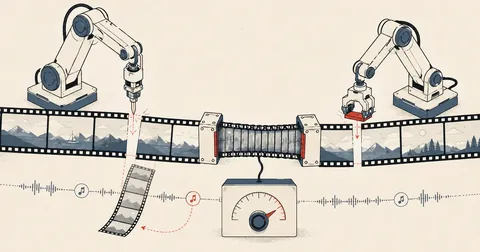
Speeding up an entire clip by a single factor is easy. But when waiting needs to run faster than actual work, while viewers still need to see how much time really passed, filter order in the pipeline suddenly becomes critical.
I had recorded my screen while working on something for a little over 12 minutes and wanted to turn it into a timelapse of around four minutes. But I did not want to speed up the whole thing by the same factor, because half the clip was a static screen while I waited for processing. If I sped everything up equally, the parts with something worth watching would fly past too quickly to follow, while the static parts would still take up time. More importantly, I wanted a clock on the image showing the original elapsed time, so viewers could see how many minutes those brief flashes actually took.
When I started, I hit an unexpected trap: the on-screen clock ran at the accelerated speed, even though I wanted it to follow the original timeline. It took several attempts to realize that it was entirely a matter of filter order. So this article focuses specifically on the filtergraph pipeline.
If you have never used ffmpeg before, read Use Claude to Edit Video with Instructions in Thai first. That article covers asking it to cut, shorten, combine, add music, and enable GPU acceleration. I will not repeat any of that here. This starts with a clip already in hand and a filtergraph to write yourself.
First, measure where the screen is idle and where something happens
I did not sit through the clip and write down timestamps myself, because a twelve-minute clip switches back and forth dozens of times. A faster approach is to have ffmpeg measure it, using the tblend filter in difference mode to compare consecutive frames, then feeding the result into signalstats to read the average brightness of the difference image. If nothing on the screen moves, the difference image is completely black and the value approaches zero.
Sampling just 2 frames per second was enough for me, because I only needed to know where movement occurred, not measure it down to individual frames. I also scaled the image down to make the measurement much faster.
ffmpeg -hide_banner -i screen.mp4 \
  -vf "fps=2,scale=480:-2,tblend=all_mode=difference,signalstats,metadata=print" \
  -an -f null - 2> motion.log
The resulting log looks like this. YAVG is the value I use to make the decision.
frame:1     pts:1       pts_time:0.5
lavfi.signalstats.YAVG=0.121
frame:2     pts:2       pts_time:1
lavfi.signalstats.YAVG=0.098
frame:3     pts:3       pts_time:1.5
lavfi.signalstats.YAVG=4.317
frame:4     pts:4       pts_time:2
lavfi.signalstats.YAVG=6.882
I used a threshold of 0.8: below that counts as idle, and above it counts as activity. This is not a standard value; you need to inspect your own clip's log and choose it yourself. Clips with a blinking cursor or a system clock ticking in a corner will always have a higher baseline.
Merge small sections first, or you will end up with over a hundred segments
Cutting directly from the raw results would produce hundreds of tiny sections, because people naturally pause for a few seconds to think while typing. So I added three steps first: extend each active section by one second on either side for context, merge sections shorter than three seconds into their neighbors, and then combine adjacent sections of the same type.
THRESH, DILATE_S, MIN_SEG_S, DT = 0.8, 1.0, 3.0, 0.5

active = [v > THRESH for v in vals]
d = int(round(DILATE_S / DT))
act2 = active[:]
for i, a in enumerate(active):
    if a:
        for j in range(max(0, i - d), min(len(active), i + d + 1)):
            act2[j] = True
active = act2

segs, i = [], 0
while i < len(active):                    # ตัดเป็นช่วงตามชนิด
    j = i
    while j < len(active) and active[j] == active[i]:
        j += 1
    segs.append([i * DT, j * DT, active[i]])
    i = j

merged = []                               # ยุบช่วงสั้นเข้ากับตัวก่อนหน้า
for s in segs:
    if merged and (s[1] - s[0]) < MIN_SEG_S:
        merged[-1][1] = s[1]
    elif merged and merged[-1][2] == s[2]:
        merged[-1][1] = s[1]
    else:
        merged.append(s[:])
Mine ended up with exactly 49 sections, which was still manageable. If you get more than a hundred, increase MIN_SEG_S, because every section becomes one branch in the filtergraph and one input to concat. More sections mean more memory used during rendering.
Set the active speed yourself, and calculate the idle speed from the target length
My reasoning here was simple: I wanted the active sections to remain understandable, so I fixed them at 3 times the original speed. I left the idle speed as a variable to solve for the target output length, then clamped it to an acceptable range.
TARGET_OUT, ACTIVE_SPEED, IDLE_CLAMP = 230.0, 3.0, (6.0, 16.0)

active_total = sum(e - st for st, e, a in final if a)
idle_total   = sum(e - st for st, e, a in final if not a)

out_active = active_total / ACTIVE_SPEED
remain     = max(TARGET_OUT - out_active, 10.0)
idle_speed = min(max(idle_total / remain, IDLE_CLAMP[0]), IDLE_CLAMP[1])
est_out    = out_active + idle_total / idle_speed
print(f"ACTIVE={ACTIVE_SPEED}x IDLE={idle_speed:.1f}x -> ~{est_out:.0f}s")
The reason for capping it at 16 times is that, if the calculation is left unconstrained and the clip has very long idle sections, the factor can shoot up to forty or fifty times. Those idle sections then disappear in a blink, leaving viewers confused by the jump in the image. The lower bound of 6 times guards against the opposite case: if the clip has almost no idle time, the factor can drop to the same speed as the active sections, making it hard to tell why they were sped up at all.
The key point: drawtext must come before setpts
This is the main point of the entire article. A drawtext filter printing %{pts:hms} reads the frame's timestamp at its own position in the pipeline, not the original timestamp. Once setpts divides the timestamps to speed up the video, the frames coming out have new timestamps shortened by that factor. If drawtext comes after setpts, it reads and prints those new timestamps, so the on-screen clock runs three or six times faster according to the speedup.
trim, then setpts, then drawtext
The clock reads the accelerated timestamps. For a 12-minute clip, the numbers finish at around four minutes. That shows the output clip's time, which viewers can already see on the playback bar, so it serves no purpose.
trim, then drawtext, then setpts
The clock reads each frame's timestamp before it is accelerated. The on-screen numbers therefore jump in steps according to the speed factor and finish at a little over 12 minutes, matching the actual elapsed time. Viewers can immediately see which sections were sped up more.
The printed time is counted from the start of trim in that section, not from the beginning of the original file. If you cut three and a half seconds off the start and want the clock to match the original file exactly, you need to add the offset yourself. I did not add it, because for this clip I counted from when I actually started working, not from when I pressed record.
Thai text needs an explicit font, and colons must be escaped
These two issues cost me quite a bit of time. First, drawtext does not come with a Thai font. Without fontfile, you get a row of square boxes or nothing at all. Second, colons separate filter parameters. If you write %{pts:hms} directly, ffmpeg reads it as a new parameter and complains that it does not recognize an option named hms.
# นาฬิกาเวลาต้นฉบับ กับป้ายกำกับภาษาไทย
CLOCK = ("drawtext=fontfile=consolab.ttf:text='%{pts\\:hms}':fontsize=54:"
         "fontcolor=white:box=1:[email protected]:boxborderw=9:x=36:y=30")
CLABEL = ("drawtext=fontfile=tahoma.ttf:text='เวลาจริงต้นฉบับ (ถูกเร่ง speed)':"
          "fontsize=15:fontcolor=0x9fd0ff:box=1:[email protected]:"
          "boxborderw=5:x=38:y=96")
OVL = CLOCK + "," + CLABEL
On Windows, a path such as C:\work\fonts\tahoma.ttf contains both a colon after the drive letter and backslashes, which require so many layers of escaping that hardly anyone gets it right the first time. The quickest approach is to copy the font file into the working folder and refer to it by filename alone, then cd into that folder before running the command. You can use separate fonts for numbers and Thai text. I use a monospaced font for the clock so the digits do not shift left and right when the seconds change.
You cannot reuse an input reference; split it into one branch per section
Within a filtergraph, a label can only be used once. You cannot write [0:v]trim=... forty-nine times; ffmpeg will immediately complain that the label has already been used. The fix is to use split to create as many branches as the sections you want to cut, then give each branch its own trim.
Every branch also needs fps and format before it enters concat. If branches finish with different frame rates or pixel formats, the result is stuttering at the joins or an explicit error saying that the concat inputs do not match.
K = len(final)
parts = ["[0:v]split=%d%s" % (K, "".join(f"[s{k}]" for k in range(K)))]
for k, (st, e, a) in enumerate(final):
    spd = ACTIVE_SPEED if a else idle_speed
    parts.append(f"[s{k}]trim=start={st:.3f}:end={e:.3f},{OVL},"
                 f"setpts=(PTS-STARTPTS)/{spd:.4f},fps=30,format=yuv420p[v{k}]")
graph = ";\n".join(parts) + ";\n" + \
        "".join(f"[v{k}]" for k in range(K)) + f"concat=n={K}:v=1:a=0[outv]"
open("filtergraph.txt", "w", encoding="utf-8").write(graph)
The generated lines look like this. Pay close attention to the order: trim, then two drawtext filters, then setpts, and finally fps and format.
[0:v]split=49[s0][s1][s2]...[s48];
[s0]trim=start=3.500:end=17.500,drawtext=fontfile=consolab.ttf:text='%{pts\:hms}'
    :fontsize=54:fontcolor=white:box=1:[email protected]:boxborderw=9:x=36:y=30,
    drawtext=fontfile=tahoma.ttf:text='เวลาจริงต้นฉบับ (ถูกเร่ง speed)':fontsize=15
    :fontcolor=0x9fd0ff:box=1:[email protected]:boxborderw=5:x=38:y=96,
    setpts=(PTS-STARTPTS)/3.0000,fps=30,format=yuv420p[v0];
[s1]trim=start=17.500:end=20.500,...,setpts=(PTS-STARTPTS)/6.0000,fps=30,
    format=yuv420p[v1];
...
[v0][v1][v2]...[v48]concat=n=49:v=1:a=0[outv]
setpts=(PTS-STARTPTS)/N must always subtract STARTPTS before dividing, because after trim, frame timestamps still count from the beginning of the file. If you divide directly without subtracting that starting value, later sections of the clip will start at nonzero timestamps, and concat will join them incorrectly.
When the graph is too long for the command line, read it from a file
My graph was over twenty thousand characters long, so there was no way to fit it on the command line, especially on Windows with its command-line length limit. The solution is to write the graph to a file and have ffmpeg read it.
cd /c/work/video
ffmpeg -hide_banner -y -i screen.mp4 \
  -filter_complex_script filtergraph.txt -map "[outv]" \
  -c:v h264_nvenc -preset p5 -rc vbr -cq 23 -movflags +faststart \
  timelapse.mp4
Encoding with h264_nvenc made this run finish several times faster. For this job, decoding and filtering already run on the CPU, so the GPU can only help with encoding. But that one step makes a big difference because it is the heaviest part. I find cq 23 about right for screen recordings with lots of text. Set it higher and small text starts to look smeared.
For the final assembly, I added opening and closing cards at either end. At this point, I had to enforce matching dimensions, frame rates, and pixel formats across all inputs again, because still images and video files are inherently different types of input.
ffmpeg -hide_banner -y \
 -loop 1 -t 4 -i card_intro.png \
 -i timelapse.mp4 \
 -loop 1 -t 4 -i card_outro.png \
 -filter_complex "[0:v]scale=1280:720,fps=30,format=yuv420p[a];\
[1:v]scale=1280:720,fps=30,drawtext=fontfile=tahoma.ttf:text='example.com':\
fontsize=23:fontcolor=white:box=1:[email protected]:boxborderw=9:x=38:y=h-52,\
format=yuv420p[b];\
[2:v]scale=1280:720,fps=30,format=yuv420p[c];\
[a][b][c]concat=n=3:v=1[outv]" \
 -map "[outv]" -c:v h264_nvenc -preset p5 -rc vbr -cq 23 -movflags +faststart \
 final.mp4
echo "EXIT=$?"
The traps I hit, starting with the ones that cost me the most time
- drawtext after setpts The clock follows the accelerated timestamps. Moving it before setpts fixes it.
- No fontfile specified Thai text turns into square boxes. You must specify the font file every time.
- Unescaped colon in %{pts:hms} ffmpeg reports an unknown option. Put a backslash before the colon.
- Referencing [0:v] multiple times Always split it into one branch per section first.
- Missing fps and format on some branches concat reports an error, or the video stutters at the joins. Add both to every branch.
- Dividing in setpts without subtracting STARTPTS Later sections start at nonzero timestamps, so the joins come out wrong.
- Squeezing the graph onto the command line Once it reaches tens of thousands of characters, move it to a file and use filter_complex_script.
Personally, I think what makes this kind of timelapse easier to follow than speeding up the entire clip is not the smoothness of the video, but the clock in the corner. When the numbers jump from minute two to minute five in two seconds, viewers immediately understand that it was a waiting period, without any extra explanation. Feel free to adjust the speed factors or change the encoder to suit your own machine. If I have left anything out or made a typo, I will come back and fix it later.
Hit something like this? Stuck somewhere?
Come trade notes on the LinuxThai board

Comments 0
No comments yet — be the first