Edit Videos with Claude Using Thai Prompts, No Video Editor Needed

Here is how I actually use AI to edit short clips instead of opening a heavy video editor. I just type what I want in Thai, and it handles the rest. Even beginners who have never touched Claude can follow along.
Lately, people have kept asking me whether they need to learn a heavy video editor just to cut short clips for a page or group, or edit training videos. So I decided to write up the method I actually use: I let Claude do the editing while I just type what I want in Thai, without memorizing a single command or opening an editor that slows down my machine.
This article is for people who have never touched Claude before. You can follow it from scratch, and it covers Windows, Mac, and Linux.
1. The Basics — How Claude Edits Videos
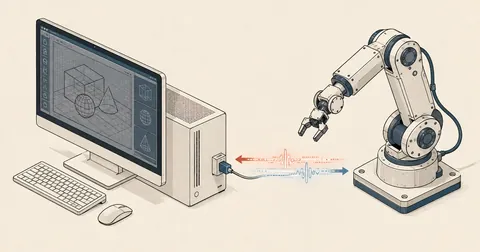
The first thing to understand is that Claude is not a "video editor" itself. It is more like an assistant typing commands for me. I tell it in plain language to "cut this section," "make it smaller," or "join these clips," and Claude writes commands for a program called ffmpeg and runs them all itself. I do not have to touch the commands.
The work splits into three simple roles.
You = give instructions · Claude = does the work · ffmpeg = the tool that actually edits the video. That means no commands to memorize and no heavy video editor eating up system resources.
What I like most about this method is that it does not overwrite the original file. Claude always gives the output file a new name. The originals stay intact, and if something goes wrong, I just ask it to try again. Nothing is damaged.
2. See It in Action — Claude Edited This Clip
I asked Claude to create a test clip and then actually edit it as a demonstration. This is not an illustration. On the left is the raw clip; on the right is the version after Claude processed it. You can play both.
I typed just one sentence.
Claude handled the long ffmpeg commands, the fonts, and the sequence of steps itself. I did not type a single technical command. For an actual work file, I would just replace "test video" with my filename.
3. What You Need (Windows / Mac / Linux)
You only need 3 things, and they are the same across all operating systems. Only the way you install ffmpeg differs slightly.
- VS Code — the program for chatting with Claude. Download it only from Microsoft's official website.
- Claude Code — the Claude extension that takes your instructions and runs them. Type "Claude Code" into the extension search box and choose the one whose publisher is Anthropic (watch out for imitations).
- ffmpeg — the tool that actually edits the video.
VS Code and Claude Code install the same way on every machine. Once that is done, open the Claude panel (press Ctrl+Esc). The first time, click Sign in and log in to your account once. Installing ffmpeg depends on your OS.
winget is all you need
Open PowerShell, type winget install Gyan.FFmpeg, then close and reopen the window. Check with ffmpeg -version.
Install through a package manager
On Mac, use brew install ffmpeg · On Linux, use sudo apt install ffmpeg (or sudo dnf install ffmpeg). Native ssh and ffmpeg are already available, without the hassle of setting PATH.
The easiest approach for beginners, in my view, is to skip installing ffmpeg yourself. Once you have logged in to Claude, just ask it to install it.
Claude Code requires a paid Claude account (Pro / Max / Team) to run tasks. The free plan cannot use it.
4. Get Started in 6 Steps
- Put your video files in one folder For example, create a folder called
D:\videoand put the clips there. - Open that folder in VS Code Use
File → Open Folder…and select the folder. Once it opens, Claude can immediately see the files inside. - Open the Claude chat panel Press
Ctrl+Esc. Log in to your account once on the first use. - Type what you want in Thai For example, "This folder contains clip.mp4. Please extract seconds 10 to 30 into cut.mp4."
- Allow Claude to run It will show the command it plans to run and ask first. Click Allow. It normally asks before every run for safety.
- Open the output file The new file will appear in the folder. Double-click it to watch.
If your request is unclear, keep chatting in Thai, for example, "Too long, make it shorter," "Where did the file go?" or "Add some text too." Claude will make the changes you ask for.
5. Common Plain-Language Requests (Type These Directly)
There is no technical vocabulary to memorize. Plain language like this is enough.
Specify just 3 things — (1) the filename (2) what you want (3) what to name the output file · Claude figures out the rest.
6. Add Background Music — Use an Existing Track or Have AI Compose One
This comes up a lot: after editing a clip, people want some background music so it does not feel flat. Claude can handle all of this, from adding an existing track to having AI compose a new one. I have split it into three options depending on what is convenient.
Option 1 — You already have a music file Just tell Claude to use the music file as the background track. It handles lowering the music so speech stands out, looping or trimming it to match the clip length, and fading it out at the end, all with ffmpeg.
If the clip already has speech, say "Lower the music when someone is speaking" so the speech does not get drowned out · If you want to discard the original audio and replace it entirely with music, say "Remove the original audio and replace it with music."
Option 2 — Find free music you can use without copyright problems This is very important for beginners. Do not add copyrighted music, or you could face a takedown notice or lose monetization. Use free music from official sources such as YouTube Audio Library (in YouTube Studio), Pixabay Music, or Free Music Archive. Download the mp3 into the same folder as the clip, then ask Claude to add it as in option 1.
Some "free" tracks require you to credit the composer in the video description (attribution). Always read the terms before using a track.
Option 3 — Have AI compose new music If you want a specific piece of music that is unique to you, have AI compose it. There are two approaches.
The first runs locally using Meta's MusicGen, a free, open-source music generation model. Ask Claude to install it and generate music from a short description (English works better, such as calm acoustic guitar, lo-fi). It runs locally with Python. If you have a GPU, you can speed it up as described in section 7. It suits people who want to do everything on their own machine without relying on a website.
The second uses a ready-made website such as Suno, Udio, or Stable Audio. Type a plain-language description of the music style, and it will compose it for you (Suno and Udio can also make songs with lyrics). Download the resulting mp3 and ask Claude to add it as in option 1. This method is easier, but you have to use the website yourself.
For instrumental background music made locally, use MusicGen · For a full song with lyrics, Suno or Udio is a better fit · Personally, if I just need BGM, local MusicGen is enough. I do not need to use a website.
7. How to Speed Things Up with an NVIDIA GPU
This is for people whose machines have an NVIDIA GPU, like mine. Tasks that require "encoding," meaning writing the video out again (such as reducing resolution, converting formats, or adding text), normally use the CPU, which is slow and generates heat. If you tell Claude to use NVIDIA's GPU encoder, called NVENC, it will encode several times faster. The difference is clear with long clips or large files.
The GPU only speeds up "encoding" (writing the video out again) · If you are just trimming a section without converting the video, Claude will copy the stream directly, which already finishes almost instantly without a GPU. So for simple trimming, you do not need to worry about the GPU at all.
Personally, I only use the GPU for genuinely heavy work, such as converting dozens of clips at a time or working with high-resolution clips. The CPU is more than enough for small jobs.
8. On Mac — Get the Most Out of It
If you use a Mac, especially an Apple Silicon model (M1 or later), it has a built-in encoding accelerator called VideoToolbox. Asking Claude to use it will be faster and use less battery than relying entirely on the CPU. There is nothing extra to install because it already comes with the machine.
One advantage of Mac is that ssh and ffmpeg are a one-time Homebrew installation (brew install ffmpeg), without the hassle of setting PATH as on Windows. Claude Code also works fully on Mac.
9. On Linux
Linux can do all the same things. Claude Code works, and ffmpeg is very easy to install (sudo apt install ffmpeg or sudo dnf install ffmpeg). Acceleration depends on your GPU.
- NVIDIA GPUs use NVENC, just as on Windows, but you need to have the NVIDIA driver installed first. Tell Claude to "encode with NVENC."
- Intel or AMD GPUs use VAAPI. Tell Claude to "encode with VAAPI (h264_vaapi)."
Just tell Claude, "Check which encoding accelerators are available on this machine." It will check the GPU and ffmpeg, then choose the fastest option itself.
10. If You Get Stuck or Want to Do More
- Always keep the original files Claude gives the output a new filename without overwriting the original.
- Keep asking in Thai For example, "Why is the audio missing?" "Make the video clearer," or "Explain what you did."
- Want automatic subtitles (captions)? Tell Claude, "Please install a subtitle tool and create Thai subtitles." It will install the tool and transcribe the audio into subtitles.
- Working with dozens of files? Say, "Do this to every file in the folder." Claude will write a script to loop through them all in one go.
The point is that I do not need to be a video editor or memorize a single ffmpeg command. I just need to state clearly what I want, and Claude handles the rest. Feel free to adapt this to your own tools or workflow; the principles are the same. If I have left anything out or made a typo, I will come back and fix it later.
Want us to set this up?
Get help with server setup, configuration, migration, or troubleshooting. Save time for the work that matters.
Hit something like this? Stuck somewhere?
Come trade notes on the LinuxThai board


Comments 0
No comments yet — be the first