Windows Server 2016: Install OpenSSH via WinRM Without Opening RDP

If the machine I have permission to manage has only RDP and WinRM open, and I cannot configure TrustedHosts locally, a working shortcut is to have Python talk directly to WinRM and use it to bootstrap SSH once. After that, I no longer need RDP.
1-minute summary
- Symptom / problem
- A Windows Server 2016 box offers only RDP and WinRM, has no OpenSSH, and TrustedHosts cannot be set on our side
- Who should read
- People granted admin of an old Windows Server who want to get in over SSH
- Fix in short
- Use Python pywinrm with NTLM to run PowerShell that installs Win32-OpenSSH from the MSI and sets the port and key, with no RDP session needed.
I was given access to a Windows Server 2016 machine whose owner had authorized me to manage it and work on it. It came with RDP access and an Administrator account. The only available connections were RDP (3389) and WinRM over HTTP (5985); SSH (22) was not available yet. All the work was on the command line. Opening an RDP session to type commands one line at a time was slow and not repeatable, so I wanted SSH.
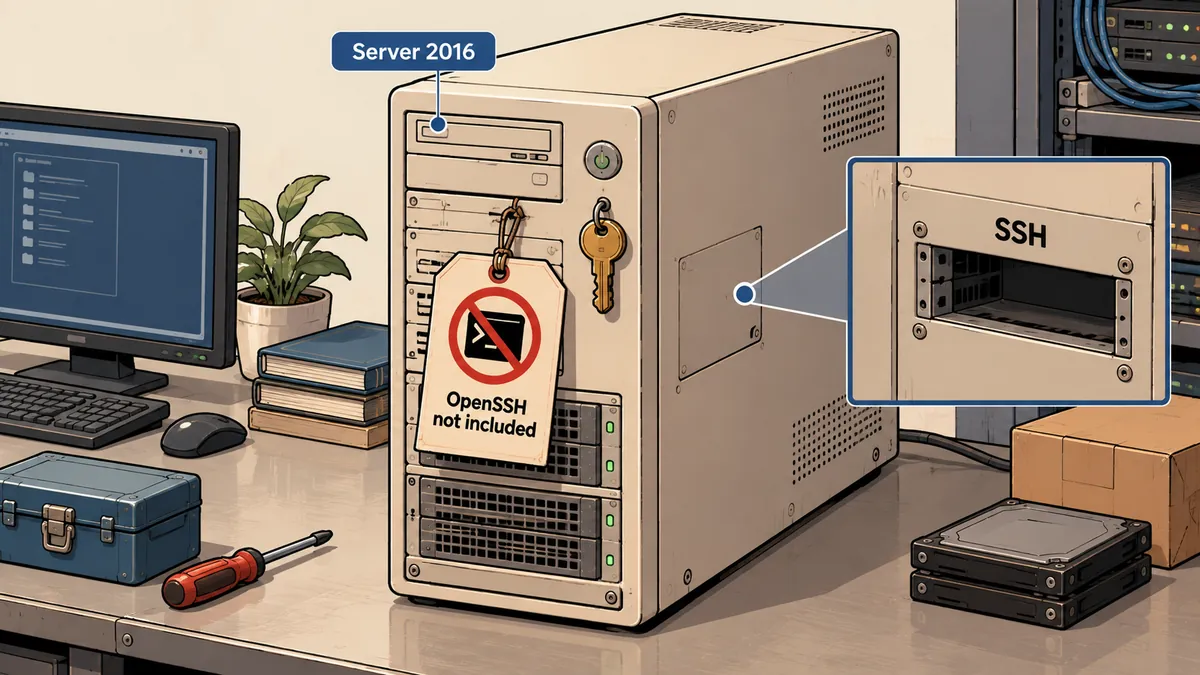
The problem was that Windows Server 2016 does not include OpenSSH as a built-in capability. The Add-WindowsCapability command that works on Windows 10/11 and Server 2019 onward does not work here. The route for running commands without opening a desktop also had its own constraints. This article explains how I got past both problems and the security precautions to take afterward.
A note on scope: this article applies only to machines I have the right to use or have received permission from the owner to access. The IP, hostname, port and key name in this article are examples. The sequence of steps and the conclusions about WinRM and OpenSSH come from what I actually did. I should state here that I did not record the exact command lines for some steps (msiexec flags, firewall configuration and shell configuration), so I have written them in standard form and labeled them as general examples. Try them on a VM before using them on a real machine.
Two shortcuts that did not work
The first was Add-WindowsCapability -Online -Name OpenSSH.Server~~~~0.0.1.0, the method I described in Automating Tasks on a Remote Windows Machine with SSH + Task Scheduler. It works only on newer versions. Server 2016 does not have this option, so I had to install Microsoft's Win32-OpenSSH, distributed as an MSI on GitHub, instead.
The second was regular PowerShell remoting (Enter-PSSession) from my machine, which hit a client-side restriction because WinRM had no TLS and the remote machine was not in the same domain. The PowerShell client requires adding that machine to TrustedHosts first. Changing this setting requires admin rights on my own machine, which the machine I was working from did not allow.
The working route: pywinrm with NTLM
The Python library pywinrm talks to WinRM itself, without using Windows PowerShell remoting on the client. That means there is no need to configure TrustedHosts or have admin rights on the machine running the script. All I need is Python and the password for an account on the remote machine. I keep the password in an environment variable instead of embedding it in a file.
# ฝั่งเครื่องเรา (ตัวอย่าง)
pip install pywinrm
export WIN_PASS='<PASSWORD>'     # ตั้งในเทอร์มินัลที่ใช้ ไม่เขียนลงสคริปต์
# winrun.py — ส่ง PowerShell ไปรันบน host-a ผ่าน WinRM (ตัวอย่างรูปแบบมาตรฐานของไลบรารี)
import os, sys, winrm

s = winrm.Session(
    "http://203.0.113.50:5985/wsman",
    auth=("Administrator", os.environ["WIN_PASS"]),
    transport="ntlm",
)

def ps(script: str) -> int:
    r = s.run_ps(script)
    sys.stdout.write(r.std_out.decode("utf-8", "replace"))
    sys.stderr.write(r.std_err.decode("utf-8", "replace"))
    return r.status_code

if __name__ == "__main__":
    sys.exit(ps(sys.argv[1]))
$ python winrun.py '$PSVersionTable.PSVersion.ToString(); hostname'
5.1.x.x
host-a
The output above illustrates the format: if the connection succeeds, it returns PowerShell 5.1, which matches what Server 2016 has. From this point, I could run any command without opening an RDP session.
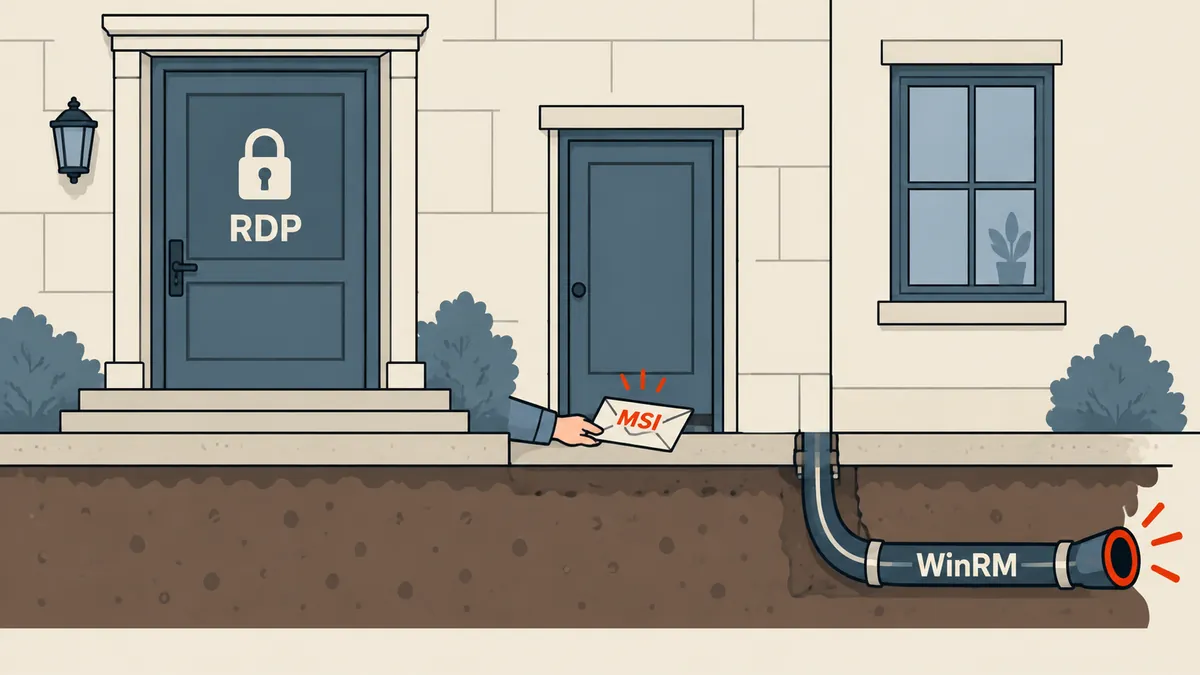
WinRM on port 5985 uses plain HTTP, with no TLS wrapping it. I used it only for bootstrapping and kept it as a fallback. Once SSH works, this port should be closed or restricted by source IP. Details are at the end of the article.
Installing OpenSSH entirely through WinRM
I ran every step through the script above, without opening an RDP session. The sequence was:
- Download the Win32-OpenSSH MSI from Microsoft's GitHub release page to the remote machine.
- Install it silently with
msiexec. - Set
sshdto start automatically at boot, then set a port other than 22 insshd_config. - Open that port in the Windows firewall.
- Place the public key in
administrators_authorized_keysbecause the account is Administrator. - Add an alias to
~/.ssh/config, then connect withssh host-awithout a password prompt.
This article uses 2200 as the example port. The following commands use common, general forms; they are not an exact transcript of what I ran.
# 1-2) ตัวอย่างทั่วไป: ดาวน์โหลดและติดตั้ง MSI — ควรทดสอบบน VM Server 2016 ก่อน
python winrun.py '
[Net.ServicePointManager]::SecurityProtocol = [Net.SecurityProtocolType]::Tls12
$u = "https://github.com/PowerShell/Win32-OpenSSH/releases/download/<tag>/OpenSSH-Win64-<version>.msi"
Invoke-WebRequest -Uri $u -OutFile C:\Windows\Temp\openssh.msi -UseBasicParsing
Start-Process msiexec.exe -ArgumentList "/i C:\Windows\Temp\openssh.msi /qn" -Wait
Get-Service sshd | Format-List Name,Status,StartType
'
The SecurityProtocol = Tls12 line matters because PowerShell 5.1 on Server 2016 may start with an older TLS version that GitHub does not accept, causing the download command to fail with a secure channel error. This is general knowledge about Windows from that era, not something I measured on this machine. If GitHub changes the filename format in the link, open the release page and check the actual name first.
# 3-4) ตัวอย่างทั่วไป: ตั้งบริการ ตั้งพอร์ต เปิด firewall — ควรทดสอบบน VM ก่อน
python winrun.py '
Set-Service sshd -StartupType Automatic
$cfg = "C:\ProgramData\ssh\sshd_config"
(Get-Content $cfg) -replace "^#?Port 22$", "Port 2200" | Set-Content $cfg -Encoding ascii
New-NetFirewallRule -Name sshd-alt -DisplayName "OpenSSH 2200" -Enabled True `
  -Direction Inbound -Protocol TCP -Action Allow -LocalPort 2200
New-ItemProperty -Path "HKLM:\SOFTWARE\OpenSSH" -Name DefaultShell `
  -Value "C:\Windows\System32\WindowsPowerShell\v1.0\powershell.exe" -PropertyType String -Force
Restart-Service sshd
Get-NetTCPConnection -LocalPort 2200 -State Listen
'
The ordering to watch is opening the new port in the firewall before restarting sshd. If I restart it and cannot connect through the new port, I still have WinRM as a way back in to fix it, which is why WinRM should not be closed before SSH testing is complete. The default shell after configuration was PowerShell 5.1, as I saw when I actually logged in.
Admin keys: a different file from regular accounts
A common stumbling block is that accounts in the Administrators group do not read their own ~/.ssh/authorized_keys. Instead, they read C:\ProgramData\ssh\administrators_authorized_keys, and only Administrators and SYSTEM must have permissions on this file, or sshd will refuse to use it. I will not repeat the detailed icacls commands here because Automating Tasks on a Remote Windows Machine with SSH + Task Scheduler already covers this.
On my local machine, I create a dedicated key pair for this machine, then send the public key over WinRM as before.
ssh-keygen -t ed25519 -f ~/.ssh/host-a_ed25519 -C "host-a admin"
PUB=$(cat ~/.ssh/host-a_ed25519.pub)
python winrun.py "Set-Content -Path C:\ProgramData\ssh\administrators_authorized_keys -Value '$PUB' -Encoding ascii"
# แล้วตั้ง ACL ตามบทความที่ลิงก์ไว้ข้างบน ก่อนทดสอบ
# ~/.ssh/config
Host host-a
    HostName 203.0.113.50
    Port 2200
    User Administrator
    IdentityFile ~/.ssh/host-a_ed25519
    IdentitiesOnly yes
Once configured, ssh host-a connected without a password prompt and gave me PowerShell 5.1 as the default shell, as I actually observed. From this point, I used SSH as the main connection and kept WinRM as a fallback if SSH went down.
Bootstrap connection
- Works without local admin rights
- No TLS on the HTTP connection
- Suitable for sending a batch of commands in one go
- Kept as a fallback
Main connection after installation
- Uses a key without typing a password
- Works with existing tools such as scp
- Supports a custom port instead of 22
- Requires managing the key file ACL myself
Before running the actual commands: check that WinRM responds
I do not install anything until I know the connection actually responds and I have sufficient permissions. My sequence starts with read-only commands, such as checking the hostname, PowerShell version and whether the sshd service already exists. A 401 error means the password or transport type does not match. A timeout means the port is blocked or the source IP is restricted. These are two symptoms I can distinguish within seconds. Starting with read-only commands also gives the machine owner a clear understanding of the work, because they can see that my first actions do not change anything in the system.
python winrun.py 'Get-Service sshd -ErrorAction SilentlyContinue | Format-List Name,Status; (Get-CimInstance Win32_OperatingSystem).Caption'
Why can pywinrm get past TrustedHosts? My understanding is that TrustedHosts is a rule enforced by Windows PowerShell remoting on the client, which refuses to talk to a machine whose identity cannot be verified through the domain. pywinrm is a Python library that speaks the WinRM protocol itself, so it does not go through that rule. I did not read the source to prove this, but what I observed was that I could run commands without touching any settings on my machine.
Another thing to prepare is a way back in. Before changing the sshd port or opening the firewall, write down how to fix things if SSH cannot connect. In this case, that was WinRM, which was still open. If the machine has no fallback connection at all, a single incorrect line in a port change can lock me out and leave me relying on someone at the console.
Security actions to take afterward
Once SSH becomes the main connection, I consider the bootstrap connection something that needs to be secured, and these decisions belong to the machine owner. I do not make these changes unless instructed: restrict the RDP and WinRM ports by source IP or close them if unused, change the Administrator password received at the start to a new one held by the owner, and disable WinRM over HTTP because it has no TLS.
Installing, removing, restarting or changing the firewall on a machine I do not own makes real changes to the system and requires the owner's permission every time. Reading status is allowed within the permissions granted. The examples in this article are not instructions for accessing machines without authorization. On a production machine, the responsible system administrator should decide on ports and passwords.
What I do not know and did not try
I did not record how long the installation took, do not know which Windows Update or KB is required for newer OpenSSH versions on Server 2016, and did not try other Server 2016 variants or compare SSH and RDP speeds. The three command groups above (MSI, firewall, shell) use general forms, so I do not want anyone to assume they can copy and run them successfully line for line. Create a Server 2016 VM to test first. The lesson I took away is that even if a machine has only WinRM, I can use it to bootstrap a better connection for myself, and I must remember to close that bootstrap connection after use. I will come back and add more later.
Want us to set this up?
Get help with server setup, configuration, migration, or troubleshooting. Save time for the work that matters.
Hit something like this? Stuck somewhere?
Come trade notes on the LinuxThai board



Comments 0
No comments yet — be the first