Build APM on Windows: Apache + PHP 8.4 + MariaDB Series Index
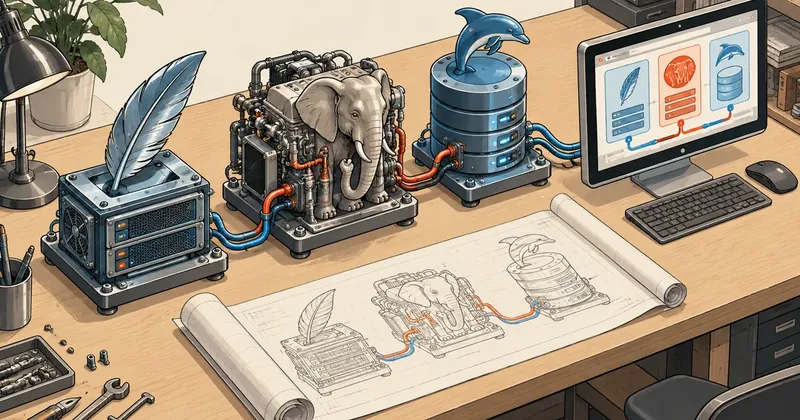
My XAMPP installation still had PHP 8.2.12 from 2023, while PHP had just released patches for critical RCE vulnerabilities yesterday. I built my own stack from source, named it APM, and documented every step so someone who has never compiled a C/C++ project can follow along.
Yesterday (21 October 2026), PHP released patches for two critical RCE vulnerabilities, CVE-2026-109618 and CVE-2026-109619, also known as php2shell, with a CVSS score of 9.2. The patched versions are 8.4.27, 8.3.36, 8.2.35 and 8.5.12. I covered the details in PHP Has Two Critical RCE Vulnerabilities: Update Today. I checked the Windows machine I use for coding and found that its XAMPP installation still had PHP 8.2.12, Apache 2.4.58 and MariaDB 10.4, all from 2023.
The problem is not that XAMPP is bad, but that bundles like this always lag behind upstream. I cannot wait for a new bundle, because the day a vulnerability is disclosed is the day I want to update my own machine. I built my own web stack on Windows entirely from upstream source code, named it APM (Apache, PHP, MariaDB), and designed it so that when a security release comes out, I can change the version number in a single file called versions.json and rebuild that same day.
This series is based on an actual build on 22 October 2026, running Windows 11 (i5-12500H, RAM 32 GB). Every result in the series was measured. Wherever I did not save the output, I explain what to check instead of inventing the exact text.
What Is APM, and What Do You End Up With?
APM is not a new program. It is a set of PowerShell scripts and configuration files (collectively called the build kit) that downloads each component's source, verifies its hash and compiles it with MSVC. The result is a C:\APM folder that looks like XAMPP, but every component is the latest version I have chosen, with a source I can verify.
The PHP build has 51 modules, matching the set I use in production except for posix, sysvmsg, sysvsem and sysvshm, which are unavailable on Windows. This includes three PECL extensions: redis, igbinary and imagick. PHP runs through mod_fcgid, not mod_php. For Apache's OpenSSL, I chose the 3.5 LTS branch, which is supported until April 2030.
A single request follows this path, and the deployed folders sit under C:\APM as shown in the diagram.
I chose default ports 8080, 8443 and 3307 to avoid conflicts with XAMPP, which is still running on the same machine (XAMPP uses 80, 443 and 3306). If you have stopped using XAMPP, you can switch to the standard ports during deployment, which I explain in Part 7.
How Much Time and Disk Space Does It Take?
These numbers matter more than you might think, because the first build takes several hours. If the machine goes to sleep or the disk fills up halfway through, that time is wasted. Set the power plan to prevent sleep before starting, and check the free disk space first.
| Item | Value | Notes |
|---|---|---|
| Required free space | At least 60 GB | I actually used about 45 GB, including tools |
| Total downloads | About 3-4 GB | Source, toolchain, libraries from vcpkg |
| First build time | About 2.5 hours | The individual steps add up to 134-156 minutes |
| Rebuild time (with cache retained) | About 10 minutes | Measured: fetch 0.0, vcpkg 0.1, apache 1.6, mariadb 0.3, imagemagick 3.3, php 5.0 |
| Size after deployment | About 650 MB | apache 20 + php 124 + mariadb 201 + data 302 |
| Admin privileges | Only needed when installing tools | Build and deployment run as a regular user |
Download and Verify the Build Kit
The kit is a zip file of about 47 KB (47 files) containing all the scripts, versions.json and configuration files. Follow these steps in order.
Open a regular pwsh session (no admin required) and work through each step.
- Download the file using the commands in the next block (or open the URL in a browser and save it to the Downloads folder).
- Check the file size. It must be 48142 bytes.
- Calculate the sha256 and compare it with the value I published. The result must be True.
- Do not extract the file yet. Extraction to `C:\apm-build` is covered in Part 1, after all the tools are installed.
curl.exe -L -o "$env:USERPROFILE\Downloads\apm-build-kit.zip" https://linuxthai.org/files/apm-build-kit.zip
(Get-Item "$env:USERPROFILE\Downloads\apm-build-kit.zip").Length
Get-FileHash "$env:USERPROFILE\Downloads\apm-build-kit.zip" -Algorithm SHA256
You should see a file size of 48142 and a hash table with the Hash value in uppercase as shown below.
Algorithm       Hash                                                                   Path
---------       ----                                                                   ----
SHA256          24BA604D8EE0F355F14C61C948C616FBDB9F97A0A75FC4955BCC64CD939D6206       C:\Users\<you>\Downloads\apm-build-kit.zip
If you do not want to compare it by eye, let PowerShell compare it (PowerShell string comparisons are case-insensitive). The result must be True.
(Get-FileHash "$env:USERPROFILE\Downloads\apm-build-kit.zip" -Algorithm SHA256).Hash -eq '24BA604D8EE0F355F14C61C948C616FBDB9F97A0A75FC4955BCC64CD939D6206'
A hash published on the same page as the file can detect corruption or an incomplete download, but it does not prove that the site distributing the file has not been tampered with. What actually protects you is reading the scripts before running them. The entire kit is a few hundred lines of plain text, and this series walks through every file that affects the system. Run only what you have read and understood.
Kit update, 22 Oct 2026 (afternoon)
The upstream build scripts were fixed again after I wrote the series, so I rebuilt the kit from the latest scripts. It is now 48142 bytes with 47 files. New files: LICENSE (installed as C:\APM\LICENSE.txt), scripts\trust-ca.ps1, scripts\new-cert.ps1, scripts\firewall-lan.ps1 and scripts\set-path.ps1. versions.json now has "apm_version": "1.0.0" as its first key. There are 14 fixes in total, and each one is covered in the part listed.
| # | Fix | Old symptom | Covered in |
|---|---|---|---|
| 1 | Visual Studio 2022 is found with vswhere, any edition, any install path | The old script hardcoded the Build Tools path. Community or another drive gave a 'C++ tools not found' error | Part 1, Part 3, Part 4, Part 5 |
| 2 | 00-fetch.ps1 -Only php,httpd now works with pwsh -File |
The comma in -Only was parsed wrongly, so you had to work around it with -Command |
Part 2, Part 7 |
| 3 | PECL sources are deleted and re-copied to build\php-pecl\<ext> every run |
They were copied once, so bumping a PECL version silently built the old source | Part 6, Part 7 |
| 4 | lib folders are kept at deploy, only *.lib files are dropped |
MariaDB plugins (ha_archive, auth_ed25519, ...) went missing because /XD lib also dropped mariadb\lib\plugin |
Part 4, Part 7 |
| 5 | deploy.cmd -ResetConfig also overwrites data\mysql\my.ini |
Changing the database port and running -ResetConfig had no effect, because the server reads the file in data\mysql |
Part 4, Part 7 |
| 6 | OPcache gets a per-folder cache_id plus a file cache in tmp\opcache |
Two APM folders running at once made every PHP page return 500 End of script output before headers (php-cgi -v mentions ASLR) |
Part 6, Part 7 |
| 7 | FcgidWrapper quotes the php-cgi.exe path |
An install path with a space gave the Apache error Wrapper D:/APM cannot be accessed |
Part 3, Part 7 |
| 8 | mkcert quotes extension_dir and checks that openssl is loaded |
A path with brackets such as (copy) gave Undefined constant OPENSSL_KEYTYPE_EC |
Part 7 |
| 9 | The server certificate is re-issued on -ResetConfig or -Lan (same CA) |
The old certificate lacked the PC name and LAN IPs, so browsers warned when connecting from another machine | Part 7 |
| 10 | New -Lan switch: Apache listens on 0.0.0.0 (MariaDB stays on 127.0.0.1), paired with scripts\firewall-lan.ps1 |
Reaching the server from another PC on the LAN meant editing httpd.conf by hand | Part 7 |
| 11 | ?info=1 shows phpinfo only from 127.0.0.1 / ::1 |
With the server open to the LAN, other machines could read phpinfo | Part 7 |
| 12 | deploy refuses to run while the Windows services APM-Apache / APM-MariaDB are running |
Services created by the APM Manager lock files, so deploy overwrote them only partly | Part 7 |
| 13 | deploy copies templates\ and tools\ into C:\APM and prints httpd.conf Listen: at the end |
No templates to reuse after deploy, and no hint where Apache was bound | Part 7 |
| 14 | New helper scripts trust-ca.ps1, new-cert.ps1, set-path.ps1 |
These were manual jobs: trusting the CA via certmgr, issuing a vhost certificate, setting PATH | Part 1, Part 7 |
Download it again and run deploy.cmd -ResetConfig if you have not edited the config yourself. If you have, copy the changed lines in by hand: PidFile, FcgidWrapper and the opcache settings. Part 7 has the details.
Three-Command Shortcut for Machines with the Tools Ready
If Visual Studio Build Tools, Git, CMake, Ninja and PowerShell 7 are all installed (Part 1 walks through this), and the kit is extracted to C:\apm-build, the whole system takes just three commands. Run every command in a regular pwsh session, without admin privileges.
- Build the entire system into the `stage\` folder. The first run takes about 2.5 hours.
- Deploy to `C:\APM`, creating the config, cert and data directory without starting anything yet.
- Start MariaDB and Apache, then test with curl.
cd C:\apm-build
.\build.cmd
During the build, the scripts periodically print status messages in this format. If you see [ERR], stop and read the logs in build\logs\ before continuing.
==== fetch ====
...
==== fetch done in 0.0 min ====
==== vcpkg ====
To stop after a given step, use .\build.cmd -To <step>. The steps are fetch vcpkg apache mariadb imagemagick php (resume later with -From).
After the build finishes, proceed with deployment. The last line should be [OK] APM deployed to C:\APM (http :8080, https :8443, db :3307) - not started.
.\deploy.cmd
Then start MariaDB, followed by Apache. These are the results I measured on 22 October 2026 (Part 7 explains each line and how to stop them).
Start-Process C:\APM\mariadb\bin\mariadbd.exe -ArgumentList '--defaults-file=C:\APM\data\mysql\my.ini'
C:\APM\mariadb\bin\mariadb.exe -uroot --port=3307 --protocol=tcp -e "select version(), @@collation_server, @@have_ssl, @@bind_address"
Start-Process C:\APM\apache\bin\httpd.exe
curl.exe -s -o NUL -w "%{http_code} %{content_type}`n" http://127.0.0.1:8080/
curl.exe -sk -o NUL -w "%{http_code}`n" https://localhost:8443/
version()            @@collation_server    @@have_ssl   @@bind_address
11.8.9-MariaDB-log   utf8mb4_unicode_ci    YES          127.0.0.1
200 text/html; charset=UTF-8
200
The server's home page at http://127.0.0.1:8080/ shows PHP version 8.4.27, the OPcache JIT status, the MariaDB version and a list of loaded extensions. Append ?info=1 to view phpinfo().
The three-command shortcut works only when all the tools are installed in the correct locations. If Visual Studio is missing a component, the problem will surface at the ImageMagick step, the fourth step in the build sequence, after roughly 80 minutes have passed. If you have never compiled a C/C++ project on Windows, start with Part 1 and follow the sequence. This series is not a reference manual; it is written to be read from top to bottom.
Contents of the Full Series
Every part follows the same format: numbered steps, the terminal and folder to run commands in, expected output, ways to verify success, an "If It Fails Here" section and a checklist at the end.
| Part | Topic | Link |
|---|---|---|
| 1 | Prepare the tools: Visual Studio Build Tools, Git, CMake, Ninja, PowerShell 7, Defender, extract the kit, tour versions.json |
apm-build-windows-1-prepare-tools |
| 2 | Download source (sha256 and trust-on-first-use) and build Apache's libraries with vcpkg | apm-build-windows-2-fetch-vcpkg |
| 3 | Apache httpd 2.4.69 with mod_fcgid: every CMake option and tracking down DLLs | apm-build-windows-3-apache |
| 4 | MariaDB 11.8 LTS: options, testing on port 3399, pinning the collation | apm-build-windows-4-mariadb |
| 5 | ImageMagick 7: official toolchain, 32 bit channel mask patch, HEIC limitations | apm-build-windows-5-imagemagick |
| 6 | PHP 8.4 NTS with PECL: the full configure command broken into groups, testing extensions and JIT | apm-build-windows-6-php |
| 7 | Deploy to C:\APM, first start, testing, applying the next security patch, troubleshooting table | apm-build-windows-7-deploy-run-update |
Part 7 includes a section that directly addresses the original purpose of this series: what to do when PHP releases a new version. The shortest answer is to change PHP's version, url and sha256 in versions.json, run 00-fetch.ps1 -Only php and 30-php.ps1 -Step all, then deploy again. There is no need to rebuild Apache or MariaDB.
Who Should Not Do This?
Building from source gives me faster updates and a known source for every binary, but costs time, disk space and the responsibility of maintaining it myself. Here is a direct comparison.
You need to control the versions
You need to update on the day of a security release, want the same extension set as production, want to know which source and hash a binary came from, or simply want to understand how the stack fits together.
You just want a newer PHP version
If all you need is a newer PHP version, use the official PHP binaries for Windows and MariaDB's own installer. The Apache httpd project itself distributes only source, so you will need third-party binaries for Apache. If you cannot spare two to three hours for each rebuild, do not start. If you only want finished binaries, download them from GitHub Releases instead; see the "Don't want to build it yourself" box at the end of this page.
My view is that if your websites run mainly on Linux, a Windows stack with versions matching production is enough for testing. There is no need to chase every patch release within a day. But if the Windows machine exposes ports to the internet, keeping it updated cannot wait.
This series does not yet cover installation as a Windows Service or vhost management through a control tool called apmctl; those will be covered in a separate article later. I have not included its commands here because it is not finished. For now, start and stop the components manually as described in Part 7.
If you just want to use APM without compiling anything, the finished build is at github.com/ChonLaWan/APM-Server. Download APM-1.0.0-win64.zip (about 140 MB) from Releases, compare its sha256 with the attached .sha256 file, unzip it anywhere and run manager\APMManager.exe. The Manager picks free ports, writes the config, issues the certificate and creates the database for you. Its Check for updates button downloads a new release, verifies the sha256 and swaps the binaries without touching your config, databases or sites.
Contents (this page) · Next: Part 1: Prepare the Tools and Extract the Kit
If you get stuck anywhere in any part, let me know what error you encountered and which command you were running. I will come back and add fixes later.
Want us to set this up?
Get help with server setup, configuration, migration, or troubleshooting. Save time for the work that matters.
Hit something like this? Stuck somewhere?
Come trade notes on the LinuxThai board


Comments 0
No comments yet — be the first