Moving DA to Debian 12, Part 2 — Switching Storage to a ZFS Mirror
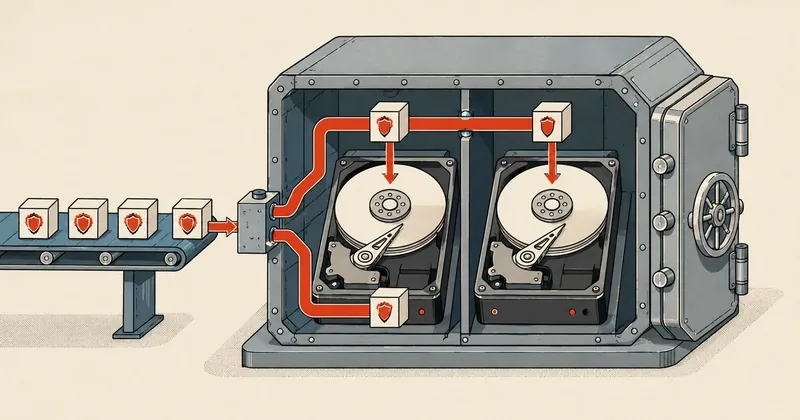
This time I will cover the storage layer. My old setup stacked mdadm RAID1, ext4, and qcow2 for three layers in total. Since I was switching distros anyway, I took the opportunity to rebuild it as a single layer with ZFS.
In the first part, I covered preparing the VM and pre-staging NAT. If you have not read it yet, I recommend going back to part 1 first, because this part picks up from there.
This part focuses specifically on storage. My old setup had mdadm RAID1 + ext4 + qcow2 stacked in three layers, which had been running for a long time without anything breaking. But since I was switching distros anyway, I decided to rebuild the storage layer at the same time.
Why I switched to ZFS
I will explain my reasons based on what I have encountered in actual work, rather than textbook theory. Stacking mdadm + ext4 + qcow2 in three layers has hidden costs. Each write has to fsync through every layer, causing fsync amplification: the actual writes to disk are much heavier than what the guest requested. Snapshots are also awkward, because qcow2 snapshots and LVM snapshots use different mechanisms.
Moving to ZFS mirror + raw zvol leaves a single layer, with native snapshots that can be created immediately with almost no IO at creation time. That is the main reason; the rest are extras I got for free.
mdadm + ext4 + qcow2
- Three stacked layers
- High fsync amplification
- Awkward snapshots, different mechanisms at each layer
- No checksums to guard against silent corruption
ZFS mirror + raw zvol
- One layer
- Instant native snapshots
- Free zstd compression
- ARC read cache + scrub/checksum
Here is what I gained from the change, point by point.
- Free zstd compression gives a much better ratio than lz4. My machine has 16 CPU cores, so it can comfortably handle compression, and the disk space recovered is worth it.
- 4-8GB ARC cache provides a read cache in RAM that noticeably reduces MariaDB random IO. Queries that repeatedly read the same data barely touch the disk.
- scrub + checksum guards against silent corruption, something mdadm + ext4 cannot provide. It checks the checksum of every block read. If a bit is wrong, it knows immediately and repairs it from the other disk in the mirror.
I experienced silent corruption myself in 2018, when I was still on mdadm. An HDD was quietly deteriorating without reporting any errors. The system kept running until the day I needed to restore, when I discovered that the files had been corrupt for a long time. I ended up losing a customer. Since then, I have always placed a lot of weight on checksum-based storage.
If you want to stay with mdadm + ext4, that is fine. It still works normally; there is nothing broken about it. But since I was switching distros this time anyway, I was willing to spend an extra day changing the storage layer at the same time. It is much more worthwhile than doing it later, once the system is online.
The key to the trick — doing it while the old VM stays online
The part I find most difficult and interesting here is that I can change the storage layer while the old VM is still serving traffic, without shutting down the customer's machine. The principle is to take advantage of RAID1 having two disks with identical data.
The idea is to degrade RAID to a single disk first, then use the disk removed from it to create a new ZFS pool. Once the cutover to ZFS is complete, attach the old disk to the pool and let it resilver into a complete mirror again.
All of this comes with a period of risk: after degrading the array, the old system temporarily runs on a single disk. If that disk fails during this period, it means outright data loss because there is no mirror left. I will come back to insurance shortly.
Step 1 — degrade RAID to a single disk
Start by checking the md array status to see which disks it currently contains.
cat /proc/mdstat
# md0 : active raid1 sdc[0] sdb[1]   (กลุ่ม 2 disk)
In this example, md0 is a RAID1 array with sdc and sdb. I will remove sdc for ZFS and keep sdb running the old system. To remove it, mark it as failed first, then remove it, and finally run grow so the array accepts that it now has only one disk.
mdadm --manage /dev/md0 --fail /dev/sdc
mdadm --manage /dev/md0 --remove /dev/sdc
mdadm /dev/md0 --grow --raid-devices=1 --force
The next step is important: remove the mdadm superblock from sdc first. Otherwise, when ZFS or the kernel scans it and finds leftover md metadata, it can get confused and may try to assemble the array again on its own.
wipefs -a /dev/sdc
cat /proc/mdstat   # md0 ตอนนี้เหลือแค่ sdb
From this point until the disk is attached to the pool, the old system runs on a single disk (sdb). If sdb fails now, it means data loss because there is no mirror left as a fallback. This is the highest-risk period in the entire process.
Insurance — back up before starting, do not skip it
Because this is the highest-risk period, I strongly recommend making a full backup to another disk (a large HDD separate from the pair being worked on) before starting. If you use Proxmox, use vzdump to take a snapshot backup of the entire VM.
vzdump <vmid> --dumpdir /mnt/backup --mode snapshot --compress zstd
If you are thinking of skipping this backup step, I strongly advise against it. This is the one point in the process where a mistake can leave you unable to recover. Spending a few tens of minutes on a backup in exchange for peace of mind throughout the single-disk period is well worth it.
Step 2 — create a ZFS pool on the removed disk
Now sdc is empty and clean, ready to create a pool. I recommend referring to the disk through /dev/disk/by-id/... rather than directly as /dev/sdc, because sdX names can change with the kernel's enumeration order. The by-id name stays tied to the physical disk, which is safer when there are several disks.
zpool create -o ashift=12 -o autotrim=on \
  -O compression=zstd -O atime=off -O xattr=sa -O acltype=posixacl \
  vmdata /dev/disk/by-id/ata-<MODEL>_<SERIAL-A>
I will explain each option because they affect actual production use.
- ashift=12 sets the sector size to 4KB, matching modern SSDs. If you use an older spinning HDD that still has 512-byte sectors, use
ashift=9instead. - autotrim=on enables automatic TRIM, helping reduce SSD wear over the long term.
- compression=zstd gives a much better ratio than lz4, in exchange for CPU capacity that is already plentiful.
- atime=off disables access time updates on every file read, eliminating unnecessary write IO.
- xattr=sa + acltype=posixacl enables POSIX ACL support. DA needs this for quotas; leaving it out will cause problems later.
Following up on ashift, I want to stress that it is the most common place to make a mistake with ZFS. This value is fixed at creation and cannot be changed later. If you get it wrong, the only option is to destroy the pool and recreate it. Keep in mind that choosing correctly from the start is very important. Use 12 for new SSDs and 9 for old HDDs.
Step 3 — limit the ARC cache
ARC is ZFS's read cache in RAM. By default, it can consume up to half the machine's total RAM. On a server running many VMs, I do not want it competing with guests for RAM, so it should be capped. I set it to 8GB.
Set both the value that takes effect immediately (by writing to sysfs) and the value that persists across reboots (by writing to the modprobe config). The number 8589934592 is 8GB in bytes.
echo 8589934592 > /sys/module/zfs/parameters/zfs_arc_max
echo 'options zfs zfs_arc_max=8589934592' > /etc/modprobe.d/zfs.conf
Step 4 — add ZFS as Proxmox storage
Register the newly created pool with Proxmox so VM disks can be created on it. This can be done through the CLI.
pvesm add zfspool VMDATA --pool vmdata --content rootdir,images
Or, if you prefer the web UI, go to Datacenter, then Storage, select Add, choose ZFS, set the ID to VMDATA, and save. The result is the same; use whichever you prefer.
Step 5 — after cutover, attach the old disk to restore the mirror
Once the workloads have moved to ZFS and testing confirms that the new VM runs well, it is time to destroy the old VM and bring sdb (the disk remaining in the old array) into the pool to restore a two-disk mirror.
First, clear the md superblock from sdb, just as with sdc at the beginning. Then attach it to the pool, specifying the disk already in the pool as the reference, followed by the new disk to add.
wipefs -a /dev/sdb
zpool attach vmdata \
  /dev/disk/by-id/ata-<MODEL>_<SERIAL-A> \
  /dev/disk/by-id/ata-<MODEL>_<SERIAL-B>
After the attach completes, ZFS starts resilvering automatically, copying data from the existing disk to fill the new disk. Mine took around 2-3 hours. The speed depends on the amount of data and the IO the system is handling at the time. Progress can be checked throughout.
zpool status vmdata
Wait until the state says resilvered and both disks in the pool are ONLINE; the full mirror is then restored. One disk can now fail without trouble, just as before.
Long-term maintenance — weekly scrub
One important extra with ZFS is scrub. It reads every block in the pool and checks its checksum to detect and repair silent corruption before it spreads beyond recovery. Set up cron to run it once a week late at night when the load is low.
echo '0 3 * * 0 root zpool scrub vmdata' > /etc/cron.d/zfs-scrub
This is set to run every Sunday at three in the morning. Adjust the time to suit when your server is idle. The reason I lost a customer in 2018 was precisely that I had no scrub mechanism like this checking for me.
Summary and next part
This whole part has been about rebuilding storage from three layers into one, taking advantage of the two disks in RAID1 to move them to ZFS one at a time. There are two things to watch most carefully: the single-disk period, which needs a backup beforehand, and choosing the correct ashift at creation, because it cannot be changed later.
In the next part, I will cover installing DA and the entire CustomBuild stack on the staging VM: multiple PHP slots, nginx + ModSec, rspamd, and proftpd, working through them in turn.
If I think of anything else or find a mistake, I will come back and update it. Whether you stay with mdadm or move to ZFS is up to you. The degrade-then-migrate principle is the same either way.
Want us to set this up?
Get help with server setup, configuration, migration, or troubleshooting. Save time for the work that matters.
Hit something like this? Stuck somewhere?
Come trade notes on the LinuxThai board
Comments 0
No comments yet — be the first