Windows Speaker Recordings Lose Silence and End Up Too Short
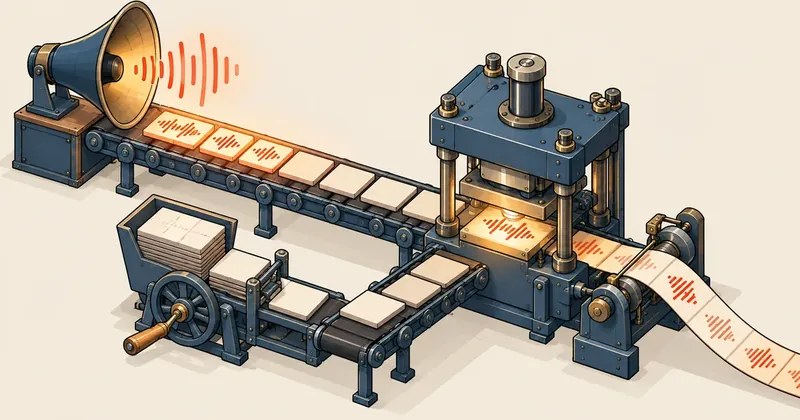
A quiet stretch in a recording does not necessarily mean that stretch contains zeros. It may mean that stretch does not exist in the file at all. And if that file needs to serve as a timeline for later work, those two cases make a difference to the entire job.
1-minute summary
- Symptom / problem
- Recording speaker output with WASAPI loopback gives a file shorter than real time, because silence delivers no buffers
- Who should read
- Developers recording speaker output on Windows with C#
- Fix in short
- Play a silent signal on the same device while recording, reserve the file number with a .lock, write WAV first, then convert to MP3 with ffmpeg.
I needed to record audio playing through the speakers on a Windows machine as a high-quality MP3 for further analysis, and I needed a file whose duration matched the elapsed time, second for second, because I would later use it as a timeline. If some of the silence disappeared, the timing of everything after that point would shift too. So I wrote a small recorder using .NET 8 and NAudio 2.2.1, and found a trap in the standard WASAPI loopback approach when it comes to silence. This article covers that trap, how I prevent it, and the file-writing sequence I use to keep unfinished files from carrying their final names.
A program like this records everything sent to the audio device. Use it only to record audio you play yourself from the machine, from a DAW, or from a source you have permission to use. It does not open the microphone, but system notification sounds will be included if they play during recording.
The symptom: loopback sends nothing when nothing is playing
WASAPI loopback captures the stream being sent to a render device (speakers or headphones). In NAudio, I use the WasapiLoopbackCapture class, receive chunks of data through the DataAvailable event, and write those chunks sequentially to a WAV file.
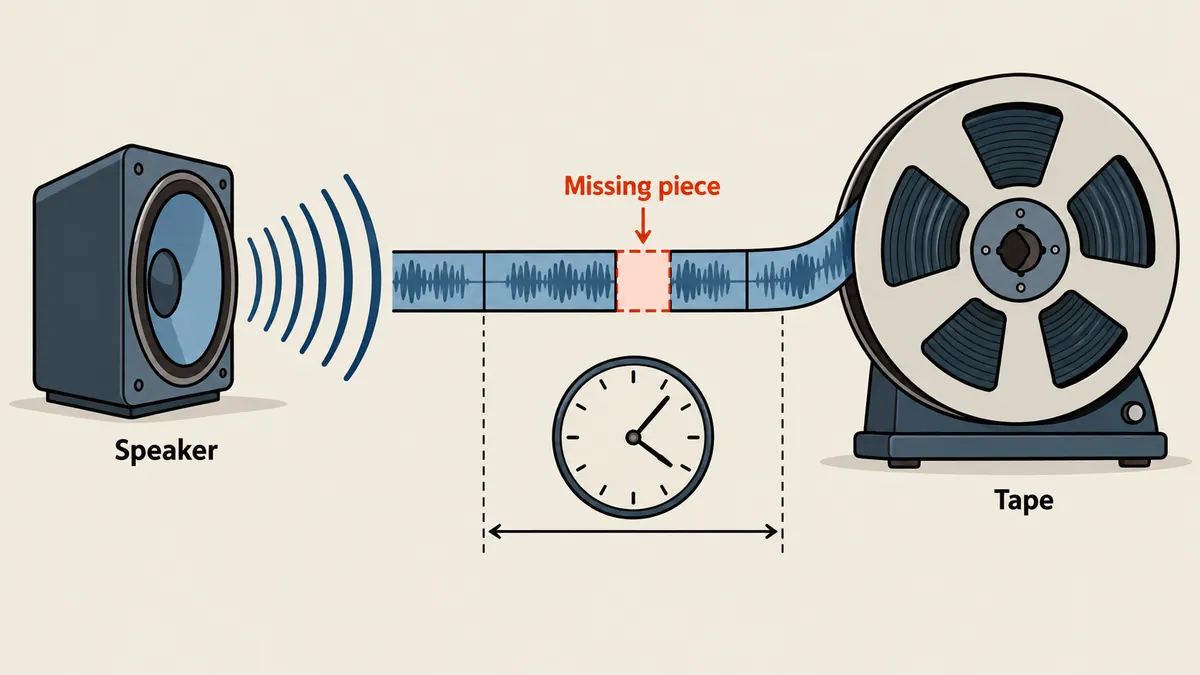
According to the NAudio documentation, the device sends no data when nothing is playing. That means DataAvailable is not called at all during silence, rather than being called with a buffer full of zeros. A program that simply writes every chunk it receives therefore joins the audible sections directly together. The silent sections have no place in the file. The resulting file is shorter than the elapsed time, and every event after the silence moves earlier.
I want to be clear that I am relying on the library documentation for this behavior, and I verified the fix with the self-test described later in the article. I did not record measurements of how much shorter an uncorrected file becomes. The diagram below therefore uses a hypothetical 10-second example to show the mechanism, rather than measurements from actual work.
Fixing it by playing silence on the same device
Since the device sends data only while audio is playing, the fix is to keep audio playing continuously, but make it completely silent. I create a WasapiOut on the same render device I am recording from, feed it with a SilenceProvider using the device's MixFormat (IEEE float at the sample rate and channel count the device is using), then call Play() before calling StartRecording() on the capture object. This keeps the endpoint running continuously, and capture keeps receiving buffers, including those containing nothing but zeros.
The core of the program looks like this. I have omitted some error handling to make it easier to read.
// สร้างตัวอัดและตัวเล่นความเงียบบนอุปกรณ์เรนเดอร์ตัวเดียวกัน
device  = enumerator.GetDefaultAudioEndpoint(DataFlow.Render, Role.Multimedia);
capture = new WasapiLoopbackCapture(device);
writer  = new WaveFileWriter(slot.WavPath, capture.WaveFormat);

// keepalive: เล่นสัญญาณเงียบเพื่อให้ endpoint ทำงานต่อเนื่อง
silence = new WasapiOut(device, AudioClientShareMode.Shared, false, 100);
var mix = device.AudioClient.MixFormat;
silence.Init(new SilenceProvider(
    WaveFormat.CreateIeeeFloatWaveFormat(mix.SampleRate, mix.Channels)));

capture.DataAvailable += (_, e) =>
{
    writer.Write(e.Buffer, 0, e.BytesRecorded);
    Interlocked.Add(ref bytes, e.BytesRecorded);   // นับไบต์ไว้คำนวณความยาว
};
capture.RecordingStopped += (_, e) => stopped.TrySetResult(e.Exception);

silence.Play();               // เล่นความเงียบก่อน
capture.StartRecording();     // แล้วค่อยเริ่มอัด
The duration shown in the window is calculated from the number of bytes actually written, divided by the AverageBytesPerSecond of the captured format. It does not use wall-clock time, because if data is lost along the way, the byte-based duration will be shorter accordingly, while the wall clock would falsely suggest that the duration was normal.
The 100-millisecond latency for WasapiOut comes from the code I am using. I have not compared it with other values, so I have no data on whether other settings produce different results. If you change it, you will need to rerun the self-test yourself.
File sequence: reserve a number, write WAV, then convert
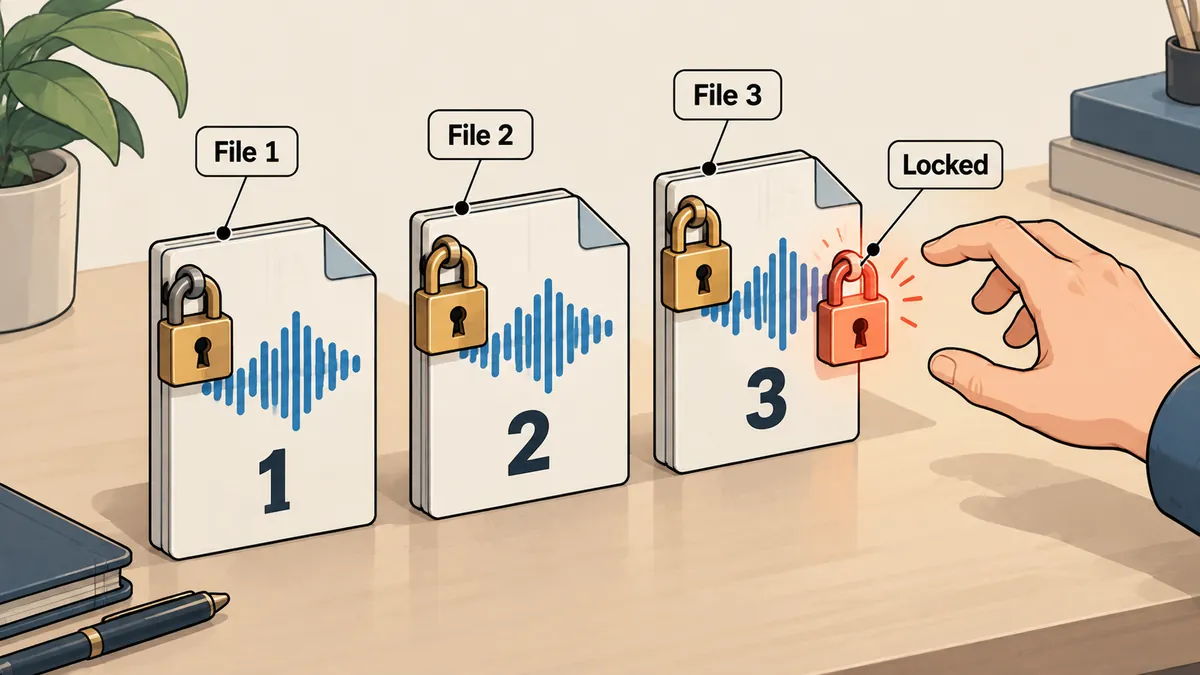
The second issue I care about as much as silence is ensuring that an incomplete MP3 never carries its final filename, and that existing files are never overwritten. I can have several recording windows open at once, so I need to reserve file numbers without collisions.
- Reserve a number: scan the folder for the highest number matching
rec_NNNN, then add one. Create a.mp3.lockfile withFileMode.CreateNewandFileShare.None. If it collides with another window, increment the number and try again. - During recording: write to a
.recording.wavfile withWaveFileWriter. The capture format is normally 32-bit float. - Stop recording: call
silence.Stop(), thenwriter.Dispose(). If there are zero bytes, throw an error saying that no audio data was received. - Convert: have ffmpeg write to a temporary name,
.encoding.mp3. - Deliver: only after ffmpeg succeeds and the file is nonempty, move it to
.mp3withFile.Moveusingoverwrite: false, then delete the WAV.
Here is the code for reserving a number and delivering the file.
public static RecordingSlot Reserve(string directory)
{
    Directory.CreateDirectory(directory);
    long next = Directory.EnumerateFiles(directory)
        .Select(p => Regex.Match(Path.GetFileName(p), @"^rec_(\d+)\.", RegexOptions.IgnoreCase))
        .Where(m => m.Success).Select(m => long.Parse(m.Groups[1].Value))
        .DefaultIfEmpty(0).Max() + 1;
    while (true)
    {
        var path = Path.Combine(directory, $"rec_{next:D4}.mp3");
        try
        {
            var handle = new FileStream(path + ".lock", FileMode.CreateNew,
                                        FileAccess.Write, FileShare.None);
            if (File.Exists(path)) { handle.Dispose(); File.Delete(path + ".lock"); next++; continue; }
            return new RecordingSlot(path, handle);
        }
        catch (IOException) when (File.Exists(path + ".lock")) { next++; }
    }
}
What I like about this approach is that CreateNew decides who gets the number. There is no need to check whether a file exists and then create it, which leaves a window for two processes to pass the check at the same time. If someone already holds the .lock file for that number, it throws an IOException, and the loop keeps incrementing the number until it finds one that is actually available.
Converting to MP3 with ffmpeg without overwriting or waiting for stdin
For conversion, I launch ffmpeg through ProcessStartInfo, passing arguments individually through ArgumentList rather than assembling a command string myself. That avoids having to worry about spaces in paths. These are the settings I use:
ffmpeg -hide_banner -loglevel error -nostdin -n \
  -i rec_0001.recording.wav \
  -vn -ar 48000 -ac 2 -c:a libmp3lame -b:a 320k \
  rec_0001.encoding.mp3
Briefly, -n prevents overwriting existing files: if the name already exists, ffmpeg exits with an error instead of silently overwriting it. -nostdin prevents ffmpeg from waiting for keyboard input when launched from a program without a console. -loglevel error keeps stderr limited to actual error messages, which the program captures and includes in its error message on failure. The ffmpeg build must include libmp3lame; if the version it finds does not, conversion fails at this step, and the WAV remains available for further use.
The program looks for ffmpeg.exe beside the executable first, then in the configured standard folders, and finally along PATH. It checks before recording starts, rather than waiting until recording is finished to discover that ffmpeg is missing.
Write directly to .mp3
If ffmpeg is killed partway through or the disk fills up, there will be an .mp3 file that looks finished but plays only halfway, and another program watching the folder might pick it up immediately.
The final name means it is finished
Every file ending in .mp3 has completed conversion successfully and is nonempty. Files left unfinished have names ending in .encoding.mp3 or .recording.wav, making it immediately clear that they are not finished output.
--self-test: verifying keepalive without playing a test sound
I do not like assuming that keepalive works just because the code looks right, so I added a --self-test mode that runs against the machine's actual device without playing a test sound through the speakers. It checks four things in order.
- Reserve two numbers while holding both reservations. They must be 0001 and 0002, respectively.
- Generate a 440 Hz sine wave with an amplitude of 0.05 and a duration of 1.5 seconds, convert it to MP3, then read back its duration. It must be at least 1.4 seconds.
- Reserve another number. Its filename must not collide with the first file (the existing file must not be overwritten).
- Record real loopback audio from the default device for 1.8 seconds while no sound is playing at all, then check that the resulting MP3 is at least 1.3 seconds long.
The fourth check is the key. Without keepalive, a completely silent device sends no buffers, leaving a very short file or zero bytes. Passing the 1.3-second threshold means buffers kept arriving even with no audible output, which is exactly what I need to verify.
var session = new RecordingSession(directory, device.ID);
var run = session.RunAsync(() => { });
await Task.Delay(1800);                    // อัดตอนเงียบ 1.8 วินาที
session.RequestStop();
var output = await run.WaitAsync(TimeSpan.FromSeconds(20));
using var captured = new Mp3FileReader(output);
if (captured.TotalTime.TotalSeconds < 1.3)
    throw new Exception("Loopback/silence timing failed");
The results are written to self-test-result.json beside the executable. On failure, it writes self-test-error.txt instead. The 1.3 threshold is lower than 1.8 because I allow time for the device to start and stop. I am not trying to measure millisecond accuracy, just distinguish between "time is preserved" and "almost all the time is missing."
Why I write WAV first instead of encoding MP3 while recording
A question I often get is why I do not pipe the audio straight into ffmpeg and produce the MP3 in one go. I have two reasons. First, during recording I want the shortest possible path: DataAvailable, then an immediate write to disk, without another process in between. If ffmpeg hangs or the pipe fills up, the audio data will not get stuck along with it. Second, if conversion fails, I still have the raw WAV and can try converting again with the same command without rerecording. For audio played only once from a source that is difficult to replay, that matters a lot.
The cost is temporary disk space. If the device runs at 48 kHz stereo and capture delivers 32-bit float, the data rate is 48,000 x 2 x 4 = 384,000 bytes per second, or about 1.3 GB per hour (calculated from a hypothetical format; the actual rate is available from the AverageBytesPerSecond the program reads from the device). For recordings lasting a few minutes, this is not a problem, but for hour-long recordings I need to allow enough free space. The WAV is deleted automatically only after conversion succeeds.
Another related point is that the WAV file's format comes from capture.WaveFormat, rather than settings I choose myself. The conversion step with -ar 48000 -ac 2 therefore ensures that the output is always 48 kHz stereo, whatever format the source device uses.
Remaining caveats
The remaining WAV may have an incomplete header, because the length in the file header is written when the file is closed. I have not tested recovery methods for this kind of file, so I will not describe a recovery procedure I have never tried. If this happens, assume the raw data is still there, but you will need to find a way to read it yourself.
- Switching speakers or headphones during recording: stop and start a new recording, because both capture and the silence player are bound to one device from the start.
- The audio device stops partway through (the
RecordingStoppedevent has an exception): the program still converts what it has recorded and displays a warning, rather than discarding everything. - Closing the window during recording: the program always stops and saves before closing.
- The file duration is the duration of what the device delivered: if the device changes its sample rate partway through, stop and start again, as in the first item.
Build and conclusion
The project uses Windows Forms on .NET 8, with NAudio referenced through NuGet. These are the commands to build and publish it as a single file:
dotnet build -c Release
dotnet publish -r win-x64 --self-contained false -p:PublishSingleFile=true
.\PcAudioRecorder.exe --self-test
Personally, I consider keepalive mandatory when recording audio to use as a timeline. Otherwise, the file duration tells me nothing about the actual elapsed time. Other details, such as the 100 ms latency or temporary file extensions, can be adjusted as preferred, as long as three principles remain: play silence alongside recording, reserve numbers with CreateNew, and keep unfinished files from carrying their final names.
If you like this kind of I/O hardware topic, two other articles cover different problems: passing USB into WSL in usbip-wsl2, and reading a scale over Bluetooth in serial-scale-toledo-bluetooth. If I have left anything out or explained something unclearly, I will come back and update it later.
Hit something like this? Stuck somewhere?
Come trade notes on the LinuxThai board


Comments 0
No comments yet — be the first