Per-User Redis on DirectAdmin Without Buying pro_pack

After migrating to Debian 12, one customer's WordPress site was hitting a TTFB of 6-8 seconds. The customer complained about slow responses. I checked the query log and ended up using per-user Redis object cache, so here is the story from start to finish.
After migrating the system to Debian 12, one customer's WordPress site had a TTFB of around 6-8 seconds. The customer complained that it was slow. I opened the MariaDB query log and clearly saw WordPress issuing around 30-100 queries per request, mostly reading the options table and repeating the same transient lookups on every request.
I tried several approaches for a while and eventually settled on Redis object cache. In this article, I will walk through why I chose this design, the script, and how to connect each app.
This builds on the series I wrote earlier about migrating DA from CentOS 7 to Debian 12 on Proxmox. If you have not read the basics of the server setup, I recommend going through that series first for a clearer overall picture.
Why per-user instead of shared Redis
The problem starts with DirectAdmin itself. Setting php_redis=yes in CustomBuild only installs the PHP extension. It does not enable a Redis instance for anyone. The DA panel does have a Redis UI, but it requires a pro_pack license. My server has a Legacy license (pro_pack=0), so clicking Enable in the panel does absolutely nothing. No response at all.
I decided to write my own script to replicate what the DA panel should create: a per-user systemd instance + per-user config + DA flag.
Once I decided to do it myself, the next question was whether to use one shared instance for everyone or a separate instance per user. Here is how the two options compare.
One instance for all users
- Setup: 1 service on port <port>
- Isolation: user A can read user B's keys
- Key collision: manually assign a prefix to each user
- Limit: one shared memory pool
- Lifecycle: cleaning up keys after deleting a user is difficult
- Overhead: around 5 MB total
One instance per user
- Setup: service per user through a systemd template
- Isolation: unix socket mode 770 in /home
- Key collision: no chance of collisions
- Limit: maxmemory per instance
- Lifecycle: delete the instance when deleting the user
- Overhead: around 5-10 MB per user
For shared hosting, I always put isolation first, so I chose per-user instances. I accept a little extra RAM usage per user in exchange for security and much easier cleanup. That trade-off is well worth it in an environment shared by multiple customers.
Why unix socket instead of TCP
After deciding to separate instances per user, the next step was choosing how apps would communicate with Redis: a TCP port or a unix socket.
With TCP port <port>, I would need to set requirepass, incur the network overhead of the TCP stack, and expose a port. That means managing additional rules in CSF and unnecessarily increasing the attack surface.
With a unix socket at /home/<user>/.redis/redis.sock, filesystem permissions provide access control instead (set to mode 770), with no network involved. More importantly, it is around 2-3 times faster because it bypasses the TCP stack.
I settled on a unix socket. It is both faster and more secure when Redis is already on the same server as the app.
Provisioning script — redis-enable
Since the DA panel was unusable, I wrote a script to handle the whole process and placed it at /usr/local/sbin/redis-enable. Here is how to use it.
redis-enable <username> [S|M|L]

# ตัวอย่าง
redis-enable <user-a> M    # WordPress + WooCommerce
redis-enable <user-b> M    # Flarum forum
redis-enable <user-c> L    # Laravel app ที่กิน resource หนัก
The script runs in 4 steps and is designed to be idempotent: it is safe to rerun any number of times without breaking the existing setup.
The four steps are:
- Set the DA flag
redis=ONin/usr/local/directadmin/data/users/<USER>/user.conf - Write a per-user
redis.confat/usr/local/directadmin/data/users/<USER>/redis.conf, which the DA systemd template loads with--include - Create a systemd dropin at
/etc/systemd/system/redis@<USER>.service.d/limit.confto set cgroupMemoryMaxandMemoryHigh - Run
systemctl enable --now redis@<USER>and verify with the PING command
redis.conf generated by the script
maxmemory <tier-value>
maxmemory-policy allkeys-lru
maxclients <tier-clients>
loglevel notice
rename-command FLUSHALL ""
rename-command CONFIG ""
rename-command DEBUG ""
rename-command SHUTDOWN ""
Security hardening applied to every tier
I paid particular attention to the final four rename-command lines. The users receiving Redis are shared hosting customers, and I do not want them to be able to do anything that affects the shared server.
rename-command FLUSHALL ""— disable bulk deletion so customers cannot destroy the entire cacherename-command CONFIG ""— disable runtime config changes so customers cannot changemaxmemorythemselves; changes must go throughredis-enablerename-command DEBUG ""— disable the debug commandrename-command SHUTDOWN ""— the only way to stop the instance is throughsystemctl
rename-command disables access on the customer side, not on mine. As root/admin, I can still manage everything by editing the config file directly and using systemctl as usual.
Tier system — S / M / L
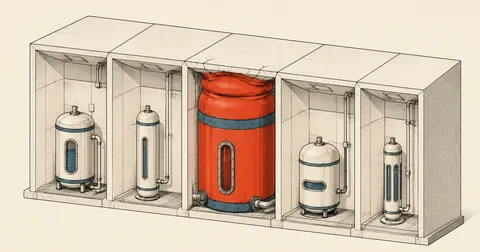
I divided instances into three tiers based on workload size rather than allocating the same amount of RAM to everyone.
| Tier | maxmemory | maxclients | MemoryMax (hard) | MemoryHigh (soft) | Use case |
|---|---|---|---|---|---|
| S | 50 MB | 30 | 75 MB | 50 MB | Light WordPress / blog / portfolio |
| M | 150 MB | 100 | 225 MB | 150 MB | WP + WooCommerce / small Laravel app / Flarum forum |
| L | 500 MB | 300 | 750 MB | 500 MB | Heavy Laravel app / multi-site WP / high-traffic forum |
The two cgroup values serve different purposes:
MemoryMaxis the hard cap. The kernel kills that instance before the server reaches global OOM, preventing a single instance from taking down the whole server.MemoryHighis the soft cap. When usage reaches this value, the kernel starts applying memory reclaim pressure to recover memory before hitting the hard cap.
WordPress integration — 5 essential constants
Now for the apps, starting with WordPress, since it was the case that started this story.
The Redis Object Cache plugin defaults to the TCP scheme. If I set only WP_REDIS_PATH without setting WP_REDIS_SCHEME=unix, the plugin tries to connect over TCP to localhost on a port I have not opened and gets Connection refused.
The 5 constants to add to wp-config.php, which must appear before the /* That's all, stop editing! */ line
define('WP_REDIS_PATH',     '/home/<USER>/.redis/redis.sock');
define('WP_REDIS_SCHEME',   'unix');           // ห้ามขาด
define('WP_REDIS_CLIENT',   'phpredis');       // ใช้ phpredis ไม่ใช่ predis เพราะเร็วกว่า
define('WP_REDIS_DATABASE', 0);
define('WP_REDIS_TIMEOUT',  1);
Steps to enable Redis for a WordPress site
- On the server (root) —
redis-enable <user> M - Log in as the user and run
cd ~/domains/<domain>/public_html - Install the plugin —
wp plugin install redis-cache --activate - Edit
wp-config.phpand add the 5 constants before the/* That's all */line - Enable the drop-in —
wp redis enable - Verify —
wp redis statusshould showStatus: Connected
If the constants are placed below the /* That's all */ line, WordPress will not read them at all. They must be above that line. I ran into this on one site and spent an hour tracking it down.
Sites with very old plugins, such as those using PHP 5 syntax like $str{0}, cause a parse error in wp-cli running on the default PHP 8.2. Run it through PHP 7.4 instead, for example /usr/local/php74/bin/php wp ...
Flarum — requires fof/redis, no native support
This matters: Flarum 1.x does not support Redis natively. Simply adding cache_driver, session_driver, or redis keys to config.php makes Flarum silently ignore all of them. No errors, no warnings. It looks like it is working, but Redis is not actually being used.
This can be confirmed directly in the source code.
grep -r "'cache_driver'" vendor/flarum/core/ # 0 matches
The correct approach is to install the extension from FriendsOfFlarum first.
su - <user>
cd ~/domains/<domain>/public_html

/usr/local/php82/bin/php composer.phar require fof/redis
/usr/local/php82/bin/php flarum extension:enable fof-redis
Then configure it in config.php.
return [
    // ... existing keys ...
    'cache_driver'   => 'redis',
    'session_driver' => 'redis',
    'redis' => [
        'scheme'   => 'unix',
        'path'     => '/home/<USER>/.redis/redis.sock',
        'password' => null,
        'database' => 0,
    ],
];
Flarum uses db1-4, not db0
Another detail to watch is that Flarum + fof/redis distributes data across databases 1 through 4. It does not use db0.
| Database | Contents |
|---|---|
| db0 | default (empty) |
| db1 | sessions |
| db2 | cache |
| db3 | locale / settings |
| db4 | other |
When writing a monitoring command, count keys across all databases with INFO keyspace instead of checking only DBSIZE. DBSIZE returns a count only for db0, which Flarum does not use, so it will always show 0 even when there are plenty of keys.
Laravel — native phpredis works out of the box
Laravel is the easiest, because DA + CustomBuild already installs phpredis for every PHP version (except 5.6), and Laravel 8 and later have native Redis support built in. No additional plugin or composer package is needed.
Configure it in .env.
REDIS_CLIENT=phpredis
REDIS_HOST=/home/<USER>/.redis/redis.sock    # path เริ่มด้วย "/" = unix socket
REDIS_PORT=0                                  # 0 = ไม่ใช้ TCP
REDIS_PASSWORD=null
REDIS_DB=0
REDIS_CACHE_DB=1

CACHE_DRIVER=redis
SESSION_DRIVER=redis
QUEUE_CONNECTION=redis
Apply and verify.
cd ~/domains/<domain>/public_html
/usr/local/php82/bin/php artisan config:clear
/usr/local/php82/bin/php artisan cache:clear
/usr/local/php82/bin/php artisan tinker

>>> Cache::put('test', 'hello', 60); Cache::get('test')
# ควรได้: "hello"
Laravel detects the / prefix in HOST and automatically switches to a unix socket. The framework source code contains logic for this, so no additional settings are needed.
Performance results
Back to the customer's WP site from the beginning, which was a genuinely heavy workload.
| Scenario | TTFB | MySQL queries |
|---|---|---|
| Before Redis (cold) | 6-8 seconds | 80-120 queries/request |
| After Redis (warm cache) | 1.3-1.7 seconds | 3-8 queries/request |
Roughly speaking, it became around 5 times faster, with DB load reduced by a factor of around 15.
The overall MySQL load on the server also changed noticeably:
- Before enabling Redis, mysqld peaked at around 80% CPU during business hours
- After deploying to around 9 users, the peak dropped to around 30-40% CPU; these are actual measurements
A side benefit was freeing up CPU for other users who were not using Redis. The load on the whole server decreased.
Self-heal — prevent the DA panel from stripping redis=ON
One thing to watch with the DA panel: when an admin saves a user form, the panel may rewrite user.conf and remove my custom flag. I added a daily cron job to check and repair it automatically.
#!/bin/bash
# /etc/cron.daily/redis-flag-check

for unit in $(systemctl list-units --type=service --no-legend 'redis@*' --state=active | awk '{print $1}'); do
    user=$(echo "$unit" | sed 's/redis@//;s/.service//')
    uc=/usr/local/directadmin/data/users/$user/user.conf
    [ -f "$uc" ] || continue
    if ! grep -q '^redis=ON' "$uc"; then
        sed -i '/^redis=/d' "$uc"
        echo 'redis=ON' >> "$uc"
        logger -t redis-flag-check "restored redis=ON for $user"
    fi
done
This applies the DA Update Survival Strategy specifically to this Redis setup: instead of relying on the panel, a cron job repairs flags that get overwritten.
Pilot selection — do not enable it for every user
I did not enable Redis indiscriminately for everyone. I selected only users who would actually benefit, because each instance consumes additional RAM.
My criteria:
- The stack supports Redis — WordPress ≥ 5.4, Flarum + fof/redis, Laravel 8+
- There are actual database queries, not just static HTML
- There is enough traffic / bandwidth to justify the allocated RAM
Examples of users I did not enable it for:
- Static HTML sites — CDN and gzip are enough here; Redis is not relevant
- Sites without a PHP runtime — there are no queries to cache in the first place
- Very old WordPress versions (such as 4.0, 4.7) — the plugin requires WP ≥ 5.4, so customers must upgrade WP before Redis can be enabled
Monitoring commands
The commands I use to check the health of each user's instance
# Health check
sudo -u <user> redis-cli -s /home/<user>/.redis/redis.sock PING

# Memory + tier
sudo -u <user> redis-cli -s /home/<user>/.redis/redis.sock INFO memory \
    | grep -E 'used_memory_human|maxmemory_human'

# Hit/miss ratio
sudo -u <user> redis-cli -s /home/<user>/.redis/redis.sock INFO stats \
    | grep -E 'keyspace_hits|keyspace_misses'

# Keys ต่อ database
sudo -u <user> redis-cli -s /home/<user>/.redis/redis.sock INFO keyspace

# Slow queries
sudo -u <user> redis-cli -s /home/<user>/.redis/redis.sock SLOWLOG GET 5
All files involved
An overview of all files in this setup: which are new, which are modified, and which are runtime files
NEW       /usr/local/sbin/redis-enable                              (provisioning)
NEW       /usr/local/sbin/redis-disable                             (cleanup)
NEW       /etc/cron.daily/redis-flag-check                          (self-heal)
NEW       /usr/local/directadmin/data/users/<USER>/redis.conf       (instance config per user)
NEW       /etc/systemd/system/redis@<USER>.service.d/limit.conf     (cgroup limits per user)
runtime   /home/<USER>/.redis/redis.sock                            (unix socket)
runtime   /home/<USER>/.redis/db/                                   (RDB/AOF data)
MODIFIED  /usr/local/directadmin/data/users/<USER>/user.conf        (เพิ่ม redis=ON)
Known limitations + remaining work
Nothing in production is perfect. Here are the known limitations I recorded:
- Old WP versions must be upgraded first — the Redis Object Cache plugin requires WP ≥ 5.4
- Persistence is disabled — AOF/RDB is disabled because this is purely a cache; losing data on reboot is fine, but if I later put a Laravel queue on this Redis instance, I will need to revisit that
- Upgrade when approaching the tier limit — rerunning
redis-enable <user> Lis enough to move up a tier - The DA Redis UI is still broken — full management through the panel requires buying a pro_pack license at an additional cost; the script workaround works well enough for now
- Onboarding each site is still manual — after enabling Redis on the server, I still need to configure WP/Flarum/Laravel for each site individually
Closing thoughts
If your DA server has a legacy license and a customer's WP site is slow, try this pattern. The script workaround provides full functionality without upgrading to pro_pack.
Another point I want to leave you with is to consider enabling ZFS before Redis, too. The storage layer can speed up the server without relying entirely on cache, and the two can complement each other. I already wrote about ZFS mirrors in the RAID removal installment of the migration series; you can find the details there.
Start with the storage layer or the cache layer, whichever suits you. The principle is the same: remove repetitive work from the path of every request.
Want us to set this up?
Get help with server setup, configuration, migration, or troubleshooting. Save time for the work that matters.
Hit something like this? Stuck somewhere?
Come trade notes on the LinuxThai board


Comments 0
No comments yet — be the first