Build APM on Windows, Part 1: Prepare Tools and Unpack the Build Kit
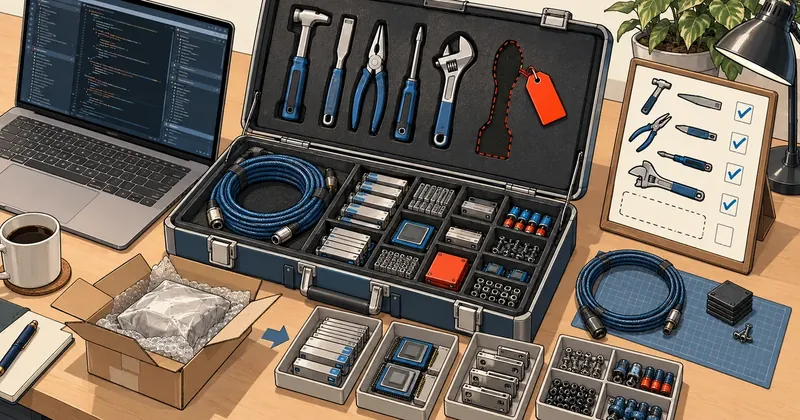
A build that fails halfway through because tools are missing wastes more time than preparing the machine properly from the start. That makes this the most tedious part of the series, but it is the part that keeps the other six from breaking.
I wrote this series from an actual build on my machine on October 22, and the conclusion I reached before writing was that the most costly mistakes happen during machine preparation, rather than compilation—for example, installing Visual Studio without all the required components, because the problem only surfaces about 80 minutes into the build. That is why this part covers every command in detail, stating which terminal to run it in, what output to expect and how to check that it is correct. If you have not read the series overview, start with the Build APM on Windows contents.
This part walks through installing all the required tools yourself (using admin privileges once), unpacking the build kit into C:\apm-build, then understanding the kit's structure and its three central scripts: lib.ps1, build-all.ps1 and build.cmd. Nothing will have been built by the end of this part, but your machine will be ready.
Before starting: machine requirements and who needs admin privileges
The figures below come from my test machine (Windows 11, i5-12500H, RAM 32 GB) and the minimum requirements I recommend based on the first build.
| Item | Minimum | My test setup |
|---|---|---|
| Operating system | Windows 10/11 x64 | Windows 11 x64 |
| CPU | 4 cores | i5-12500H (16 threads) |
| RAM | 8 GB (16 GB or more recommended) | 32 GB |
| Free space | 60 GB | Actual usage about 45 GB |
| Internet | Required throughout | About 3-4 GB of downloads |
| Privileges | Admin only when installing tools | The build itself does not need admin |
There is only one rule about privileges to remember: do everything that installs software into the system (steps 1 through 15) in Terminal (Admin), then close it. Do everything else in the series, including the entire build, in a normal user pwsh session. The reason is that the build runs downloaded code for hours. If you run it as admin and something goes wrong, the damage can spread much further.
For folder locations, this series uses C:\apm-build for building and C:\APM for installation. I can also run it on drive D: because the scripts resolve paths relative to the kit's own location. If your C: drive has less than 60 GB free, you can put the kit on another drive, but every example in the article uses C:\apm-build, so adjust it yourself. Use a short path with no spaces or Thai characters. I have not tested paths containing spaces, so I cannot guarantee that every tool in the build can handle them, and a short path helps avoid the Windows 260-character limit when ImageMagick clones dozens of repos.
Install Visual Studio 2022 Build Tools (Terminal Admin)
Visual Studio Build Tools provides Microsoft's compiler (MSVC) without the IDE. The reason for using it rather than MinGW or another compiler is that official PHP builds use MSVC, so it provides the same ABI. The Apache, MariaDB and ImageMagick builds that follow were all tested with Build Tools 17.14, which ships MSVC 14.44 (toolset v143), so I use it for the whole stack and recommend you install the same.
The lib.ps1 script finds Visual Studio with vswhere (the Get-VsPath function). It accepts any Visual Studio 2022 edition (Build Tools, Community, Professional or Enterprise) installed in any location, as long as the VC.Tools.x86.x64 component (MSVC v143 for x64) is present and the version is 17.x. If you already have Visual Studio 2022, you do not need to install Build Tools as well; just add the components from step 3 and step 7 (ATL and MFC are the ones most often missing). Personally I still recommend Build Tools 17.14, because it is the setup I tested for the whole series. The script rejects Visual Studio 2019 and version 18 or later.
Step 1 Open Terminal (Admin)
On Windows 11, right-click the Start button, select Terminal (Admin) and click Yes in the UAC dialog (on Windows 10, select Windows PowerShell (Admin) instead). The window title must include Administrator.
Step 2 Confirm that you are actually admin
Run this anywhere in Terminal (Admin) (the folder does not matter).
([Security.Principal.WindowsPrincipal][Security.Principal.WindowsIdentity]::GetCurrent()).IsInRole([Security.Principal.WindowsBuiltInRole]::Administrator)
The result must be True. If it is False, the terminal is not running as admin. Close it and repeat step 1.
Step 3 Install Build Tools with winget
Run this in Terminal (Admin). This is one long command line; copy the entire line as shown.
winget install --id Microsoft.VisualStudio.2022.BuildTools --exact --override "--quiet --wait --norestart --add Microsoft.VisualStudio.Workload.VCTools --add Microsoft.VisualStudio.Component.VC.Tools.x86.x64 --add Microsoft.VisualStudio.Component.Windows11SDK.26100 --add Microsoft.VisualStudio.Component.VC.CMake.Project --add Microsoft.VisualStudio.Component.VC.ATL --add Microsoft.VisualStudio.Component.VC.ATLMFC --includeRecommended"
The contents of --override "..." are arguments that winget passes directly to the Visual Studio installer. Here is what each flag means.
| Flag | What it does |
|---|---|
--quiet |
Does not open an installer window. The installer runs silently, so it may look stuck. Wait; do not close it. |
--wait |
Makes the command wait until installation has actually finished before returning to the prompt. |
--norestart |
Prevents an automatic restart. If a message asks you to restart after installation, restart manually before step 4. |
--add ... |
Adds components individually (next table). |
--includeRecommended |
Also installs the recommended components included with the workload. |
There is a reason for every component included.
| component | What APM uses it for |
|---|---|
Workload.VCTools |
A lightweight version of the "Desktop development with C++" workload. |
VC.Tools.x86.x64 |
The MSVC v143 compiler for x64. |
Windows11SDK.26100 |
Headers and libraries for Windows SDK 10.0.26100. |
VC.ATL and VC.ATLMFC |
Required by ImageMagick because its Configure.exe is an MFC application. |
VC.CMake.Project |
Backup copies of CMake and Ninja bundled with VS. |
I did not save the winget output from this run, and installation time depends on internet speed, so I have no timing figure to give. What you can verify reliably is the output in steps 4 through 8. If winget asks you to accept a source agreement, type Y and press Enter. If winget itself is not recognized (the winget command is not found), install App Installer from Microsoft Store first.
Step 4 Check the installation location
Run this anywhere in Terminal (Admin).
& "${env:ProgramFiles(x86)}\Microsoft Visual Studio\Installer\vswhere.exe" -products * -property installationPath
If you installed with step 3, you must see this path (if other Visual Studio versions are installed, you will see multiple lines; look for the 2022 one. With another edition the path ends in 2022\Community or that edition's name instead).
C:\Program Files (x86)\Microsoft Visual Studio\2022\BuildTools
Step 5 Check the compiler version
Get-ChildItem "C:\Program Files (x86)\Microsoft Visual Studio\2022\BuildTools\VC\Tools\MSVC" -Name
On a fresh machine, you will see a single folder, for example:
14.44.35207
If you use another edition, replace BuildTools in the path with that edition's name. The number may be newer than this; it just needs to start with 14.4. My machine has several old folders left over from previous installations (14.16 and 14.29), which is fine because vcvars64.bat selects the newest one automatically.
Step 6 Check that vswhere finds Visual Studio the same way the script does
Run the same query that lib.ps1 uses, anywhere in Terminal (Admin) (the result is stored in the $vs variable because step 7 reuses it).
$vs = & "${env:ProgramFiles(x86)}\Microsoft Visual Studio\Installer\vswhere.exe" -latest -products * -version '[17.0,18.0)' -requires Microsoft.VisualStudio.Component.VC.Tools.x86.x64 -property installationPath
$vs
You must see the install path of Visual Studio 2022 on a single line, for example:
C:\Program Files (x86)\Microsoft Visual Studio\2022\BuildTools
This path is the root that lib.ps1 appends \VC\Auxiliary\Build\vcvars64.bat to. If the line is empty, vswhere found no Visual Studio 2022 with the C++ x64 tools, and the script will print [ERR] Visual Studio 2022 with C++ x64 tools not found. See "If a check finds a missing component" and "If something breaks here."
Step 7 Check that ATL and MFC are installed
Test-Path "$vs\VC\Tools\MSVC\*\atlmfc\include\afx.h"
The result must be True (this uses the $vs variable from step 6; if you opened a new window, repeat step 6 first). afx.h is the main MFC header; if this file exists, ATLMFC is installed. This is the most commonly missed check because the component is not included in the basic workload.
Step 8 Check the Windows SDK
Get-ChildItem "${env:ProgramFiles(x86)}\Windows Kits\10\Include" -Name
The list must include a 10.0.26100.0 folder (my machine also has two older SDK versions, 10.0.10240.0 and 10.0.22621.0, which is fine).
If a check finds a missing component
If any of steps 6 through 8 fail, do not reinstall everything. Open Visual Studio Installer from the Start menu, click Modify for your Visual Studio 2022 (Build Tools or another edition), select all the following items, then click Modify again at the bottom right.
- MSVC v143 - VS 2022 C++ x64/x86 build tools
- Windows 11 SDK (10.0.26100)
- C++ ATL for latest v143 build tools (x86 & x64)
- C++ MFC for latest v143 build tools (x86 & x64)
- C++ CMake tools for Windows
Install Git, CMake, Ninja and PowerShell 7, and configure Defender (Terminal Admin)
You can continue in the same Terminal (Admin) window. Run each command separately, waiting for it to finish before running the next.
Each tool has a different job, and one has an important reason for being here that is not immediately obvious.
| Tool | What it does |
|---|---|
| Git for Windows | Clones the ImageMagick and vcpkg sources and, crucially, provides bash.exe, which the ImageMagick scripts need to call. |
| CMake 3.24 or later | Builds Apache, APR and MariaDB. The scripts use --fresh, which has been available since 3.24 (I tested with 4.1.2). |
| Ninja | A fast backend for CMake. |
| PowerShell 7 (pwsh) | Runs all the build scripts. Must be 7.5 or later, rather than the Windows PowerShell 5.1 bundled with Windows. |
Step 9 Install Git
winget install --id Git.Git --exact
Step 10 Install CMake
winget install --id Kitware.CMake --exact
Step 11 Install Ninja
winget install --id Ninja-build.Ninja --exact
Ninja from winget is a portable package installed into the profile of the user running the command. If the admin account you use to open Terminal (Admin) is different from your normal working account, ninja will not be installed in your working account. Step 18 will catch this. If it happens, run the line above again in a normal pwsh session under your working account (no admin needed).
Step 12 Install PowerShell 7
winget install --id Microsoft.PowerShell --exact
Step 13 (Recommended) Exclude the build folders from Windows Defender scanning
The build creates tens of thousands of .obj and .lib files. Defender scans every file written, making the build 2 to 3 times slower. I therefore exclude three folders used specifically for the build. This command requires admin privileges.
Add-MpPreference -ExclusionPath "C:\apm-build\build","C:\apm-build\src","C:\apm-build\toolchain"
These three folders do not exist yet. There is no need to create them first; the scripts will create them during the build. If you put the kit elsewhere, change the paths in the command to match.
Excluded folders will not be scanned. I chose to exclude only three folders containing downloaded sources and files I compile myself, rather than the entire drive. If you are uncomfortable with this, skip this step. The build will be slower, but it will not fail. When you finish the series and are no longer building frequently, remove the exclusions with Remove-MpPreference -ExclusionPath followed by the same three folders. If your machine is managed by organizational policy, the command may be rejected; you can skip it in that case too.
Step 14 Check that Defender has recorded the folders
(Get-MpPreference).ExclusionPath
The displayed list must include the three lines we just added (if the machine already had other entries, those will appear alongside them).
C:\apm-build\build
C:\apm-build\src
C:\apm-build\toolchain
Step 15 Close Terminal (Admin)
exit
Close this window. None of the following steps need admin privileges, and you must open a new terminal because PATH entries added during installation will not appear in a window that was already open.
Open normal pwsh, check the tools and unpack the build kit
From here onward, work as a normal user, without admin privileges.
Step 16 Open normal pwsh
Press Start, type pwsh, select PowerShell 7 (the black icon, rather than the blue Windows PowerShell icon) and open it normally. Do not select Run as administrator.
Step 17 Confirm that you are not admin
([Security.Principal.WindowsPrincipal][Security.Principal.WindowsIdentity]::GetCurrent()).IsInRole([Security.Principal.WindowsBuiltInRole]::Administrator)
This time the result must be False. If it is True, you opened the wrong window.
Step 18 Check all four tools
git --version; cmake --version; ninja --version; pwsh --version
Here is the output from my test (your version numbers may be newer; cmake must be 3.24 or later and pwsh must be 7.5 or later).
git version 2.54.0.windows.1
cmake version 4.1.2
1.13.1
PowerShell 7.6.1
If any line says "is not recognized", this terminal cannot see the new PATH yet. Close it and open it again. If only ninja is affected, see step 11.
Step 19 Check that Git includes bash.exe
Test-Path "C:\Program Files\Git\bin\bash.exe"
The result must be True. ImageMagick uses this to run clone-repositories.sh in part 5.
Step 20 Download and verify the build kit
If you followed the contents page and already downloaded it, skip to step 21. Otherwise, run these three lines anywhere in normal pwsh.
curl.exe -L -o "$env:USERPROFILE\Downloads\apm-build-kit.zip" https://linuxthai.org/files/apm-build-kit.zip
(Get-Item "$env:USERPROFILE\Downloads\apm-build-kit.zip").Length
(Get-FileHash "$env:USERPROFILE\Downloads\apm-build-kit.zip" -Algorithm SHA256).Hash -eq '24BA604D8EE0F355F14C61C948C616FBDB9F97A0A75FC4955BCC64CD939D6206'
The second line must print 48142 (about 47 KB), and the third must print True. If they do not match, delete the file and download it again. Do not extract a file whose hash does not match.
Step 21 Extract to the root of drive C
Expand-Archive -Path "$env:USERPROFILE\Downloads\apm-build-kit.zip" -DestinationPath C:\
The zip contains an outer folder named apm-build-kit, so this command produces C:\apm-build-kit, rather than the C:\apm-build used in this series. If you get an error saying you do not have permission to create a folder at the root of C:, extract it to another drive instead and use that path throughout the series.
Step 22 Rename the folder
Rename-Item C:\apm-build-kit apm-build
Step 23 Check that all files are present
Get-ChildItem C:\apm-build -Force | Select-Object Mode, Name, Length
(Get-ChildItem C:\apm-build -Recurse -File -Force).Count
The first command must show this list (the order may differ), and the second must return 47.
Mode  Name               Length
----  ----               ------
d---- deps
d---- ports-overlay
d---- scripts
d---- templates
d---- tools
-a--- build.cmd             507
-a--- deploy.cmd            610
-a--- .gitignore             53
-a--- LICENSE              2725
-a--- README.txt           1118
-a--- versions.json        2780
-a--- versions.lock.json   1083
If you see another apm-build-kit folder nested inside C:\apm-build, you have extracted it with an extra folder level. Delete C:\apm-build and repeat steps 21 through 22. The goal is for the file C:\apm-build\build.cmd to actually exist.
Step 24 Test that the script can load the compiler environment
This is a short rehearsal before the real build. Run it in normal pwsh after changing to the kit folder.
cd C:\apm-build
. .\scripts\lib.ps1
Enter-VsEnv
cl.exe 2>&1 | Select-String "Version"
(Get-Command cmake, ninja, git, cl | Select-Object -ExpandProperty Source)
The line . .\scripts\lib.ps1 (a leading dot, a space, then the path) uses dot-sourcing to load the kit's functions into this terminal. This is also the moment Get-VsPath runs for the first time, so if Visual Studio cannot be found, the error appears on this very line, without waiting for Enter-VsEnv. Here is the output from my own machine; your version numbers may differ slightly.
Microsoft (R) C/C++ Optimizing Compiler Version 19.44.35217 for x64
The final command must show the locations of all four programs: cmake, ninja, git and cl.exe. If cl.exe is under <path from step 6>\VC\Tools\MSVC\14.4x...\bin\HostX64\x64\ and Enter-VsEnv produces no errors, the machine is ready.
Once step 24 passes, you can close this terminal or leave it open to continue in part 2.
A tour of the kit folders and versions.json
The unpacked kit has 47 files and is about 95 KB in total (the zip is about 47 KB). It consists entirely of files I wrote, with no software sources included. The scripts download the actual sources directly from upstream.
| File or folder | Purpose |
|---|---|
build.cmd |
Main entry point. Calls scripts\build-all.ps1 and builds the entire system into stage\ (-From starts partway, -To stops after a chosen step). |
deploy.cmd |
Calls scripts\90-deploy.ps1 to install stage\ into C:\APM (does not start anything). Has the -ResetConfig and -Lan switches (part 7). |
LICENSE |
License of the kit's scripts (MIT + Commons Clause). Deploy copies it to C:\APM\LICENSE.txt. |
versions.json |
Versions, URLs and sha256 values for everything. The file to edit when there is a security release. |
versions.lock.json |
Hashes for each item that I recorded during the test build. |
scripts\ |
13 PowerShell scripts: the nine core build scripts (lib.ps1, build-all.ps1, 00-fetch, 10-deps-vcpkg, 20-apache, 25-imagemagick, 30-php, 40-mariadb, 90-deploy) plus the four helper scripts below. |
scripts\trust-ca.ps1 |
Makes Windows trust the APM CA for the current user, so browsers show no warning (no admin needed). |
scripts\new-cert.ps1 |
Issues a certificate for another host name, for example -Hosts myapp.localhost. |
scripts\firewall-lan.ps1 |
Opens the firewall so PCs on your LAN can reach Apache (needs admin). |
scripts\set-path.ps1 |
Puts APM's php and mariadb client on PATH. |
templates\ |
5 configuration template files (httpd.conf, apm-ssl.conf, php.ini, my.ini, index.php). |
deps\apache\vcpkg.json |
The list of libraries Apache uses (the vcpkg manifest), with a baseline. |
ports-overlay\openssl\ |
The build recipe for OpenSSL 3.5 LTS, used instead of vcpkg's 3.6 version. |
tools\mkcert.php |
Issues a CA and a machine certificate using the openssl extension in the newly built PHP. |
The four helper scripts and the deploy.cmd switches are used after the build. I explain all of them in part 7; for now it is enough to know they exist.
The following folders are created by the scripts when they run and are excluded from git by .gitignore.
The sizes shown are approximate measurements taken after the build finished. If you build multiple times, build\ will grow larger. The minimum 60 GB of free space I recommend already allows for this.
Understand versions.json before changing it
This file determines what gets built and which versions are used. I have shown the file below with sha256 values shortened using three dots for readability. Every value in your actual file is a full 64 characters long. Do not copy this block over the actual file.
{
  "apm_version": "1.0.0",
  "toolchain": {
    "php-sdk":      { "version": "2.8.4", "url": "https://github.com/php/php-sdk-binary-tools/archive/refs/tags/php-sdk-2.8.4.zip", "sha256": null, "dest": "toolchain/php-sdk", "strip": 1 },
    "strawberry":   { "version": "5.42.3.1", "url": "https://github.com/StrawberryPerl/...portable.zip", "sha256": null, "dest": "toolchain/strawberry", "strip": 0 },
    "nasm":         { "version": "3.01", "url": "https://www.nasm.us/pub/nasm/releasebuilds/3.01/win64/nasm-3.01-win64.zip", "sha256": null, "dest": "toolchain/nasm", "strip": 1 },
    "winflexbison": { "version": "2.5.25", "url": "https://github.com/lexxmark/winflexbison/...zip", "sha256": null, "dest": "toolchain/winflexbison", "strip": 0 }
  },
  "sources": {
    "php":       { "version": "8.4.27", "url": "https://www.php.net/distributions/php-8.4.27.tar.xz", "sha256": "dcf93923...d3f0" },
    "httpd":     { "version": "2.4.69", "url": "https://downloads.apache.org/httpd/httpd-2.4.69.tar.bz2", "sha256": "c5e6ebc6...c73d" },
    "apr":       { "version": "1.7.6",  "url": "https://downloads.apache.org/apr/apr-1.7.6.tar.bz2", "sha256": "49030d92...eb32" },
    "apr-util":  { "version": "1.6.5",  "url": "https://downloads.apache.org/apr/apr-util-1.6.5.tar.bz2", "sha256": "96de1dd6...92e2" },
    "mod_fcgid": { "version": "2.3.9",  "url": "https://archive.apache.org/dist/httpd/mod_fcgid/mod_fcgid-2.3.9.tar.bz2", "sha256": null, "sha1": "f0b6d87d...3945" },
    "mariadb":   { "version": "11.8.9", "url": "https://archive.mariadb.org/mariadb-11.8.9/source/mariadb-11.8.9.tar.gz", "sha256": "2e015b7e...6fc6" },
    "pecl-redis":    { "version": "6.3.0",  "url": "https://pecl.php.net/get/redis-6.3.0.tgz", "sha256": null },
    "pecl-igbinary": { "version": "3.2.16", "url": "https://pecl.php.net/get/igbinary-3.2.16.tgz", "sha256": null },
    "pecl-imagick":  { "version": "3.8.1",  "url": "https://pecl.php.net/get/imagick-3.8.1.tgz", "sha256": null },
    "imagemagick":   { "version": "7.1.2-34", "url": null, "sha256": null }
  },
  "php_deps_series": "8.4",
  "vs_toolset": "vs17",
  "arch": "x64"
}
There are only a few fields you need to know.
apm_version: The version of the kit/APM itself (currently1.0.0). It has nothing to do with the Apache, PHP or MariaDB versions being built; it only identifies which kit you are using, and you do not change it for a security release.versionandurl: The version and download location. Changing these two values along withsha256is how you update that software.sha256: If this is a hash value, the script requires the downloaded file to match it. If it isnull, upstream has not published a hash, so trust-on-first-use is used instead (covered in detail in part 2).sha1(mod_fcgid only): Upstream publishes only sha1, so the script checks it as an additional layer.destandstrip: The destination folder for the toolchain and the number of outer folder levels removed during extraction (the same value astar --strip-components).imagemagickhas anullurlbecause it is cloned from git at tag7.1.2-34rather than downloaded as a tarball (part 5).php_deps_seriesandvs_toolset: Specify the PHP team's dependency series (8.4) and the Visual Studio toolset (vs17 means v143).
The versions.lock.json file stores hashes for all 13 items that I recorded during the test build. If a file you download differs from the one I downloaded, the script stops immediately. Part 2 explains this mechanism. For now, do not change either file.
What lib.ps1, build-all.ps1 and build.cmd do
These three files form the framework for the entire system. The rest are scripts for individual steps, which we will read in parts 2 through 7. I show every line of code and walk through it in execution order.
build.cmd
@echo off
rem build.cmd - build the whole APM stack (Apache, PHP 8.4, MariaDB, ImageMagick, libs) into stage\
rem   build.cmd                 full build
rem   build.cmd -From php       resume from a step: fetch vcpkg apache mariadb imagemagick php
setlocal
where pwsh >nul 2>&1 || (echo [ERR] PowerShell 7 ^(pwsh^) not found - see https://linuxthai.org/article/apm-build-windows-1-prepare-tools & exit /b 1)
pwsh -NoProfile -ExecutionPolicy Bypass -File "%~dp0scripts\build-all.ps1" %*
exit /b %ERRORLEVEL%
This file is very small. There are three things to know. First, where pwsh checks whether PowerShell 7 is installed. If it is missing, it prints [ERR] PowerShell 7 (pwsh) not found with a link pointing back to this article, and exits (do step 12). Second, %~dp0 is the folder containing build.cmd, allowing you to run it from any folder. Third, %* passes any arguments you type after it, such as -From php or -To apache, on to build-all.ps1, and -ExecutionPolicy Bypass allows the script to run even if the machine's policy blocks scripts downloaded from the internet, for that process only.
lib.ps1
# lib.ps1 - shared helpers (dot-source from build scripts)
# Any VS 2022 edition with the C++ x64 tools (Build Tools here, Enterprise on GitHub runners)
function Get-VsPath {
    $vswhere = "${env:ProgramFiles(x86)}\Microsoft Visual Studio\Installer\vswhere.exe"
    $p = & $vswhere -latest -products * -version '[17.0,18.0)' -requires Microsoft.VisualStudio.Component.VC.Tools.x86.x64 -property installationPath
    if (-not $p) { throw '[ERR] Visual Studio 2022 with C++ x64 tools not found (see https://linuxthai.org/article/apm-build-windows-1-prepare-tools)' }
    return $p
}
$Script:VcVars = "$(Get-VsPath)\VC\Auxiliary\Build\vcvars64.bat"

# Import the MSVC x64 developer environment into this PowerShell process (once).
function Enter-VsEnv {
    if ($env:VSCMD_ARG_TGT_ARCH -eq 'x64') { return }
    $vswhereDir = "${env:ProgramFiles(x86)}\Microsoft Visual Studio\Installer"
    cmd /c "set `"PATH=$vswhereDir;%PATH%`" && `"$Script:VcVars`" >nul && set" | ForEach-Object {
        if ($_ -match '^([^=]+)=(.*)$') { [Environment]::SetEnvironmentVariable($Matches[1], $Matches[2]) }
    }
    # never let XAMPP binaries leak into a build
    $env:Path = ($env:Path -split ';' | Where-Object { $_ -and $_ -notmatch '(?i)xampp' }) -join ';'
    if (-not (Get-Command cl.exe -ErrorAction SilentlyContinue)) { throw '[ERR] MSVC environment not loaded' }
}

function Invoke-Step([string]$Name, [scriptblock]$Block, [string]$Log) {
    Write-Host "[..] $Name"
    & $Block *>> $Log
    if ($LASTEXITCODE) { Get-Content $Log -Tail 30; throw "[ERR] $Name failed rc=$LASTEXITCODE (log: $Log)" }
    Write-Host "[OK] $Name"
}
The Get-VsPath function (lines 4 to 9) is the part that finds Visual Studio. It calls vswhere.exe, which the Visual Studio Installer places at a fixed path under Program Files (x86). Each vswhere flag does one job:
| vswhere flag | Meaning |
|---|---|
-latest |
If several are found, take the newest. |
-products * |
Count every edition (Build Tools, Community, Professional, Enterprise). |
-version '[17.0,18.0)' |
Visual Studio 2022 only (version 17.x); version 18 and later are excluded. |
-requires ...VC.Tools.x86.x64 |
The C++ x64 compiler component must actually be installed. |
-property installationPath |
Print only the install path. |
If the query returns nothing (-not $p), the function throws [ERR] Visual Studio 2022 with C++ x64 tools not found with a link back to this article. Otherwise it returns the path.
Line 10 appends \VC\Auxiliary\Build\vcvars64.bat to that path and stores the result in $Script:VcVars. The point to notice is that this line runs when lib.ps1 is dot-sourced, not when Enter-VsEnv is called. So if no usable Visual Studio exists, the error appears the moment the script loads, which is why step 6 has you run this same query first. Its result is the same path the script will use.
The Enter-VsEnv function works through the following steps.
- If the
VSCMD_ARG_TGT_ARCHvariable is alreadyx64, the environment has already been loaded in this process, so it returns immediately. This allows repeated calls without wasting time. - Runs a
cmd /ccommand that callsvcvars64.bat(the path from$Script:VcVars), followed byset, which prints all the resulting environment variables asNAME=VALUElines (this must go through cmd becausevcvars64.batis a batch file that can set variables only in the cmd instance that calls it; they do not propagate back to PowerShell automatically). The path tovswhereis temporarily prepended to PATH because the VS batch file needs it. - PowerShell reads each line using the regex
^([^=]+)=(.*)$and sets the variable in its own process withSetEnvironmentVariable. This brings MSVC's PATH, INCLUDE and LIB into this pwsh session without touching the system environment. - Removes any path containing
xamppfrom the process PATH to prevent XAMPP's php.exe, perl or DLLs from accidentally being used in the build. - Finally, checks that
cl.execan be found. If it cannot, it runsthrow '[ERR] MSVC environment not loaded', which is the message you will see if Visual Studio is found but the compiler is still missing after loading the environment, for example after an interrupted installation.
The Invoke-Step function wraps every long-running command. It prints [..] ชื่อขั้น, then runs a script block with *>> $Log, appending every stream (output, error, warning) to a log file instead of filling the screen. It then checks $LASTEXITCODE. If it is nonzero, it displays the last 30 lines of the log and uses throw with the log path. If the command succeeds, it prints [OK] ชื่อขั้น. During the build, the screen is therefore very quiet, showing only [..] and [OK] at intervals. The details are in build\logs\.
build-all.ps1
# build-all.ps1 - full APM build in dependency order. Each step can also be run on its own.
#   pwsh -File scripts\build-all.ps1                  # everything into stage\
#   pwsh -File scripts\build-all.ps1 -From php        # resume from a step
#   pwsh -File scripts\build-all.ps1 -To apache       # stop after a step
param(
    [ValidateSet('fetch','vcpkg','apache','mariadb','imagemagick','php')][string]$From = 'fetch',
    [ValidateSet('fetch','vcpkg','apache','mariadb','imagemagick','php')][string]$To = 'php'
)
$ErrorActionPreference = 'Stop'
$steps = [ordered]@{
    fetch       = { & "$PSScriptRoot\00-fetch.ps1" }
    vcpkg       = { & "$PSScriptRoot\10-deps-vcpkg.ps1" }
    apache      = { & "$PSScriptRoot\20-apache.ps1" }
    mariadb     = { & "$PSScriptRoot\40-mariadb.ps1" }
    imagemagick = { & "$PSScriptRoot\25-imagemagick.ps1" }
    php         = { & "$PSScriptRoot\30-php.ps1" -Step all }   # after imagemagick: needs build\im-dev
}
$run = $false
foreach ($k in $steps.Keys) {
    if ($k -eq $From) { $run = $true }
    if (-not $run) { continue }
    $t = [Diagnostics.Stopwatch]::StartNew()
    Write-Host "==== $k ===="
    & $steps[$k]
    Write-Host ("==== {0} done in {1:N1} min ====" -f $k, $t.Elapsed.TotalMinutes)
    if ($k -eq $To) { break }
}
Read it in this order.
param(...)takes two parameters:-From(the step to start at; the defaultfetchmeans from the beginning) and-To(the step to stop after; the defaultphpis the last step). Both accept only the six names in parentheses (ValidateSet), and a typo causes an immediate error.$ErrorActionPreference = 'Stop'makes any error stop the script immediately. If a step script usesthrow(asInvoke-Stepdoes when a command fails), the entire build-all script stops there instead of moving to the next step.$stepsis an[ordered]hashtable, so the six steps have a fixed order. This order follows dependencies, rather than file numbers. Notice thatmariadb(40) comes beforeimagemagick(25) because MariaDB does not depend on anything else, while PHP comes after ImageMagick because it needsbuild\im-devfrom that step, as the code comment explains.- The
foreachloop goes through the steps one at a time. When it finds the name matching-From, it sets$run = $true. Earlier steps are skipped withcontinue, and the remaining steps run in order. - Each step has a stopwatch, printing
==== ชื่อ ====at the start and==== ชื่อ done in X.X min ====at the end. These minute counts are the source of the timing table on the contents page. - The last line in the loop,
if ($k -eq $To) { break }, sits after the step has finished. When a step name matches-To, the loop stops, but only after that step has run to completion. For example,-To apacheruns fetch, vcpkg and apache, then stops.
In practice, if a step fails, fix the problem and resume from that step without starting over. If you want to split the build into stages (for example, finish only Apache tonight), use -To to stop after the step you want. The two switches can be combined.
.\build.cmd -From php
.\build.cmd -To apache
.\build.cmd -From vcpkg -To mariadb
One PowerShell detail to watch: to run a file in the current folder, you must always prefix it with .\, because pwsh does not search the current folder by default. On machines with NoDefaultCurrentDirectoryInExePath=1 set, cmd does not search it either.
If something breaks here
These are the machine preparation problems I encountered, ordered by likelihood.
| Symptom | Cause | Fix |
|---|---|---|
. .\scripts\lib.ps1 (or build.cmd) prints [ERR] Visual Studio 2022 with C++ x64 tools not found |
vswhere cannot find a Visual Studio 2022 with the VC.Tools.x86.x64 component; for example it is not installed, the installation did not finish, Visual Studio 2022 was installed without the C++ workload, or only version 2019 or 18+ is present. |
Do step 3, or use Modify in Visual Studio Installer so MSVC v143 is present, then make sure step 6 prints a path. |
Enter-VsEnv prints [ERR] MSVC environment not loaded |
Visual Studio was found, but cl.exe is still missing after loading vcvars64.bat; for example an interrupted installation. |
Use Repair or Modify in Visual Studio Installer, then repeat step 24. I did not encounter this case myself on this run. |
| Step 6 prints an empty line | There is no Visual Studio 2022 with the C++ x64 tools on the machine, or the installation did not finish. | Repeat step 3 or use Modify in Visual Studio Installer. |
Step 7 returns False |
The ATL/MFC components were not selected (or $vs is empty because step 6 was not run in this window). |
Use Modify in Visual Studio Installer and select ATL and MFC. If left unresolved, this will cause a failure at the ImageMagick step, which comes near the end. I did not save the error message for this case. |
winget is not recognized |
App Installer is missing. | Install App Installer from Microsoft Store, then open a new terminal. |
cmake, git or pwsh says "is not recognized" after installation |
The open terminal cannot see the new PATH. | Close the terminal and open a new one (step 15). |
ninja is not found even though it was installed in Terminal (Admin) |
The admin account differs from the working account, so ninja was installed in the admin account's profile. | Run winget install --id Ninja-build.Ninja --exact again in normal pwsh under the working account. |
build.cmd says not recognized in pwsh |
The leading .\ was omitted. |
Type .\build.cmd. |
build.cmd prints [ERR] PowerShell 7 (pwsh) not found with a link back to this article |
pwsh is missing from this terminal's PATH. | Complete step 12, then open a new terminal. |
Add-MpPreference is rejected |
The session is not admin, or the machine is managed by organizational policy. | You can skip step 13; the build will just be slower. |
C:\apm-build\build.cmd is missing after extraction |
An extra folder level was created (C:\apm-build\apm-build-kit\...). |
Delete it and repeat steps 21 through 22. |
The script says script execution is prohibited (execution policy) when running .ps1 directly |
The machine's policy. | Run through .\build.cmd, which sets Bypass, or append -ExecutionPolicy Bypass to pwsh. I did not encounter this myself on this run; I include it because build.cmd was written to handle it. |
There is one more point that is not an error but is worth knowing. If your machine has XAMPP, you do not need to uninstall it first. Enter-VsEnv removes XAMPP paths from PATH only in the build process itself, and APM uses ports 8080, 8443 and 3307, so it can run alongside XAMPP.
Checklist before part 2
Every item must pass before you continue. If one fails, go back to the referenced step.
- Steps 4 through 8:
vswhereshows the Visual Studio 2022 install path, an MSVC 14.4x folder exists, step 6 prints a path (not empty),afx.hreturns True, and Windows SDK 10.0.26100.0 is present. - Steps 9 through 12: Git, CMake, Ninja and PowerShell 7 are all installed.
- Step 14:
(Get-MpPreference).ExclusionPathincludes the three folders (or I deliberately chose to skip this step). - Steps 17 through 19: Normal pwsh returns
Falsefor the admin check,gitcmakeninjapwshall display their versions, and Git'sbash.exereturns True. - Steps 20 through 23: The zip is 48142 bytes, its hash matches, extraction produces
C:\apm-build\build.cmd, and the file count is 47. - Step 24:
Enter-VsEnvproduces no errors,cl.exereports version 19.44 for x64, andGet-Commandfinds all four programs. build.cmdhas not been run yet. In part 2, we will run the first step together.
If you just want to use APM without compiling anything, the finished build is at github.com/ChonLaWan/APM-Server. Download APM-1.0.0-win64.zip (about 140 MB) from Releases, compare its sha256 with the attached .sha256 file, unzip it anywhere and run manager\APMManager.exe. The Manager picks free ports, writes the config, issues the certificate and creates the database for you. Its Check for updates button downloads a new release, verifies the sha256 and swaps the binaries without touching your config, databases or sites.
Contents · Previous: Contents and overview · Next: Part 2 Download sources and build Apache libraries with vcpkg
In part 2, we will run 00-fetch.ps1 and 10-deps-vcpkg.ps1 for the first time, which is where the machine starts doing serious work. If you get stuck anywhere in this part, tell me which step and what error you see, and I will come back and add a fix later.
Want us to set this up?
Get help with server setup, configuration, migration, or troubleshooting. Save time for the work that matters.
Hit something like this? Stuck somewhere?
Come trade notes on the LinuxThai board
Comments 0
No comments yet — be the first